
This guide explains how to enable Windows crash dump capture for the Windows app using Windows Error Reporting (WER). This allows full memory dump (.dmp) files to be generated automatically when the app crashes, which helps Development identify the root cause of runtime crashes.
Prerequisites
Windows 10 or Windows 11
Local administrator access
Windows app installed
Press Win + R
Type regedit
Press Ctrl + Shift + Enter
Click Yes when prompted by User Account Control
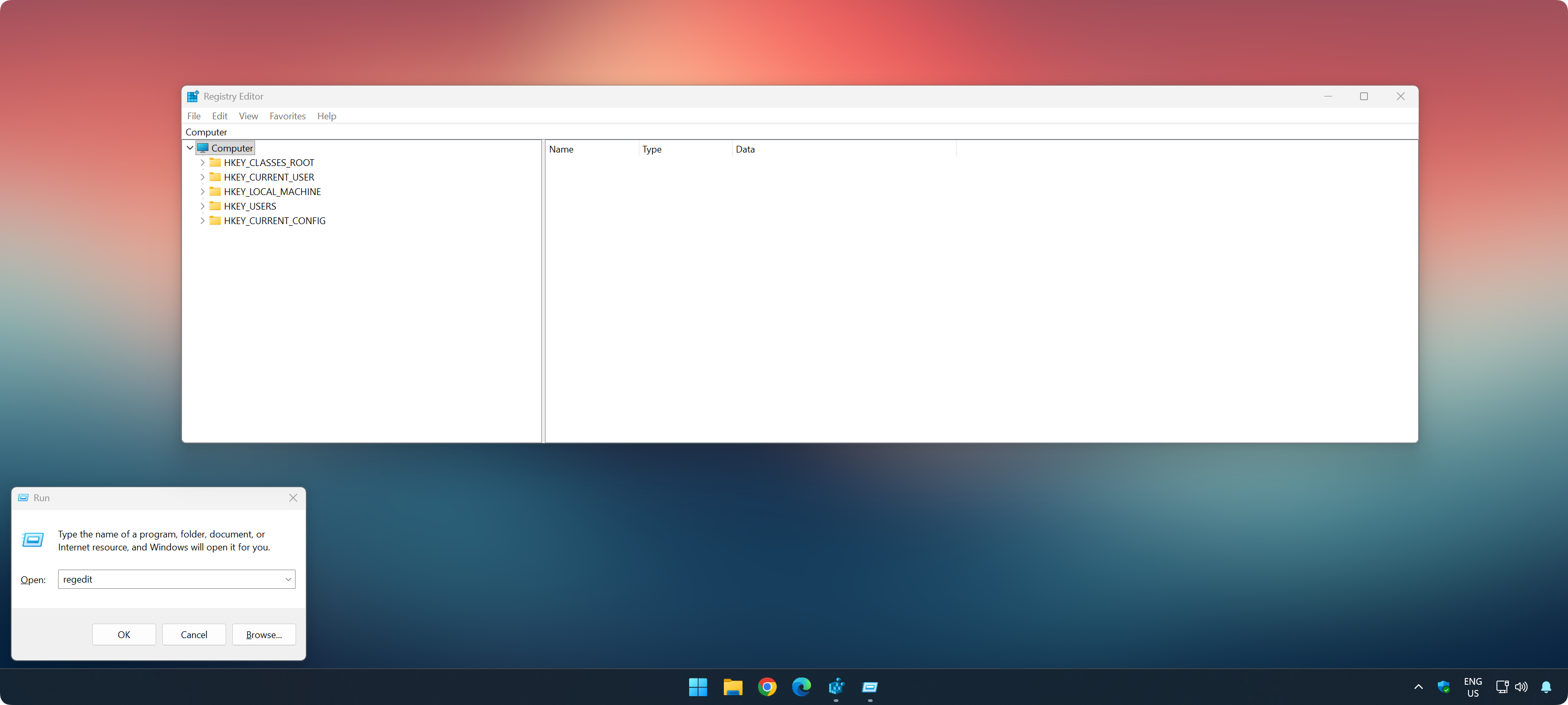
In Registry Editor, go to:
HKEY_LOCAL_MACHINE
SOFTWARE
Microsoft
Windows
Windows Error Reporting
The full registry path should now be:
HKEY_LOCAL_MACHINE\SOFTWARE\Microsoft\Windows\Windows Error Reporting
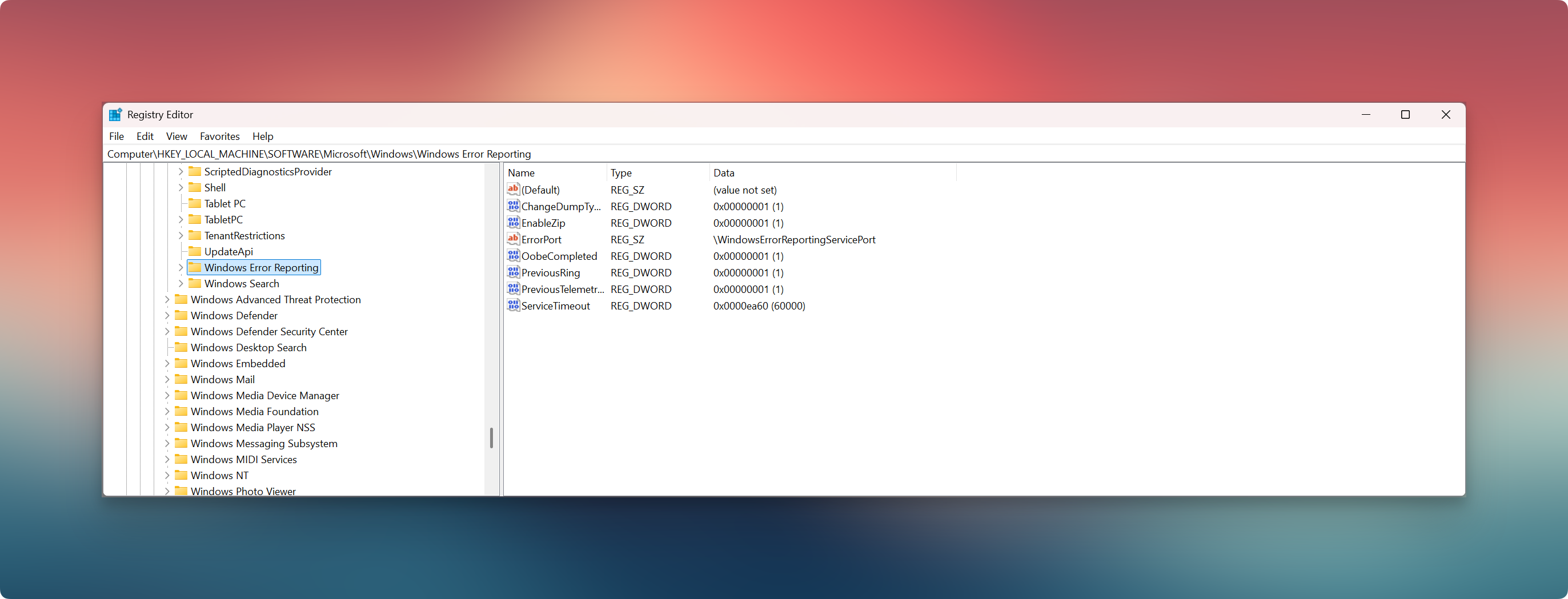
If it does not already exist:
- Right-click Windows Error Reporting
- Select New → Key
- Name the key: LocalDumps
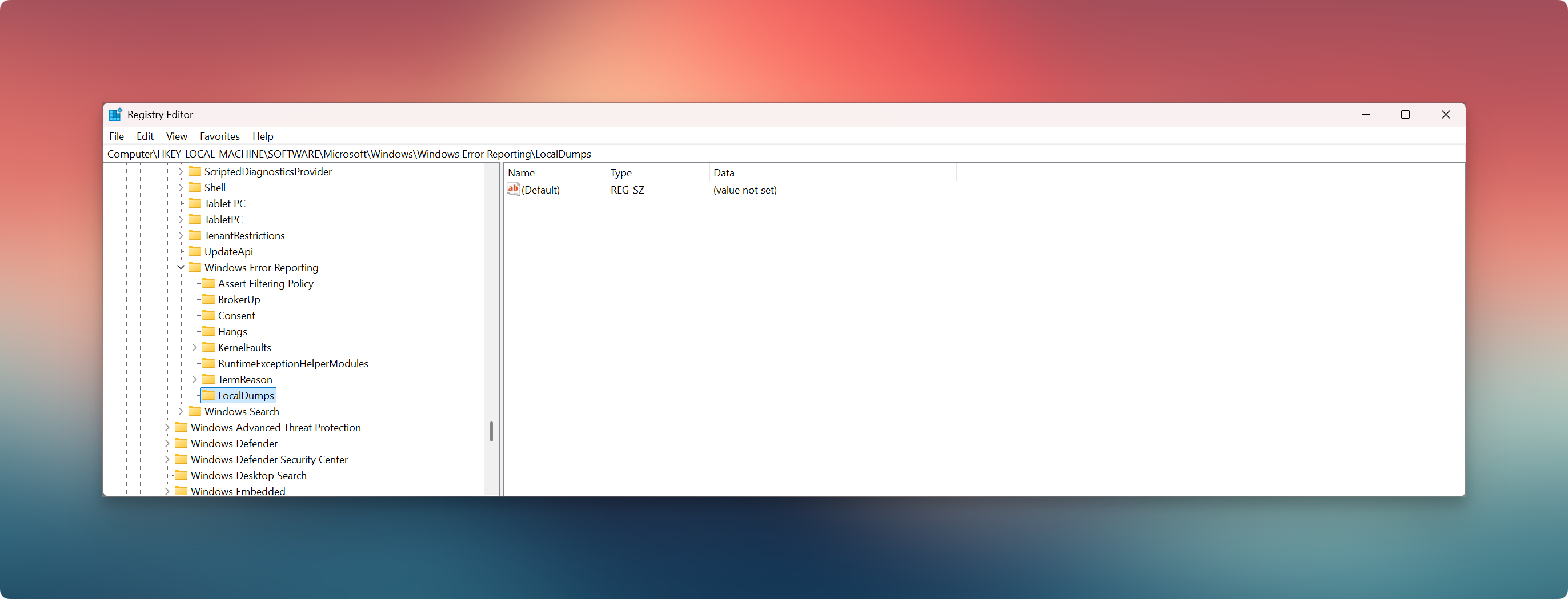
Right-click LocalDumps
Select New → Key
Name the key exactly:
RushFiles.Client.WinUI.exe
The full registry path should now be:
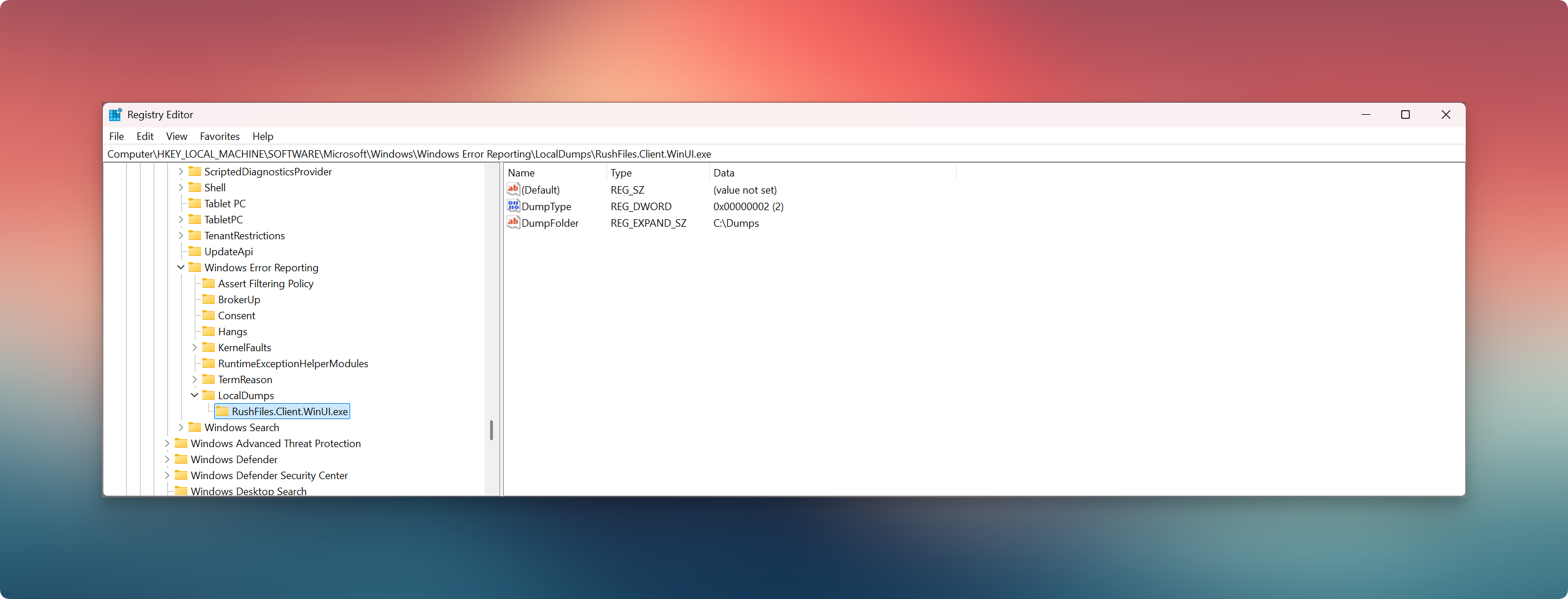
HKEY_LOCAL_MACHINE\SOFTWARE\Microsoft\Windows\Windows Error Reporting\LocalDumps\RushFiles.Client.WinUI.exe
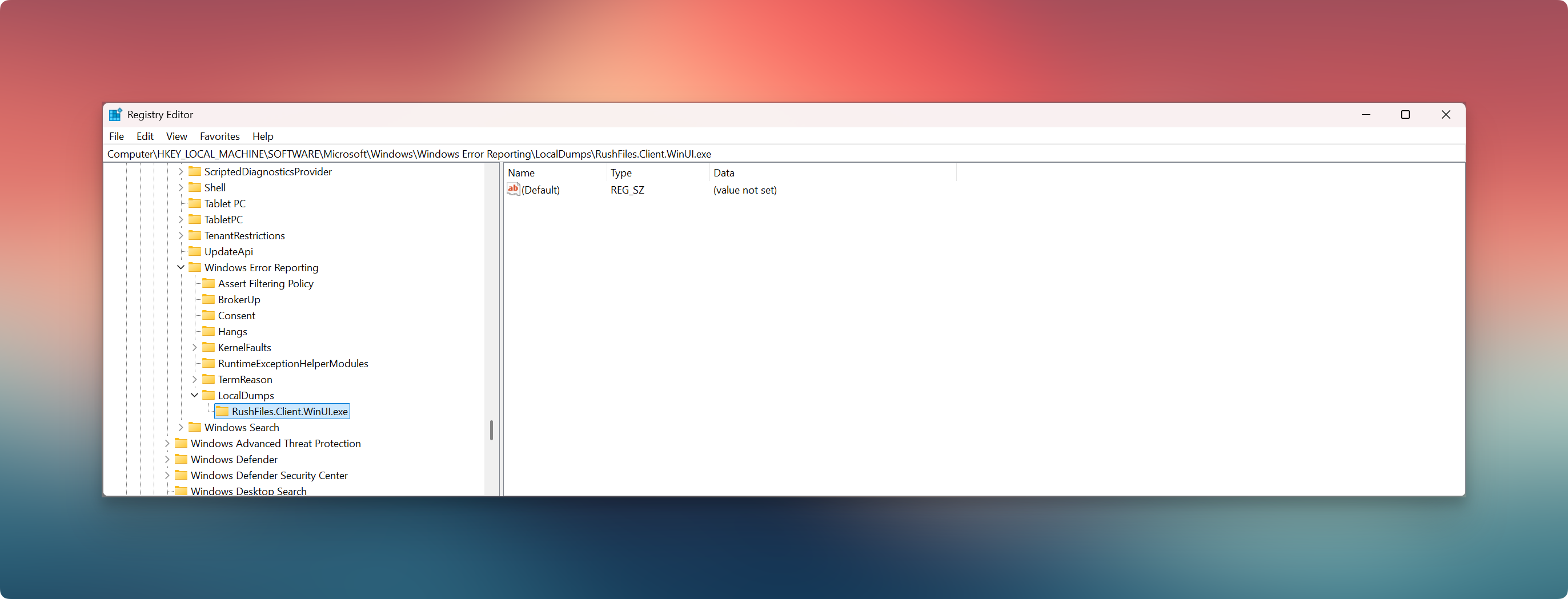
Inside the RushFiles.Client.WinUI.exe key, create the following values:
Value 1
Name: DumpType
Type: DWORD (32-bit)
Value data: 2
Note: Value 2 means Full dump. It may display as hexadecimal (0x00000002), which is expected.
Value 2
Name: DumpFolder
Type: Expandable String Value
Value data:
C:\Dumps
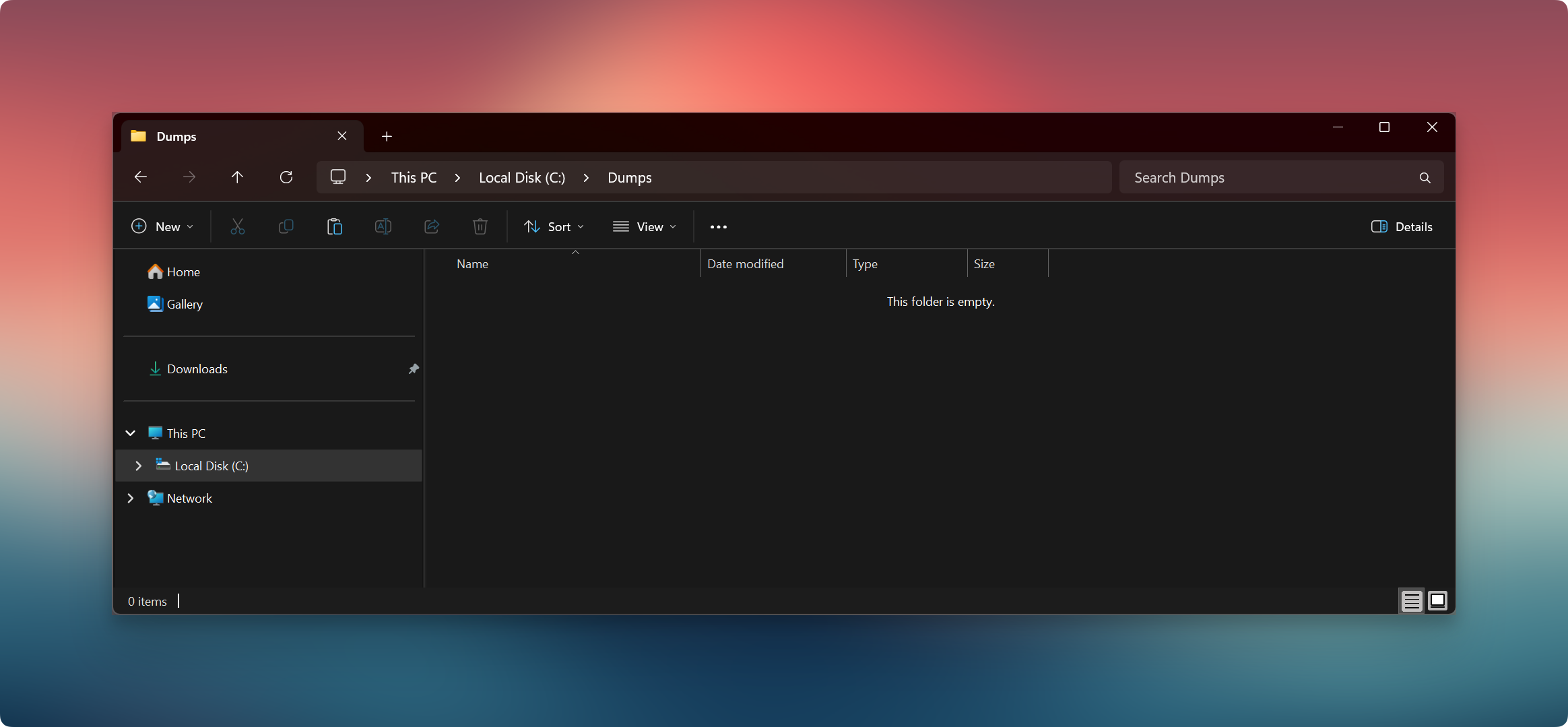
Open File Explorer
Navigate to Local Disk (C:)
Create a new folder named: Dumps
Ensure the folder exists before proceeding.
A reboot is recommended so Windows Error Reporting picks up the new configuration correctly.
What happens after this is enabled
When the Windows app crashes, Windows automatically creates a .dmp file
The dump file is saved under:
C:\Dumps
The file name will look similar to:
RushFiles.Client.WinUI.exe.<process_id>.dmp
Note: When submitting a dump file, please also include the log files exported from the Windows app, so the crash dump can be correlated with application activity and events.
Users, please contact the reseller for assistance. Each reseller manages its own company accounts and provides support for access, configuration, and troubleshooting.
Partners and resellers, please contact the RushFiles Support team by submitting a new ticket at: Submit New Support Ticket