
The Sync folder is the local folder created by the Windows app where users work with their files directly from Windows File Explorer.
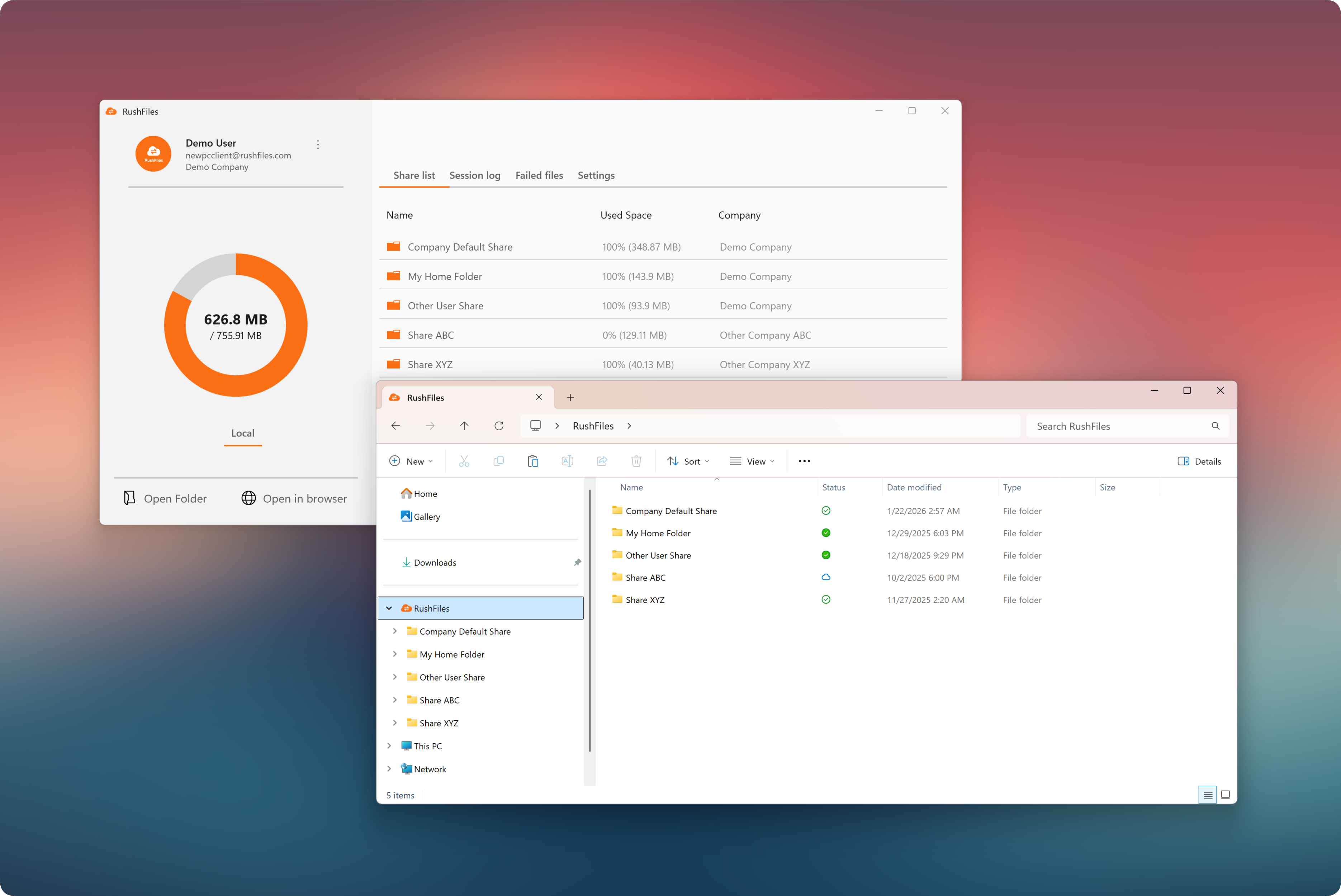
It stays connected to RushFiles in the background and automatically keeps files synchronized, similar to how cloud storage tools work, while still allowing users to work with files like normal local folders.
After a user signs in to the RushFiles Windows app, the Sync folder becomes visible in Windows File Explorer.
Within the Sync folder, users may see the following, depending on their user type and company configuration:
Company Default Share
This Share is available only to Admin and Internal user types. It appears in the Sync folder only if it is enabled by the company administrator in the RushFiles Web app. When enabled, it typically serves as a shared workspace for the company.
User Home Share (personal Share)
Each user has their own personal Share. The displayed folder name may be customized (for example, “My Home Folder”), but it represents a user-specific Share intended for personal or private content.
Additional assigned Shares
These include any other Shares explicitly assigned to the user. Assigned Shares may belong to the same company or originate from external organizations or domains, depending on access permissions.
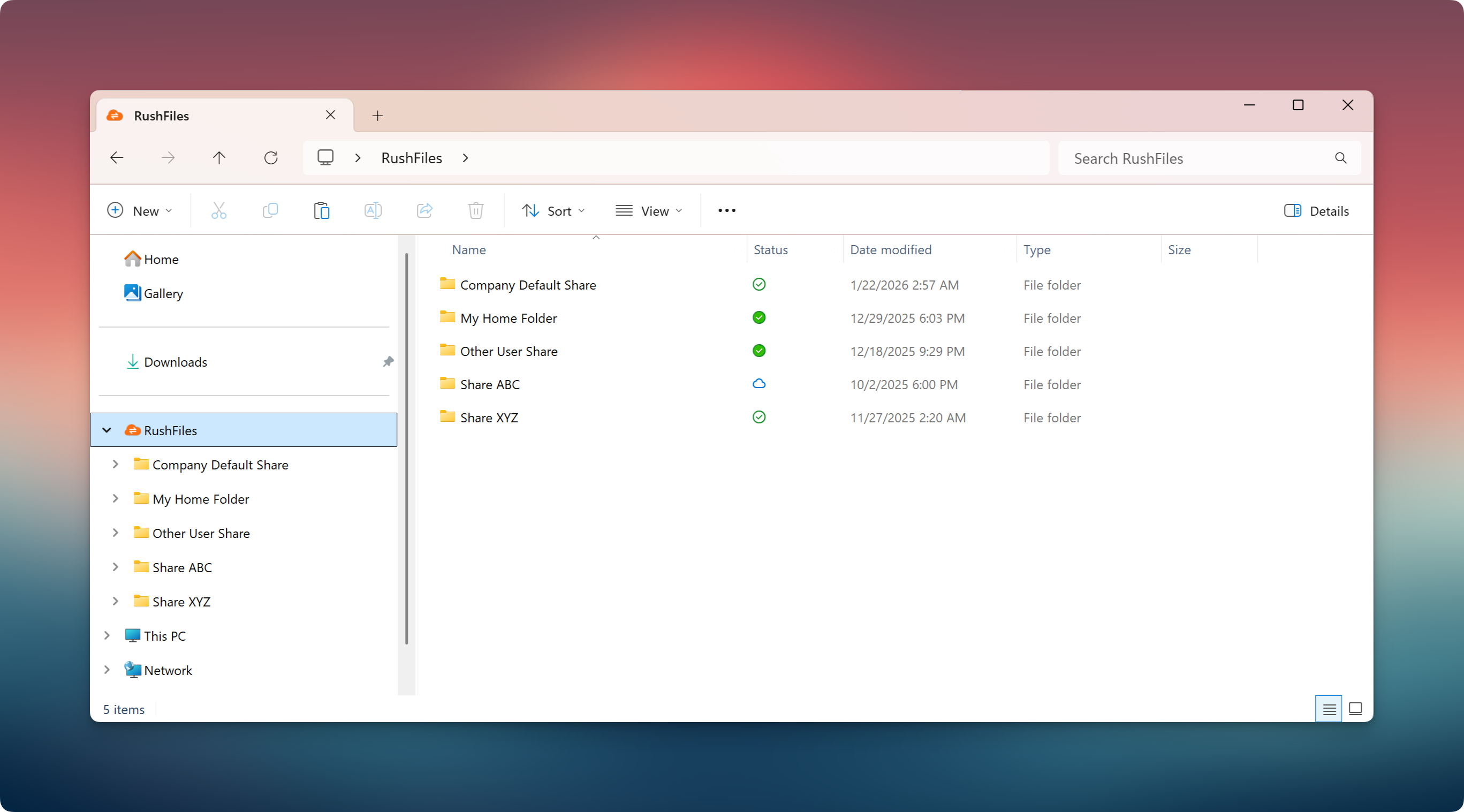
Each Share appears as a standard folder in Windows File Explorer, with access rights and permissions controlled by administrators through the Web app.
The Sync folder maintains an active background connection to RushFiles.
Key synchronization behaviors include:
File changes are automatically uploaded
Updates from other users appear automatically
Synchronization occurs whenever the device is online
This ensures users always work with the most up-to-date versions of files.
The Windows app uses a Windows-native sync engine that displays file hydration and synchronization states directly within the Sync folder in Windows File Explorer. These status icons provide immediate visibility into each file’s availability and sync state using familiar Windows indicators.
The currently supported status icons are:
Blue cloud icon
The file is available online only and is not stored locally on the device.
Green tick icon
The file has been downloaded and is available on this device.
Solid green circle with white checkmark
The file is marked as Always available on this device and will remain downloaded for offline access.
Padlock icon
The file is locked and cannot be modified by the user.
Circular arrows
Synchronization is in progress.
Circular arrows with red X
Synchronization is pending or has failed. User action may be required, and recovery can be performed through the Failed files tab in the Windows app.
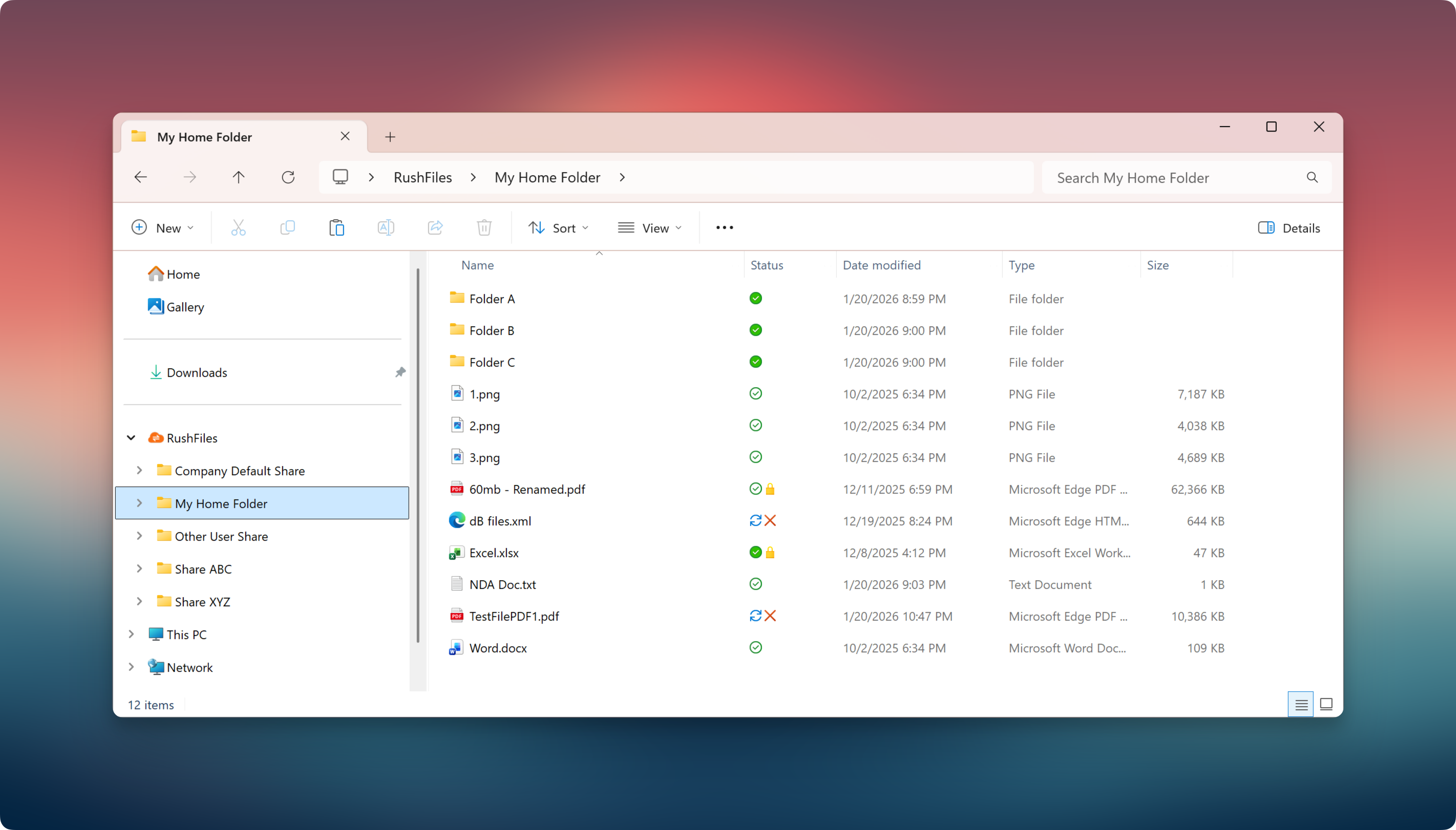
These indicators allow users and support teams to quickly identify file status, troubleshoot synchronization issues, and understand local storage behavior.
Offline availability depends on the file’s hydration state, as indicated by its status icon in Windows File Explorer:
Files showing a green tick icon are downloaded and stored locally, allowing them to be accessed without an internet connection.
Files showing a solid green circle with a white checkmark are marked as Always available on this device. These files are stored locally, remain accessible, and can be edited without an internet connection.
Files marked with a blue cloud icon are online-only and require an active internet connection to open.
Changes made to locally available files while offline are queued and automatically synchronized once connectivity is restored.
Users can manually mark files or folders as Always available on this device to ensure continuous offline access.
The Windows app integrates directly into the standard Windows File Explorer context menu, allowing users to perform RushFiles-specific actions without leaving File Explorer.
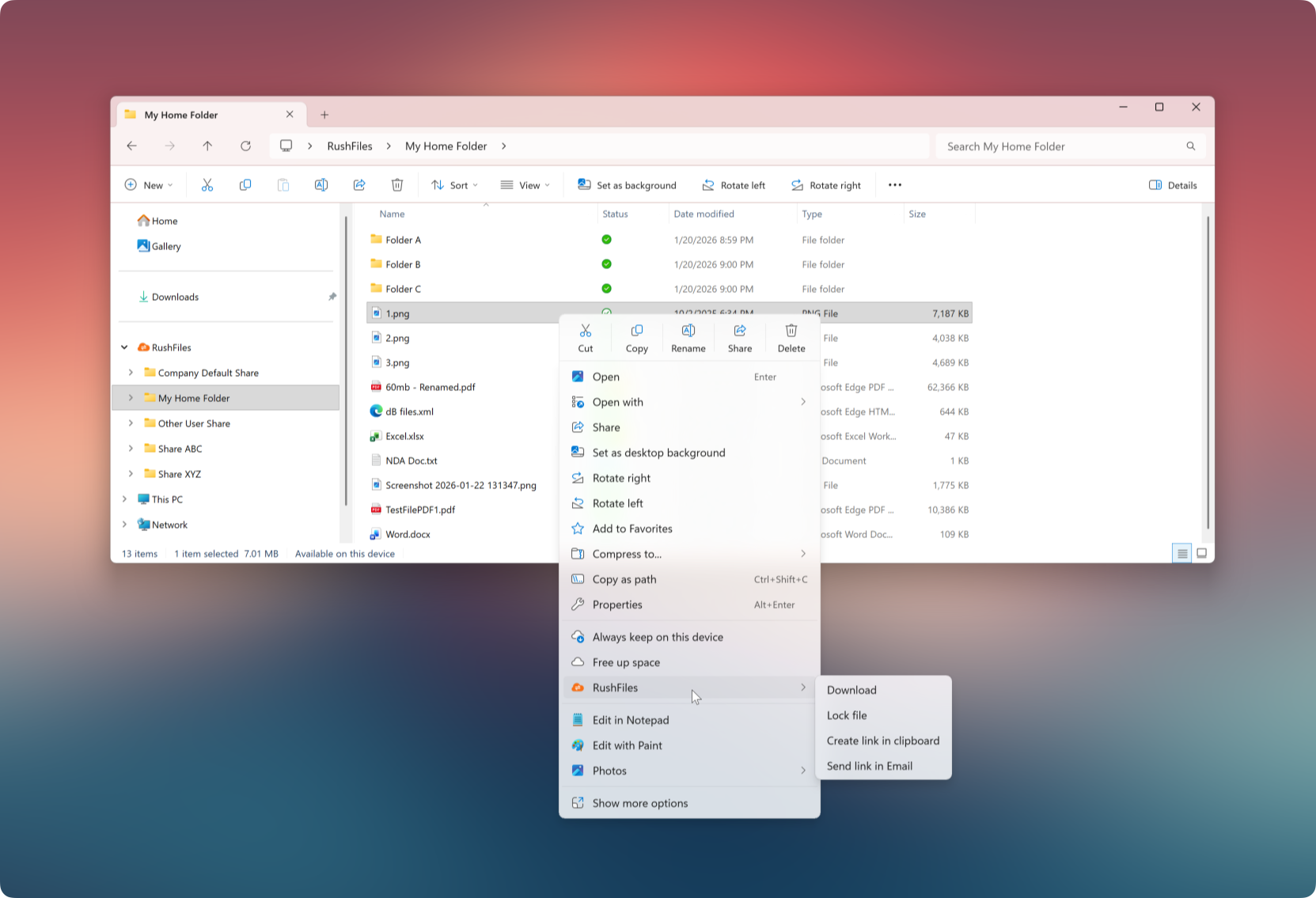
When users right-click a file or folder inside the Sync folder, RushFiles options appear alongside native Windows actions such as Open, Copy, Rename, and Delete.
This integration provides a familiar and seamless experience, consistent with standard Windows behavior.
Depending on file type, permissions, and sync state, the following RushFiles actions may be available:
Download
Downloads the selected file or folder to the device, making it available locally.
Always keep on this device
Marks the file or folder as Always available on this device. The content is stored locally and remains accessible and editable offline.
Free up space
Removes the local copy while keeping the file available online. The file remains visible in the Sync folder with an online-only status.
Lock file
Locks the file to prevent modifications by other users, based on permissions defined in the RushFiles Web app.
Create link in clipboard
Generates a shareable public link and copies it to the clipboard.
Send link in Email
Creates a shareable public link and opens the default email client with the link included.
These actions are executed immediately and reflect the user’s permissions and current sync status.
Note: Context menu behavior follows native Windows conventions to ensure consistency and predictability.
Users, please contact the reseller for assistance. Each reseller manages its own company accounts and provides support for access, configuration, and troubleshooting.
Partners and resellers, please contact the RushFiles Support team by submitting a new ticket at: Submit New Support Ticket