
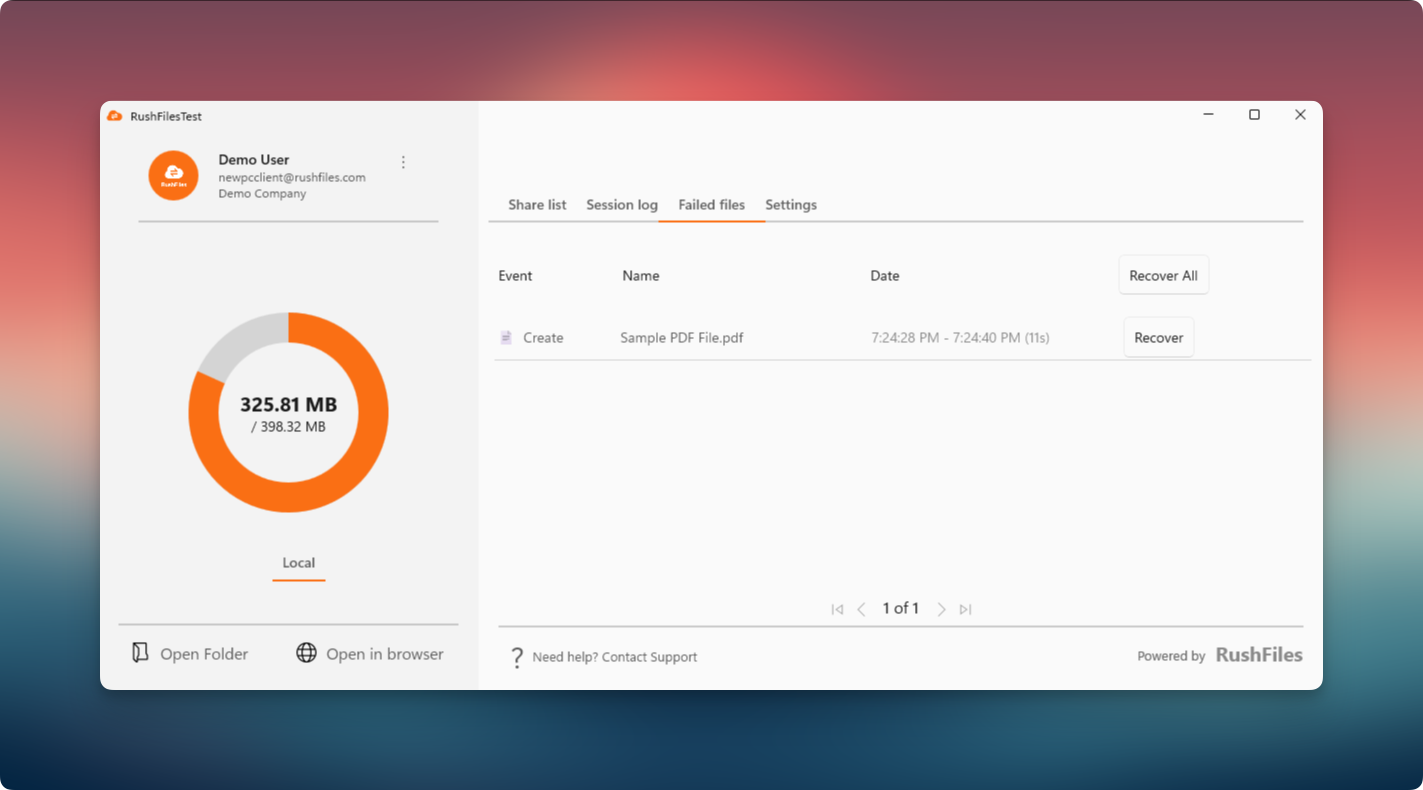
The Failed files tab displays any files that were not successfully uploaded to the RushFiles server. Failed uploads commonly occur when the company storage limit or the individual share’s quota has been reached. In these cases, the file cannot be uploaded and will appear under this section for recovery.
Users have two recovery options:
- Recover a single file - Click the Recover button beside the specific file to save it locally.
- Recover all failed files in bulk - Click Recover All to recover every file listed in the Failed files tab.
Notes:
- The user will be prompted to choose a folder where the failed file(s) will be saved.
The chosen location must be a local disk to ensure the recovery process works properly.
Recovery only saves the file locally; it does not re-upload the file to the server. The user may upload the recovered files again afterward if needed.
Users, please contact the reseller for assistance. Each reseller manages its own company accounts and provides support for access, configuration, and troubleshooting.
Partners and resellers, please contact the RushFiles Support team by submitting a new ticket at: Submit New Support Ticket