
The Session Log tab in the Windows app provides a chronological record of all file-related activities performed by the user or automatically executed by the app. This helps the user understand recent actions, verify completed tasks, and troubleshoot unexpected file behavior.
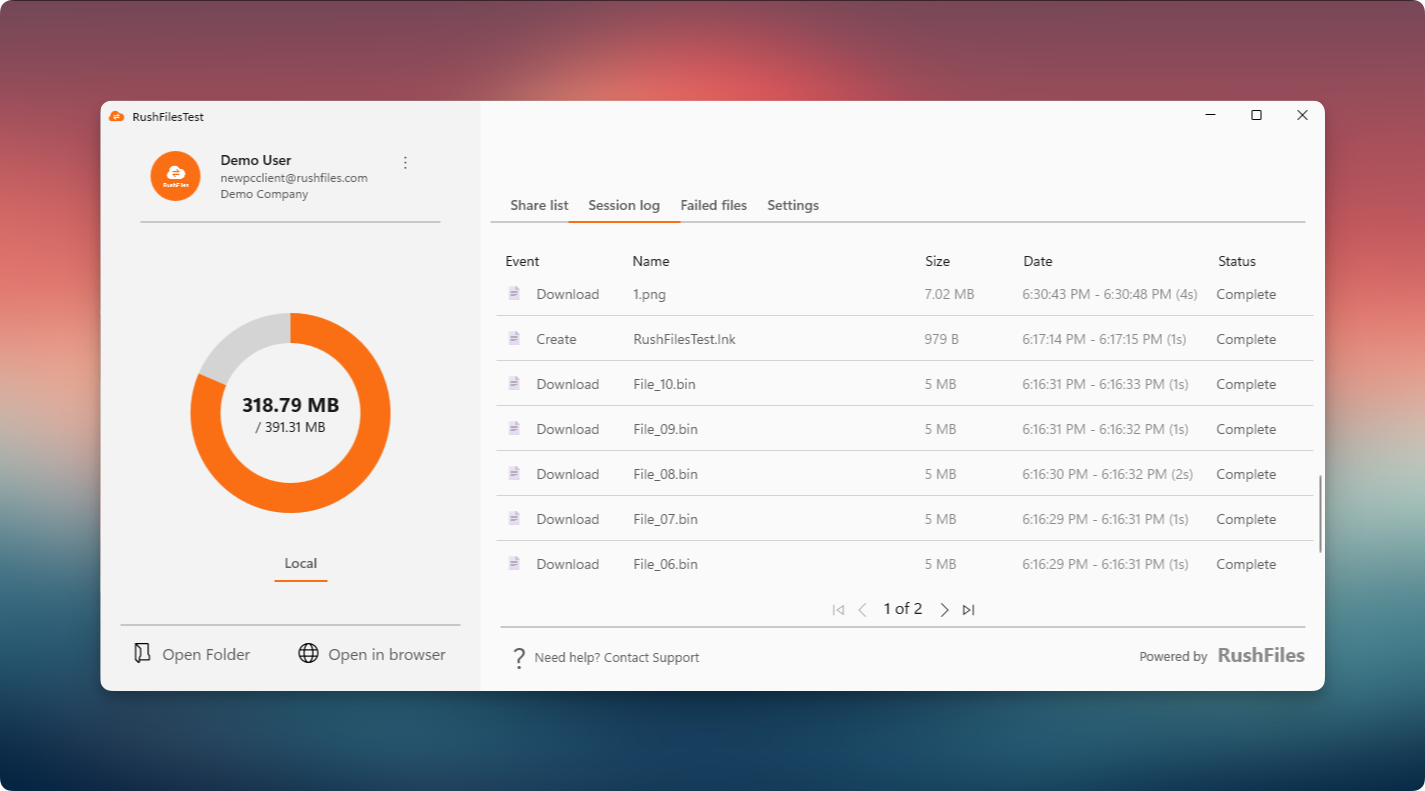
The Session Log displays detailed information for each event, including:
- Event Type – Examples include Download, Create, Rename, Delete, and Move.
- File Name – The exact file or folder involved in the event.
- File Size – Shows the size of the item involved.
- Date and Duration – Provides the exact timestamp when the event started and finished.
- Status – Indicates whether the event is Complete, In progress, or Failed.
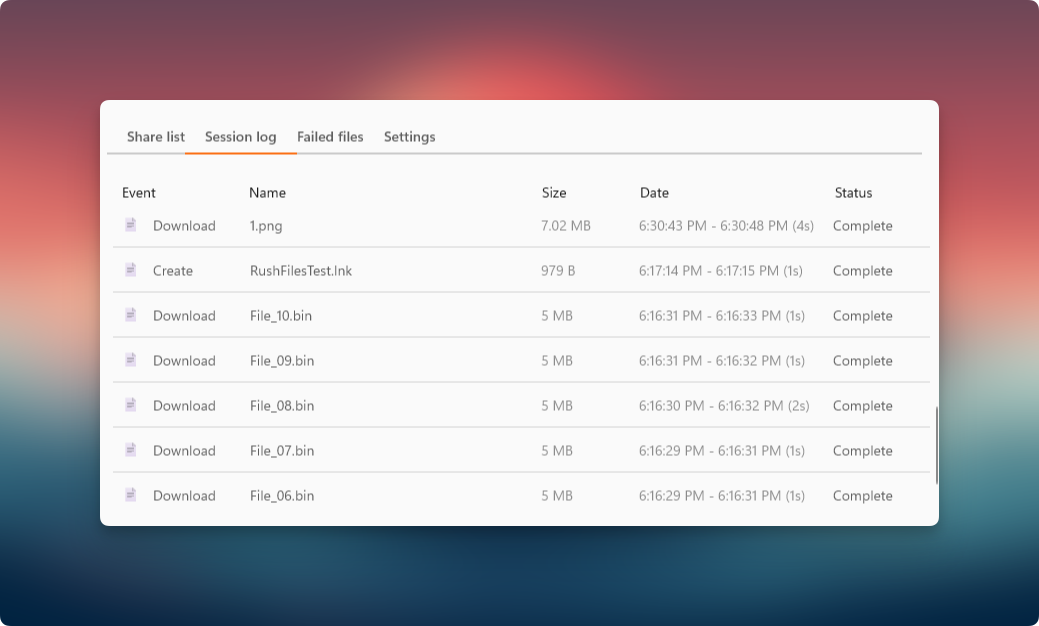
The Session Log helps the user:
- Confirm whether a file was successfully downloaded, uploaded, or modified
- Track recent changes made inside the Sync folder
- Review actions from automatic synchronizations
- Identify which files recently failed or required attention
- Validate whether specific transfers completed during a particular timeframe
Events are listed from newest to oldest for easy review. Each row includes:
- Event icon and type
- File name
- Transfer size
- Start and end time
- Completion status
If there are many logged events, the user can navigate pages using the arrow controls at the bottom of the tab.
The user may find this tab particularly helpful when:
- Files are not appearing as expected in the Sync folder.
- A user wants to know if a download or upload was completed
- A transfer was interrupted and needs verification
- A user is troubleshooting unexpected file behavior such as duplicates or missing items
Users, please contact the reseller for assistance. Each reseller manages its own company accounts and provides support for access, configuration, and troubleshooting.
Partners and resellers, please contact the RushFiles Support team by submitting a new ticket at: Submit New Support Ticket