
The Windows app includes several customizable settings that allow the user to adjust language, local file retention, theme appearance, and general app behavior. These options help ensure the app works according to the user’s preference and workflow.
Notes
- Any changes made in this section take effect immediately.
- Adjustments in the User Preferences panel affect only the signed-in user and do not change global company settings.
- Local file retention has a direct impact on how long the Windows app keeps downloaded (cached) files before automatic cleanup occurs.
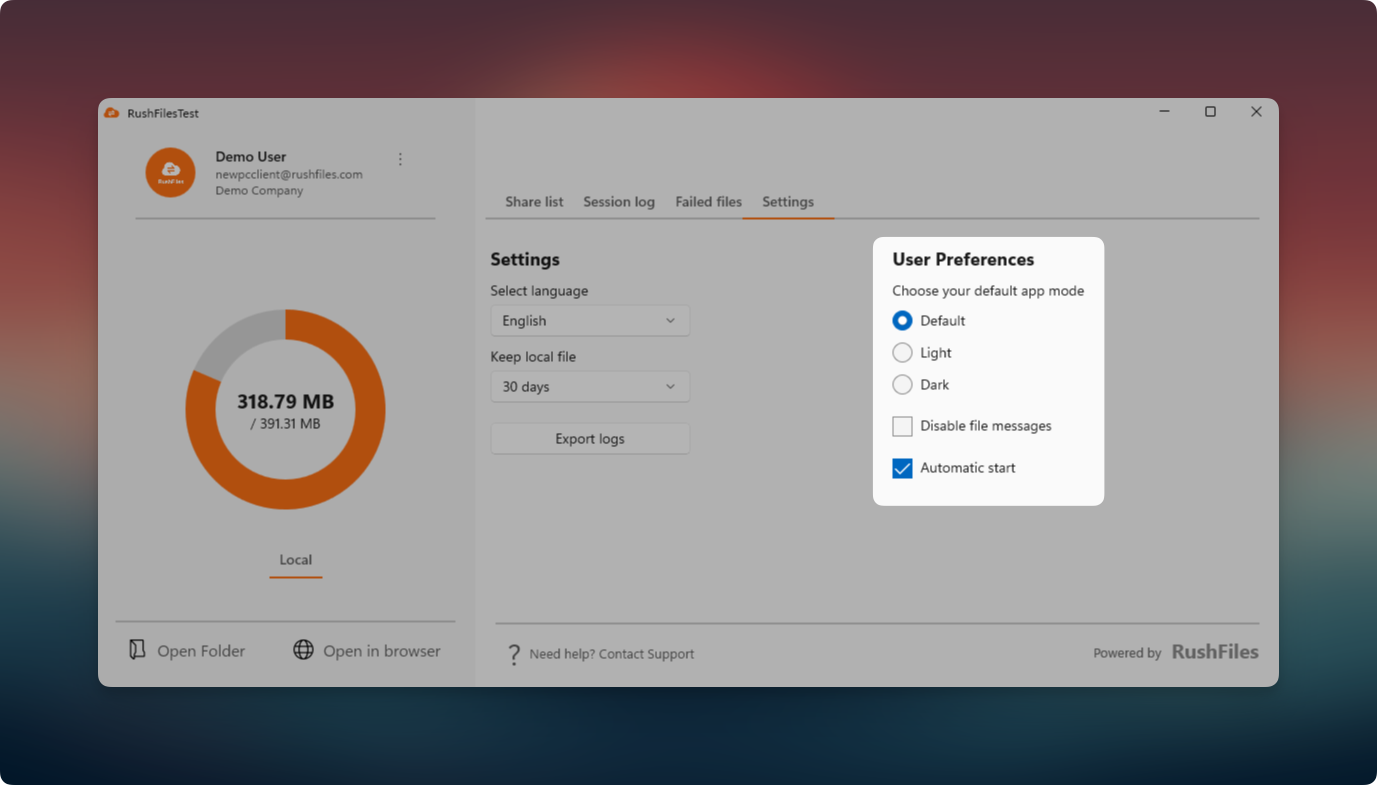
To access the available customization options, the user can open the Windows app and go to the Settings tab located in the top navigation bar.
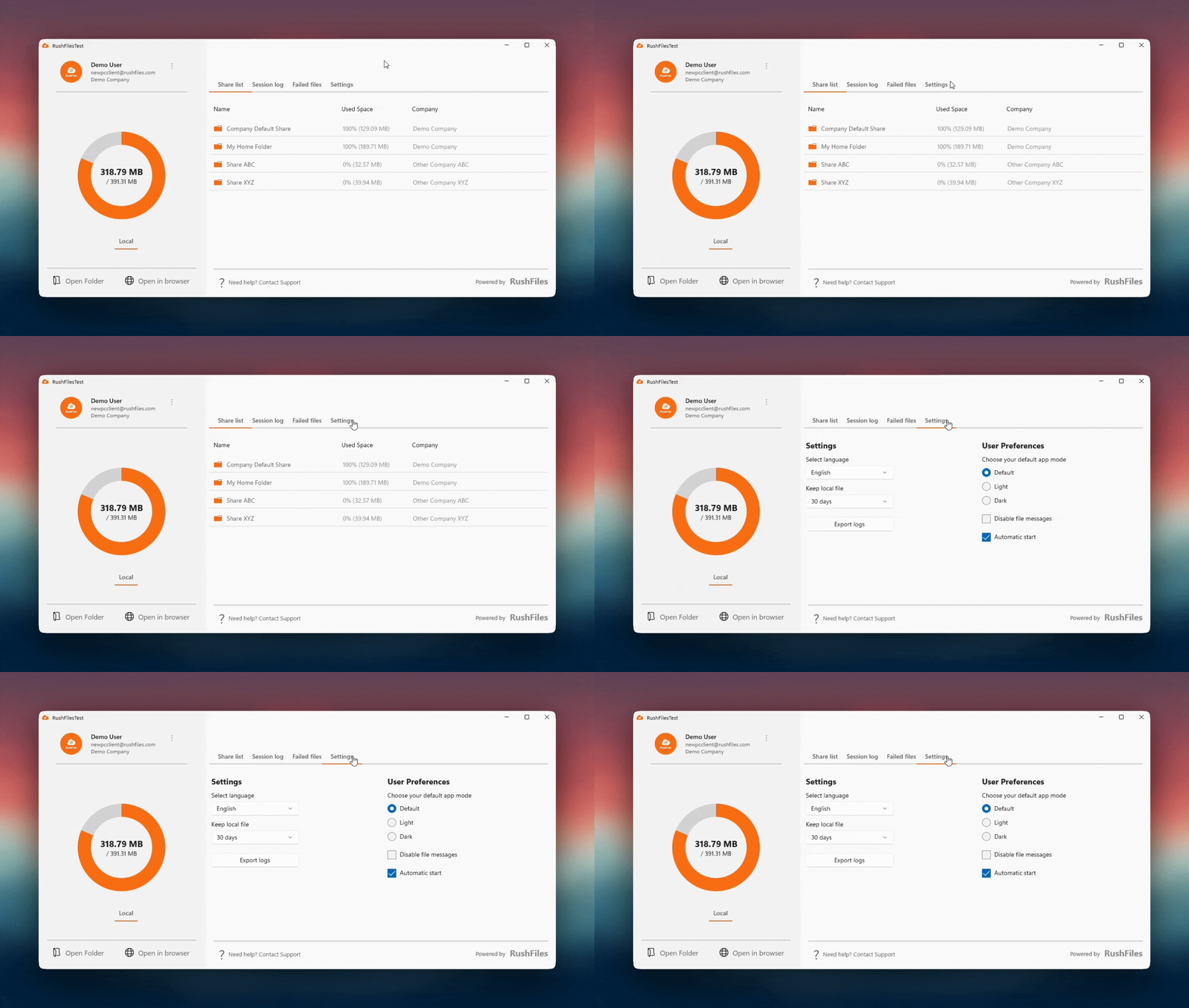
Users can choose their preferred app language from the Select language dropdown. This changes the interface language across the entire application.
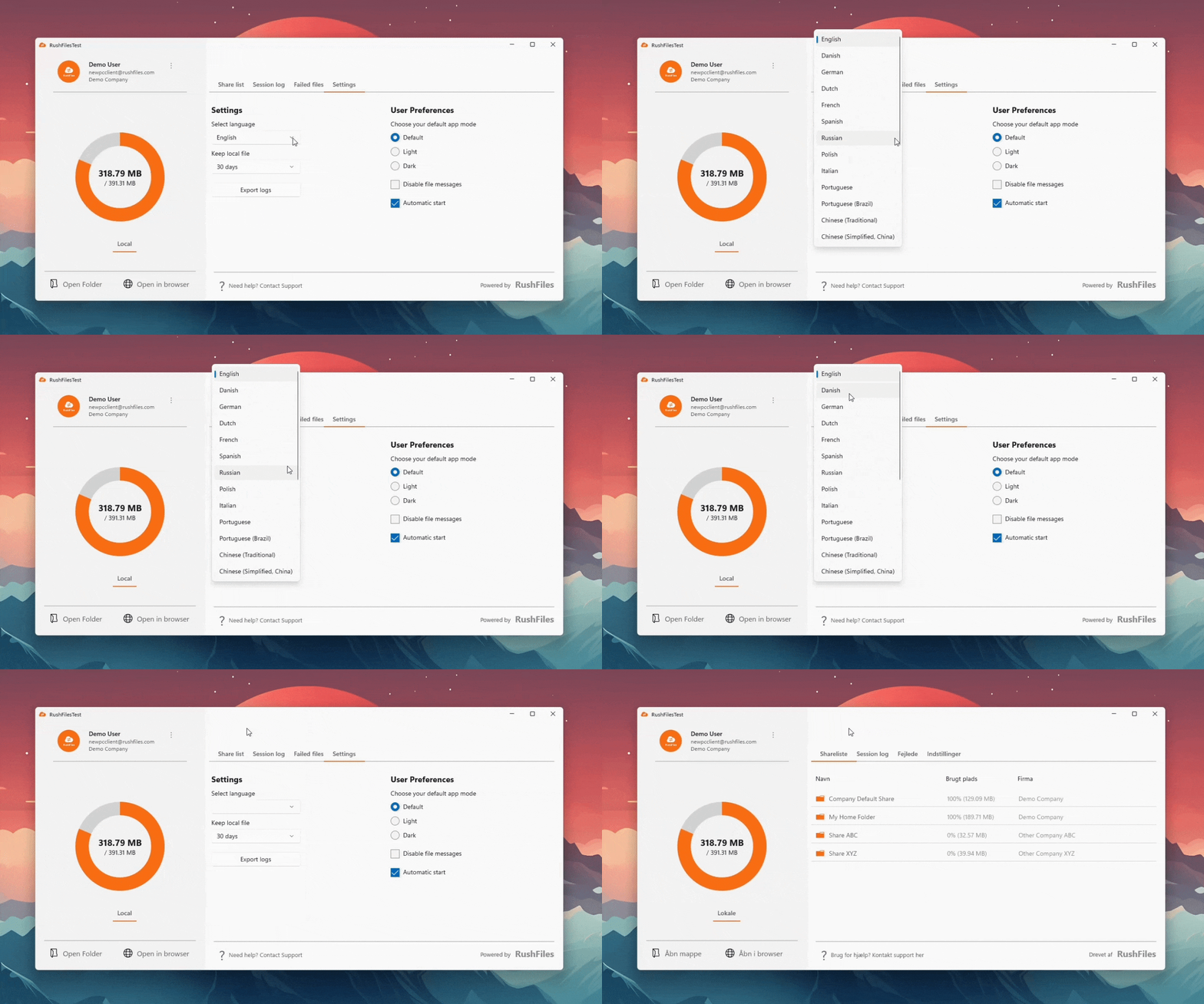
The Keep local file option allows the user to define how long downloaded files remain stored locally before the app removes them automatically.
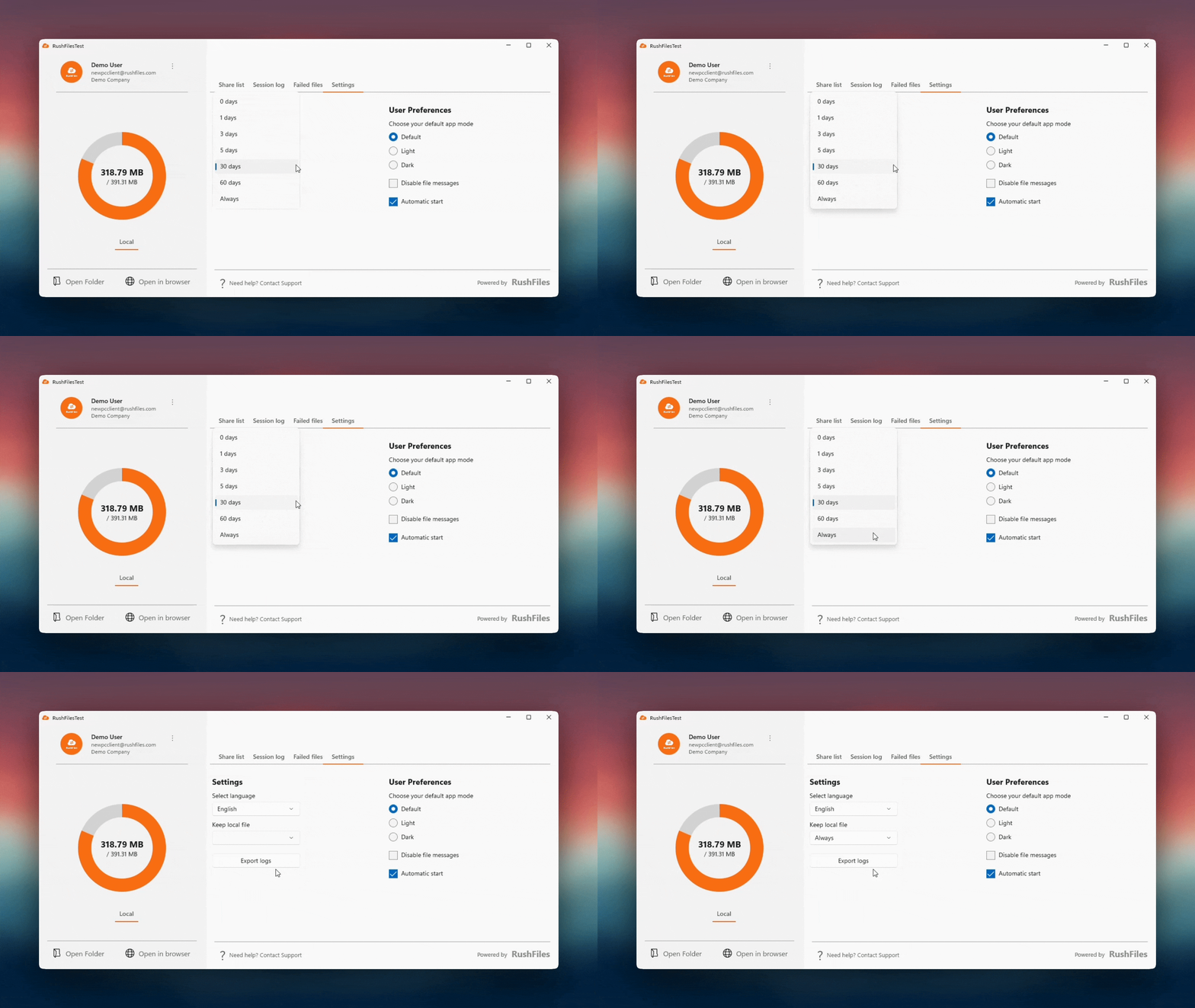
Notes
- This setting affects only cached files inside the Sync folder.
- If the user needs continuous offline access to files, longer retention or 'Always' is recommended.
Users can export logs by selecting the Export logs button. Support teams may request these logs to help investigate issues or unexpected behaviors.
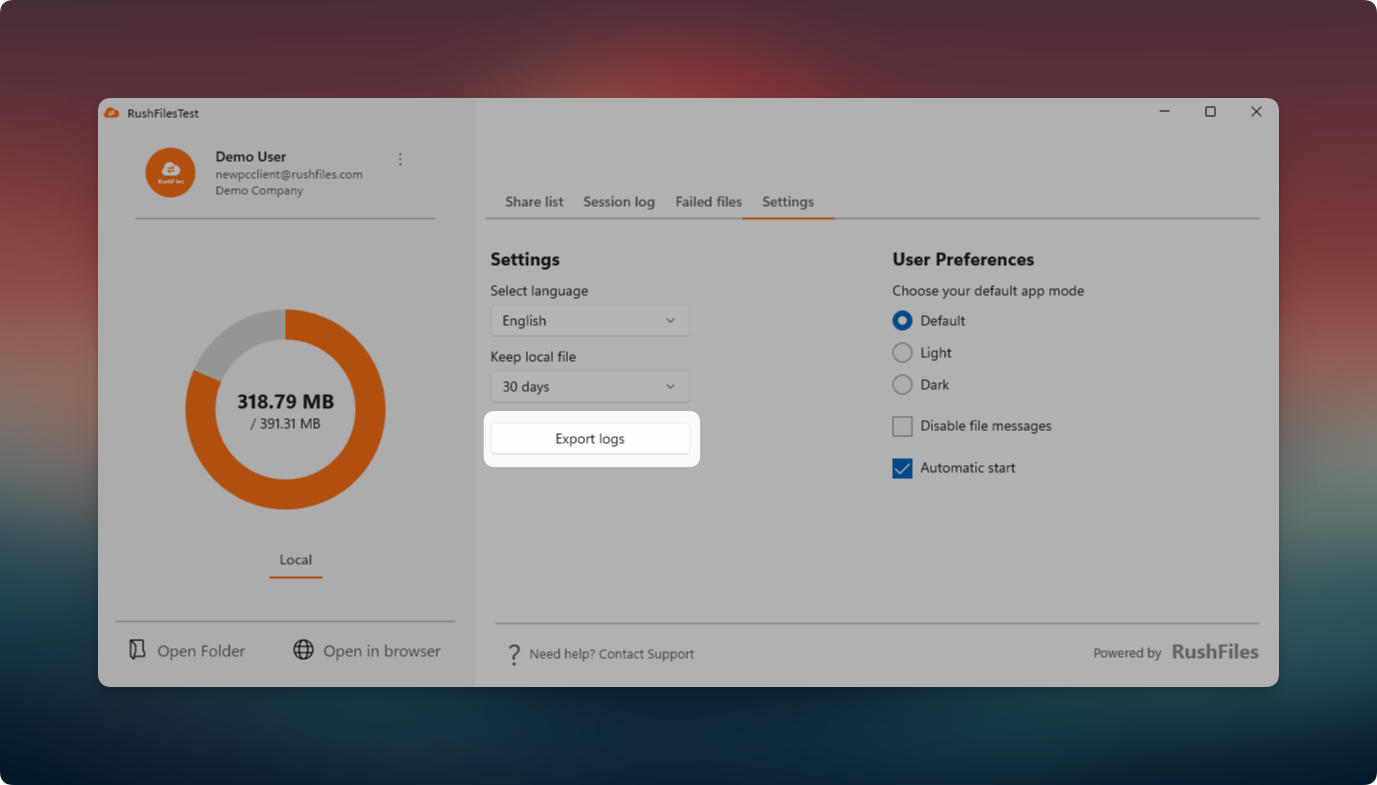
This panel allows the user to choose how the application appears and behaves.
App mode options:
- Default
- Light
- Dark
Additional preference options:
- Disable file messages: Prevents pop-up notifications related to file actions.
- Automatic start: Launches the Windows app automatically when the operating system boots.
Notes
- The chosen app mode updates the entire UI instantly.
- Automatic start is recommended for users who work with Windows app daily.
End-users, please contact the reseller for assistance. Each reseller manages its own company accounts and provides support for access, configuration, and troubleshooting.
Partners and resellers, please contact the RushFiles Support team by submitting a new ticket at: Submit New Support Ticket