
Users can keep files available offline in the Windows app by downloading individual files, folders, or full Shares. This ensures the files remain accessible even without an active internet connection.
A user can double-click any file inside a Share located in the Sync folder.
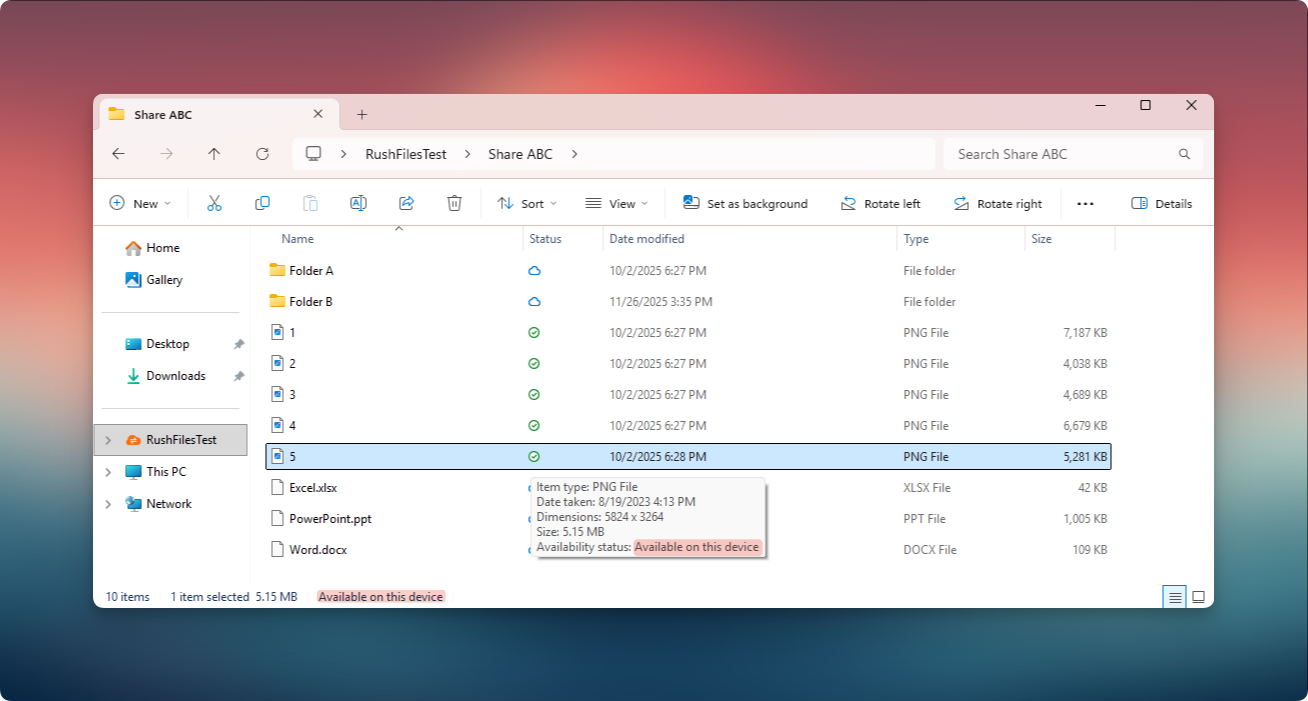
The Windows app downloads the file from the server and stores a cached local copy. Once downloaded, the file becomes available for offline use.
A user can right-click any file or folder inside the Sync folder.
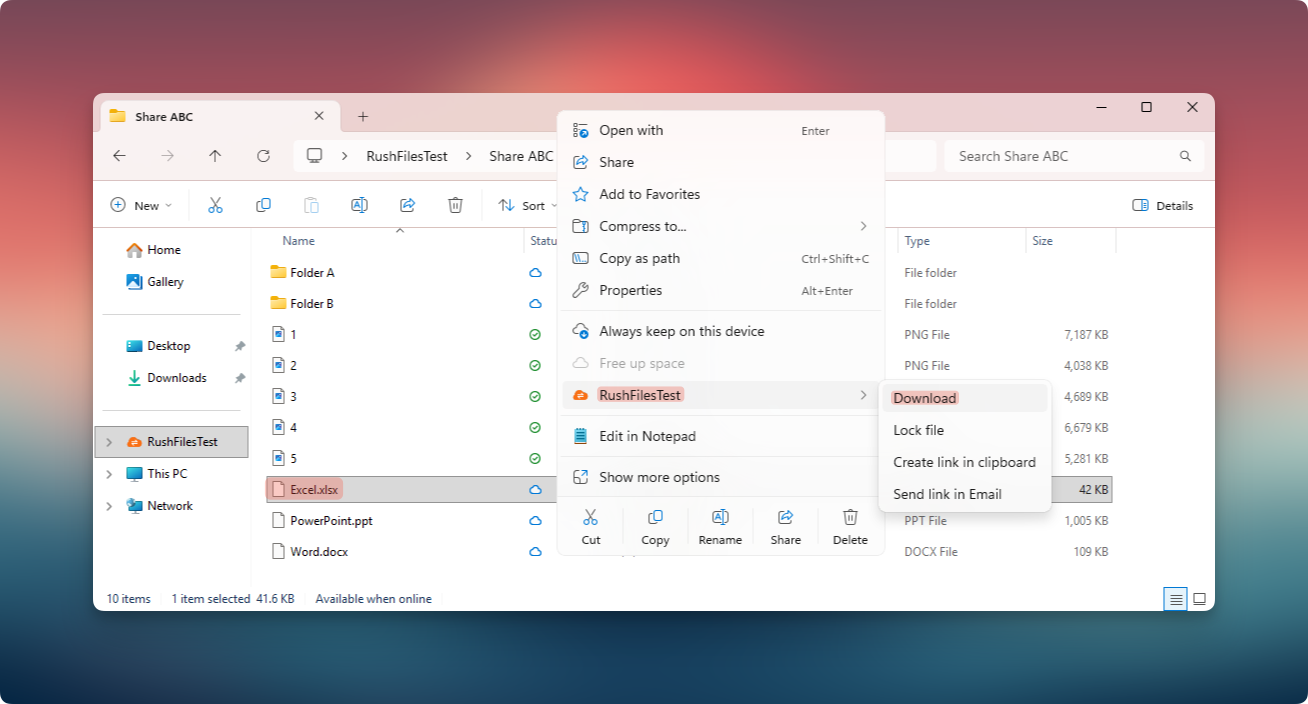
From the RushFiles menu, selecting Download initiates an immediate download of the selected file or folder contents. After downloading, the file is cached locally and can be accessed offline.
A user may choose to keep an entire Share downloaded by enabling Start synchronization in the Windows App.
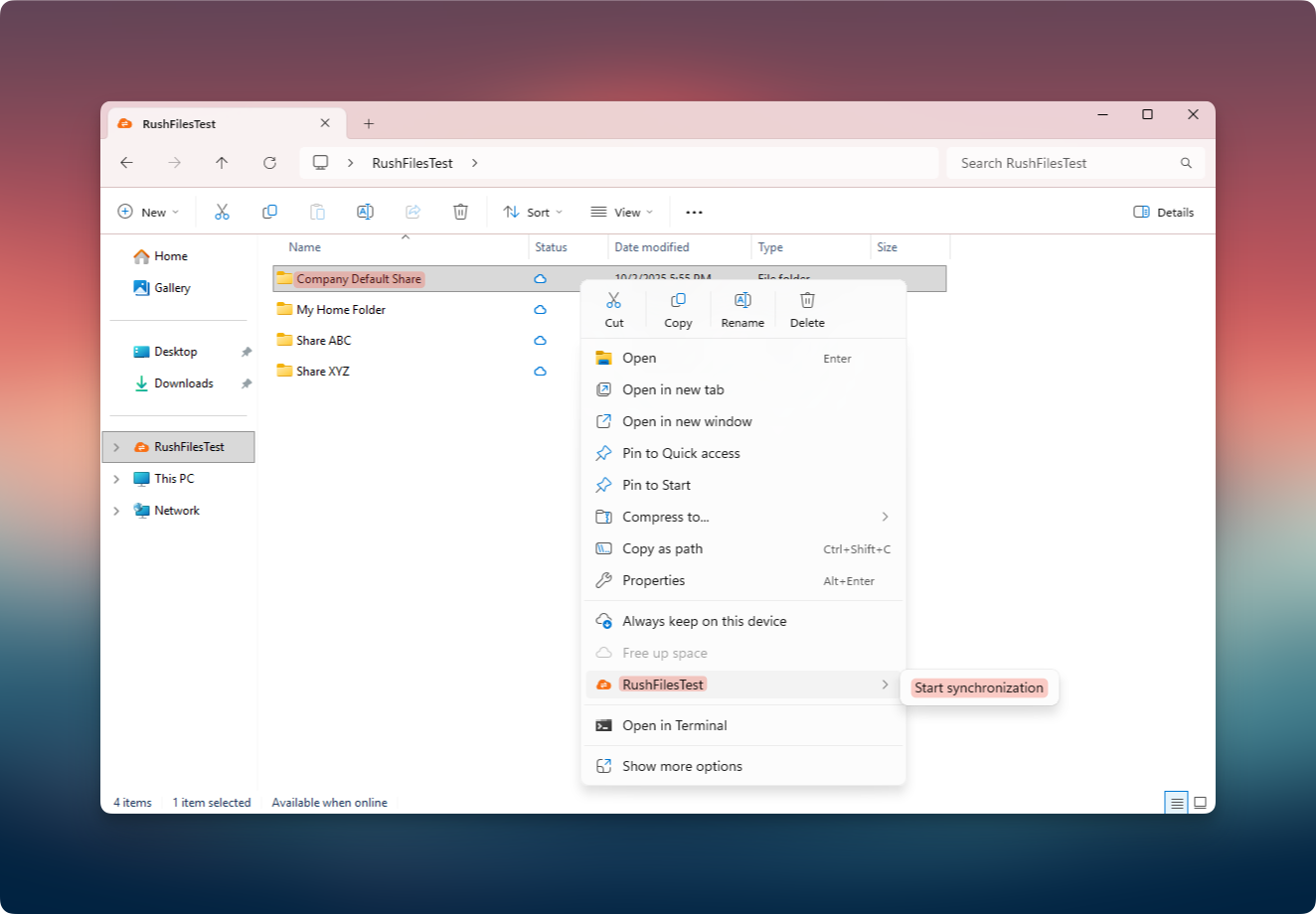
This downloads all files inside the Share and keeps them up to date. Any changes made by other users who have access to that Share are automatically downloaded and cached.
This option is ideal for users who regularly work with the same Share or require uninterrupted offline access.
Cloud icon: File is “Available when online.”
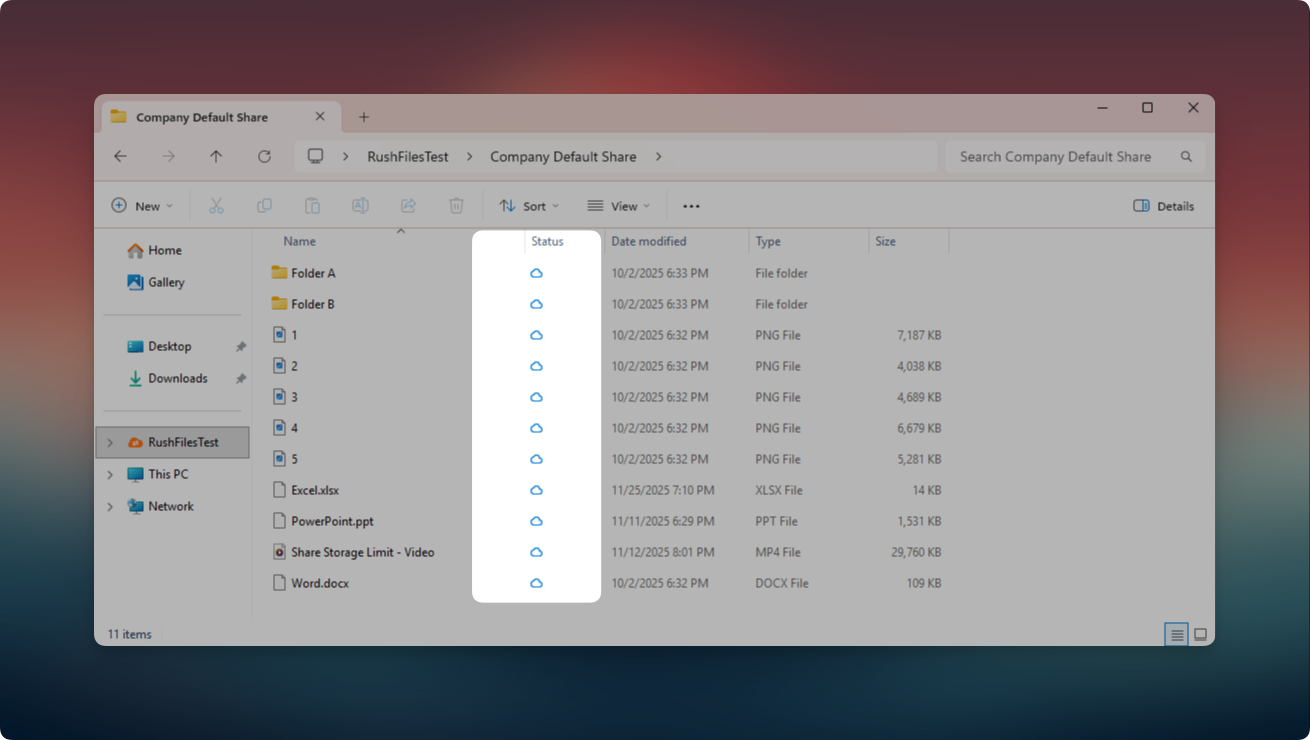
Green tick icon: File is “Available on this device.”
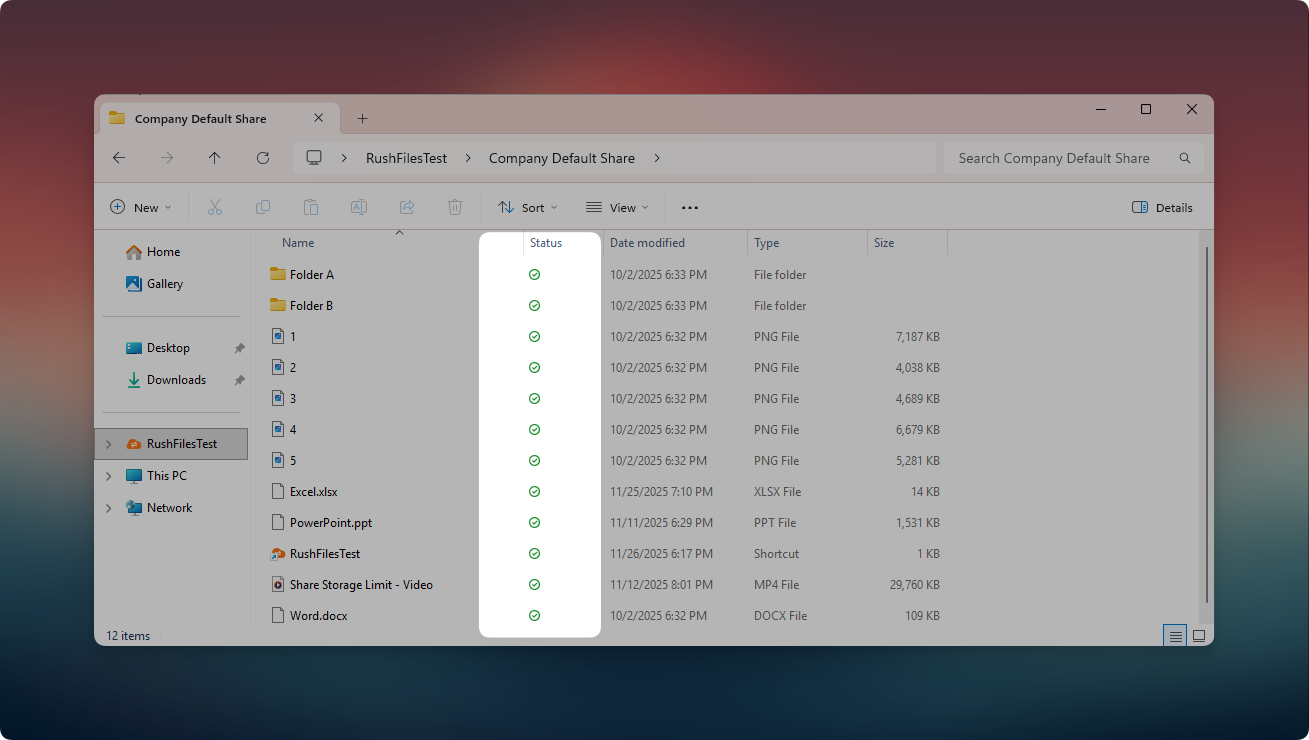
These icons help the user identify whether a file has been downloaded locally.
Notes:
- Files initially show the cloud icon when they have not been downloaded yet.
- After downloading, the icon changes to a green checkmark, indicating the file is stored locally.
- The duration for keeping cached files depends on the selected Keep local file setting.
- Removing a cached file locally does not remove it from the server.
- If cached files are removed based on user settings, the user may need to download files again for offline availability.
Users, please contact the reseller for assistance. Each reseller manages its own company accounts and provides support for access, configuration, and troubleshooting.
For Partners and resellers, please contact the RushFiles Support team by submitting a new ticket at: Submit New Support Ticket