
RushFiles provides a flexible sync system that allows the user to decide how files are stored and synchronized between the local device and the cloud. Understanding how storage and sync behavior works helps ensure that files remain accessible, up to date, and optimized for the user’s available disk space.
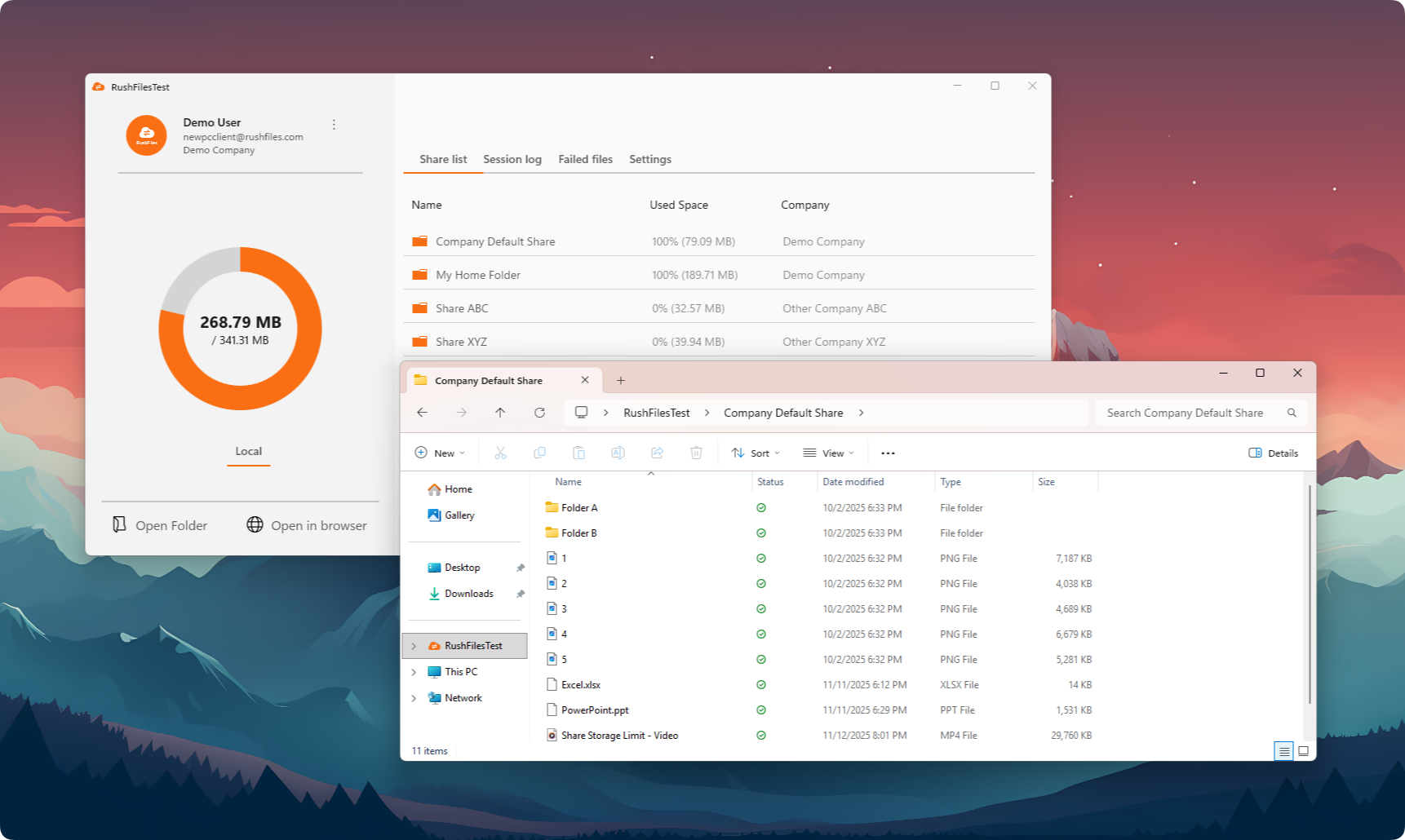
The Windows app syncs files between the local Sync folder and the server. When the user adds or edits a file inside the Sync folder, the update is uploaded to the cloud. When another device or user makes changes to shared content, the updated version is synchronized automatically.
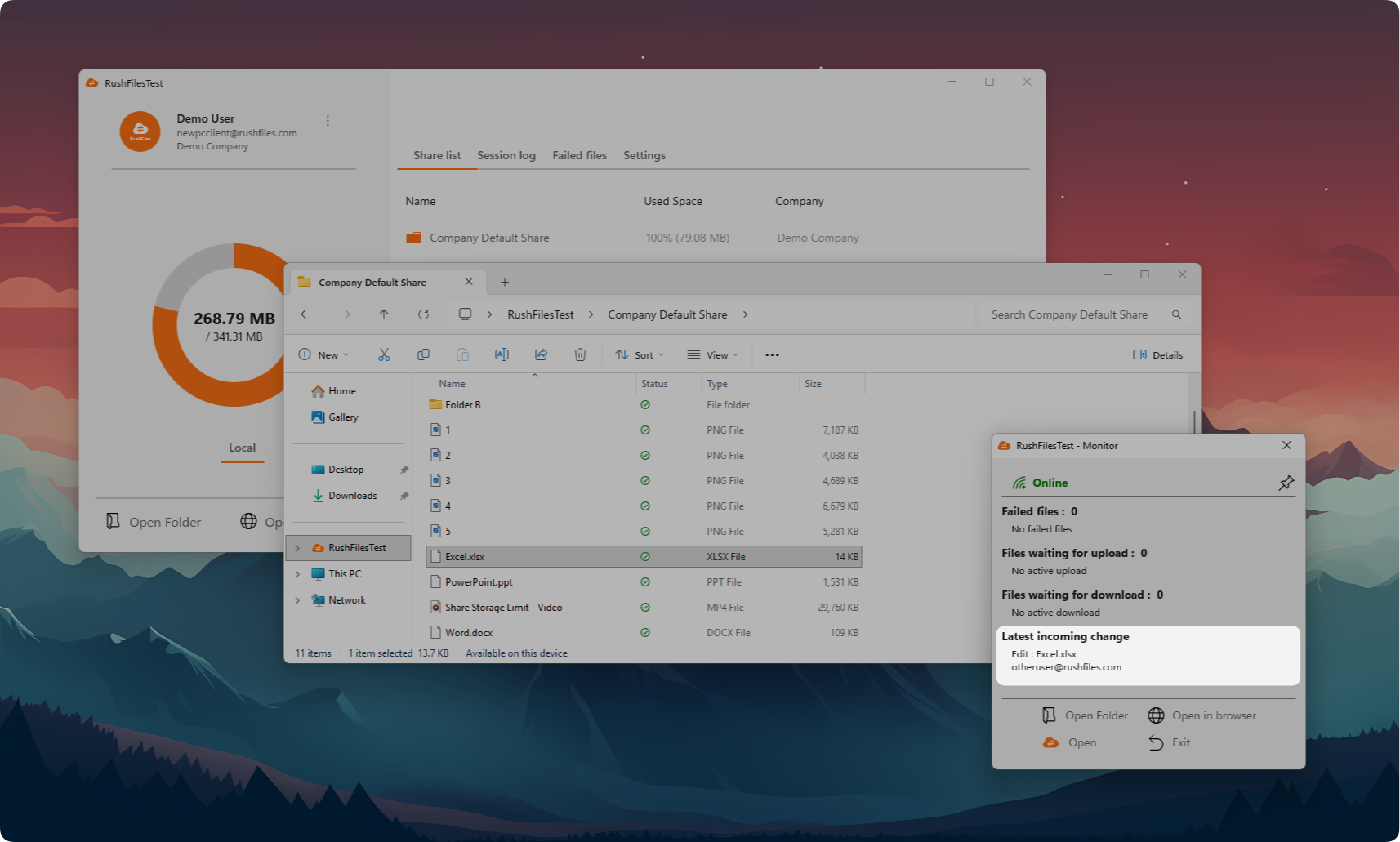
Sync runs in the background and continues as long as the user is connected to the internet and the Windows app is running.
The Windows app uses a new sync engine (e.g., FoD - Files On Demand), which allows files to appear in the Sync folder without immediately taking up local disk space. Files are downloaded only when the user opens them or marks them for offline availability.
Because of this, local storage usage depends on:
- Which files the user has opened or chosen to keep offline
- The size of those locally stored files
- The user’s available disk space
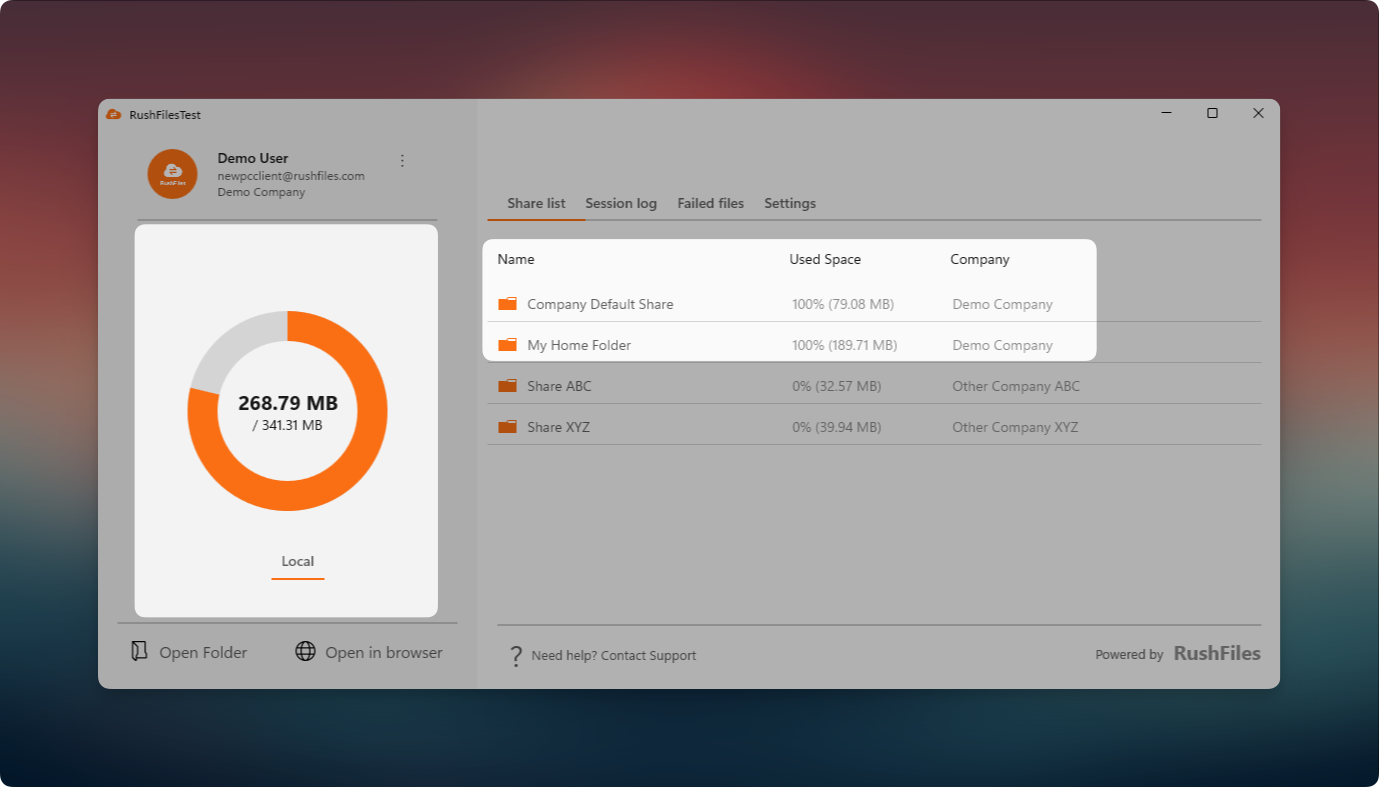
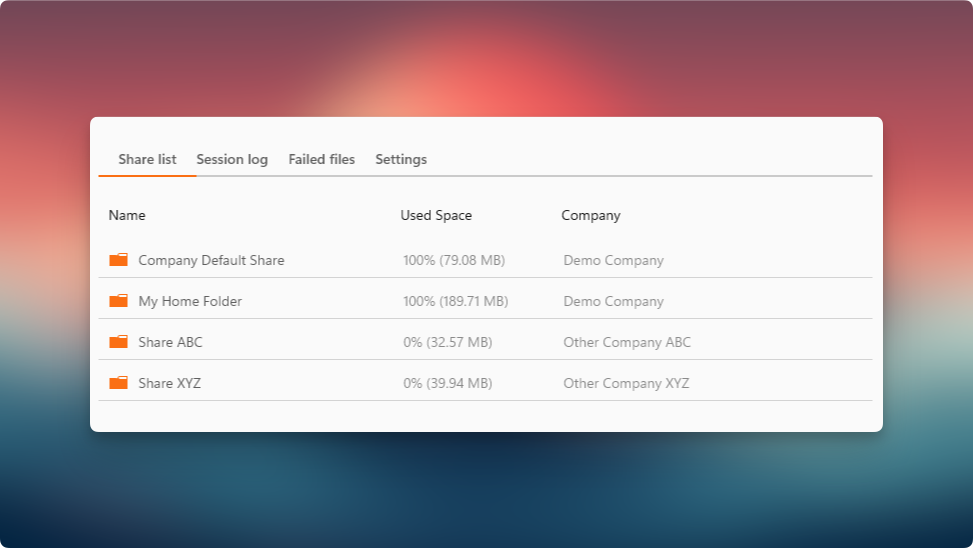
This example shows the Windows app with the Share list tab opened. In this scenario, the first two Shares — Company Default Share and My Home Folder — have already been started with the synchronization feature. Their Used Space is shown as 100%, which means all files inside these Shares have been fully downloaded and cached locally.
Once synchronization is started on a Share:
The app automatically downloads all existing files from the server.
A complete local cache is created for every file inside that Share.
Any changes made by other users on the server are automatically detected and downloaded.
The local cache stays continuously up to date with the current state of the Share.
The storage indicator on the left displays the total amount of data currently occupying the user’s disk. In this example, approximately 268 MB of files have been cached locally out of the 341 MB available.
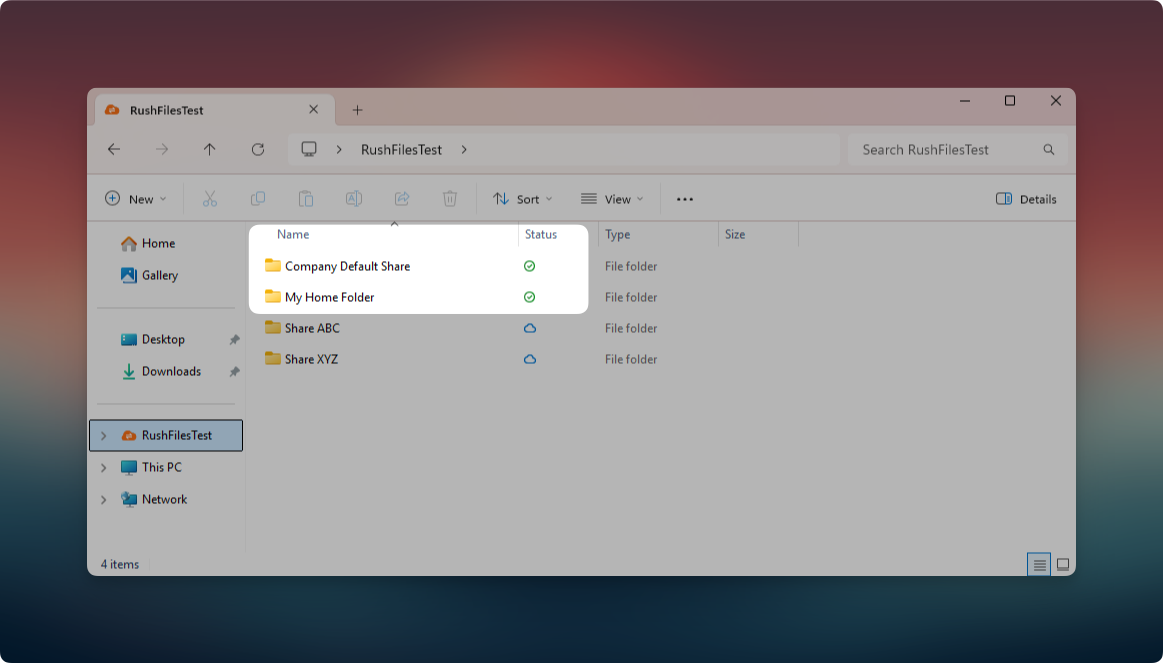
This example shows the Sync Folder opened in Windows Explorer, displaying each Share along with its Files On Demand status icons.
The first two Shares (Company Default Share and My Home Folder) display a green tick icon, indicating that their contents are fully synchronized and available offline. These Files On Demand statuses confirm that the synchronization process has completed successfully and all files in these Shares have been cached locally.
The remaining Shares (Share ABC and Share XYZ) display the blue cloud icon, meaning their contents are still online-only. Files inside these Shares are not stored locally unless the user opens them or manually initiates synchronization.
This view visually distinguishes:
Shares that are fully available offline
Shares that remain cloud-only and consume no local disk space
It also helps users understand why the folder properties in the previous example show partial disk usage.
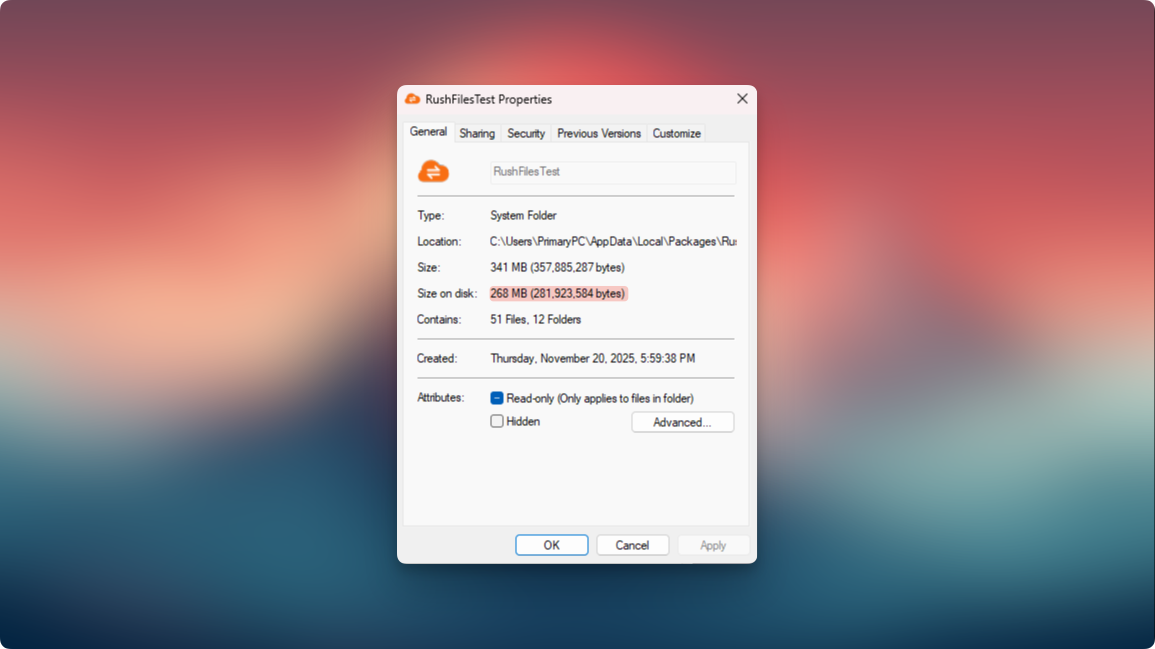
This screenshot shows the Windows folder properties of the user’s Sync folder. The Size on disk value reflects how much local storage is actually being used by the cached files. Because Files On Demand only stores files locally when they are needed or when a Share is fully synchronized, the “Size on disk” is smaller than the total server-side content.
In this example:
The folder’s total content size is 341 MB, which represents the combined size of all Shares currently associated with the user.
The actual local storage used is 268 MB, which corresponds to the Shares that were fully synchronized in the previous example.
This demonstrates how the Windows app caches files selectively based on sync settings and user activity.
This view helps users understand how much disk space their synchronized Shares are consuming.
Note: If the user regularly works with large files (for example, videos, archives, or large presentations), the Sync folder may use more disk space as these items are cached for offline access.
In the Windows app (same as the legacy PC client), the Left Panel Overview displays the Storage Indicator.
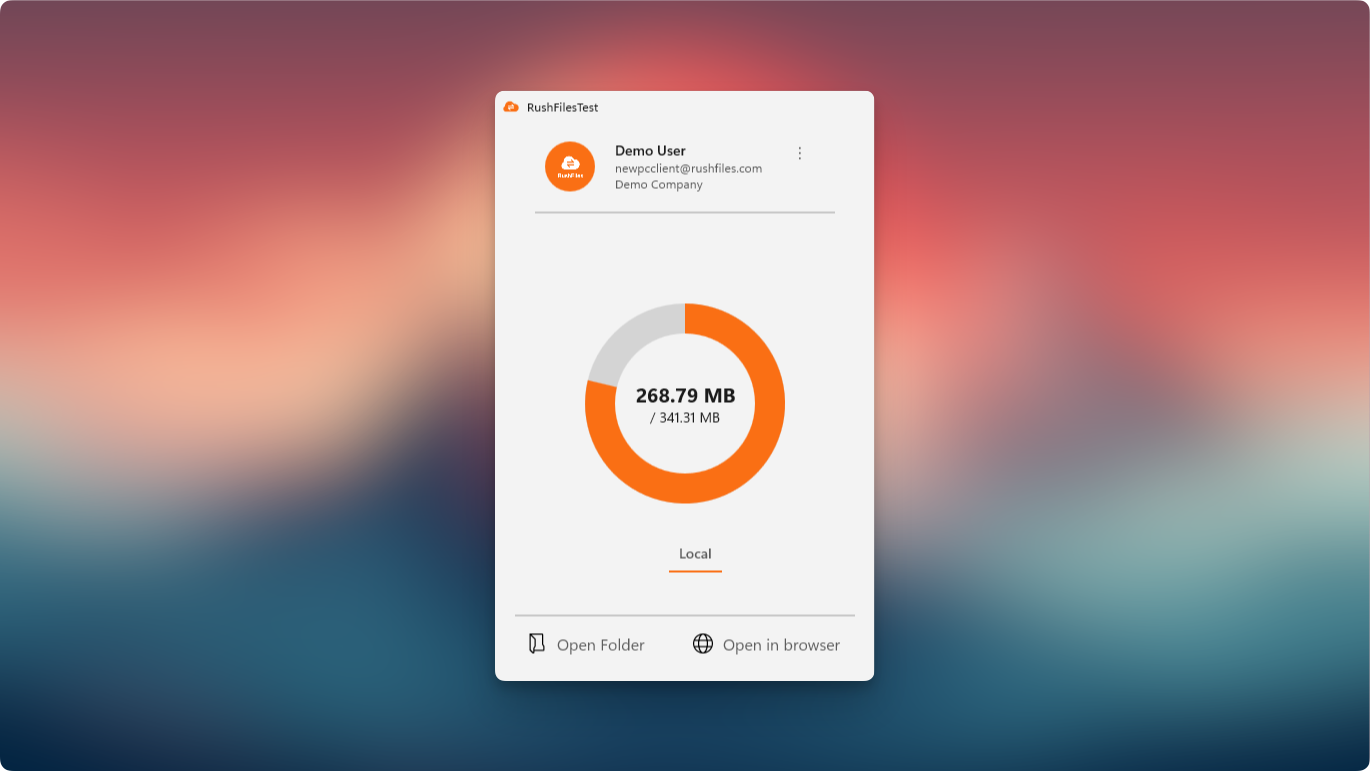
Storage Indicator (Pie Chart):
This shows the total size of cached (downloaded) files on the user’s local machine compared to the combined total storage used across all active Shares in the account. It gives a quick visual reference of how much of the user’s synchronized data is currently stored locally.
Alongside this, the Share list provides the storage usage for each Share, indicating how much server-side content each Share currently holds.
However, the Windows app does not display the user’s overall storage limit or remaining quota. The app only reflects:
- How much local disk space is occupied by cached Share content
- The current storage usage of each Share on the server
To view actual storage limits or remaining quota, the user must check the Web app, where storage details are shown according to the company’s configuration.
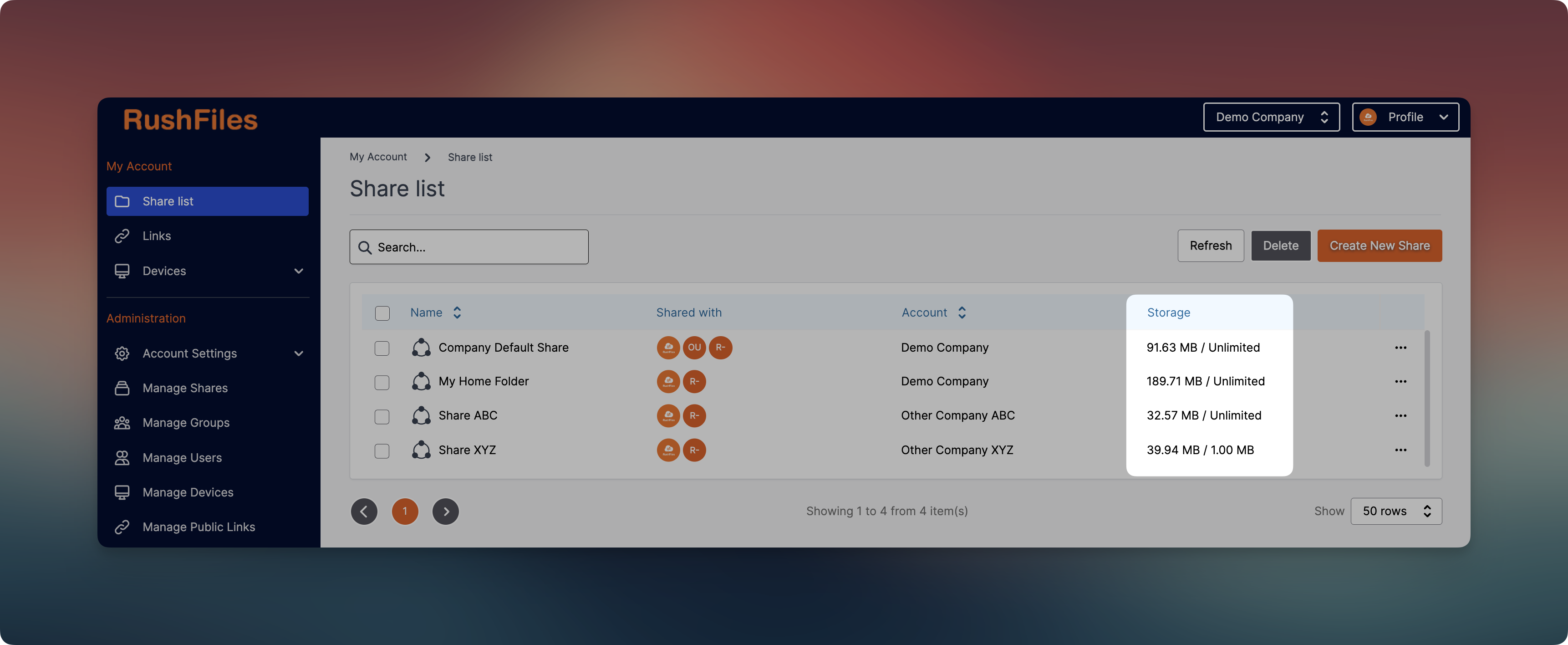
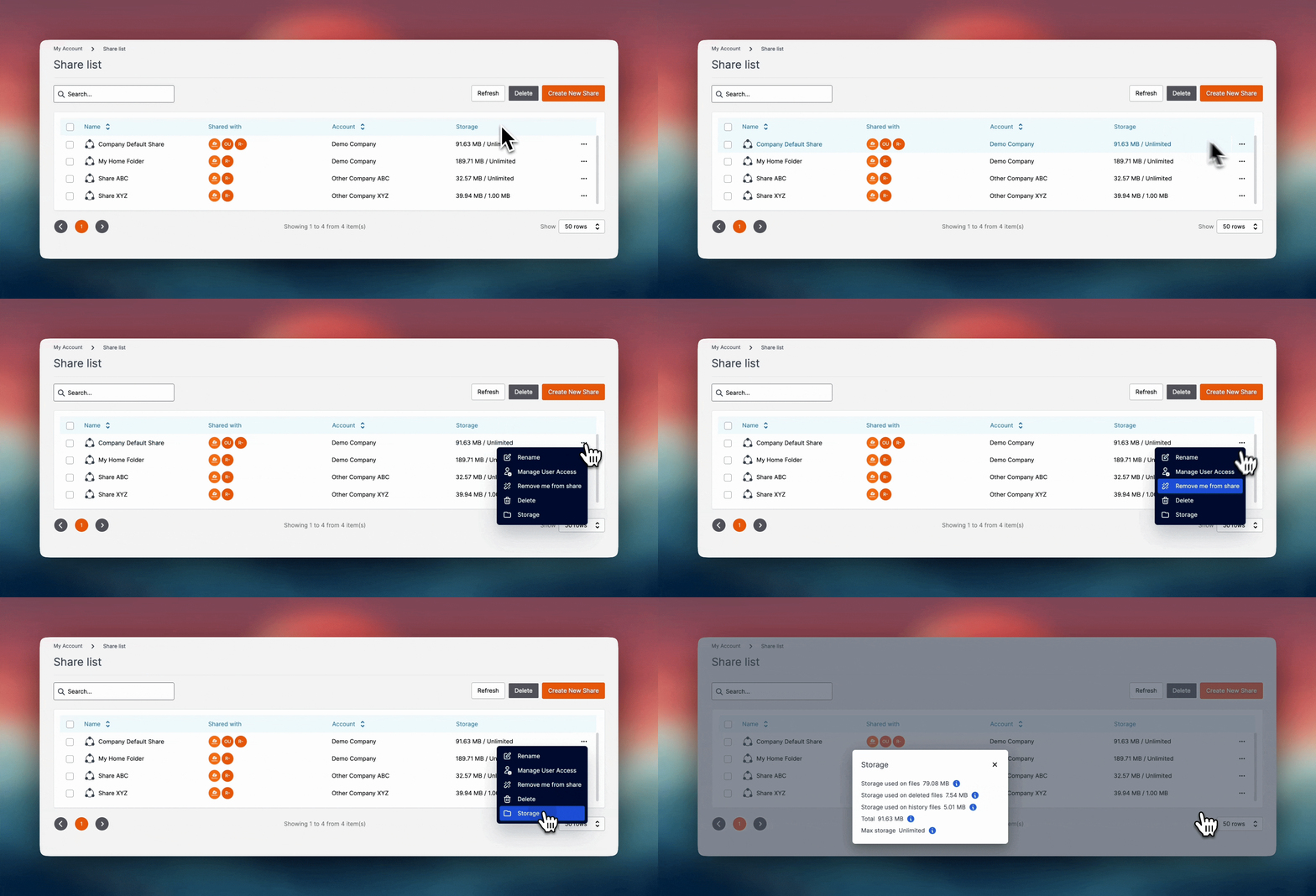
Depending on the administrator’s setup, a Share’s storage capacity may be determined by:
- The company-wide storage limit
- A separate storage cap configured for an individual Share
This ensures organizations can manage storage allocation per Share.
To maintain optimal performance, users may consider:
- Removing unnecessary local files (after confirming they are safely stored online)
- Avoiding storing very large files locally unless needed
- Periodically checking disk space usage in Windows
When the storage reaches its limit, any new uploads will fail. The Windows app will display warnings or error messages indicating that there is not enough storage available on the server to complete the upload.
All files that fail to upload due to insufficient storage are automatically moved to the Failed files tab. From here, the user can recover the affected files once additional space becomes available.
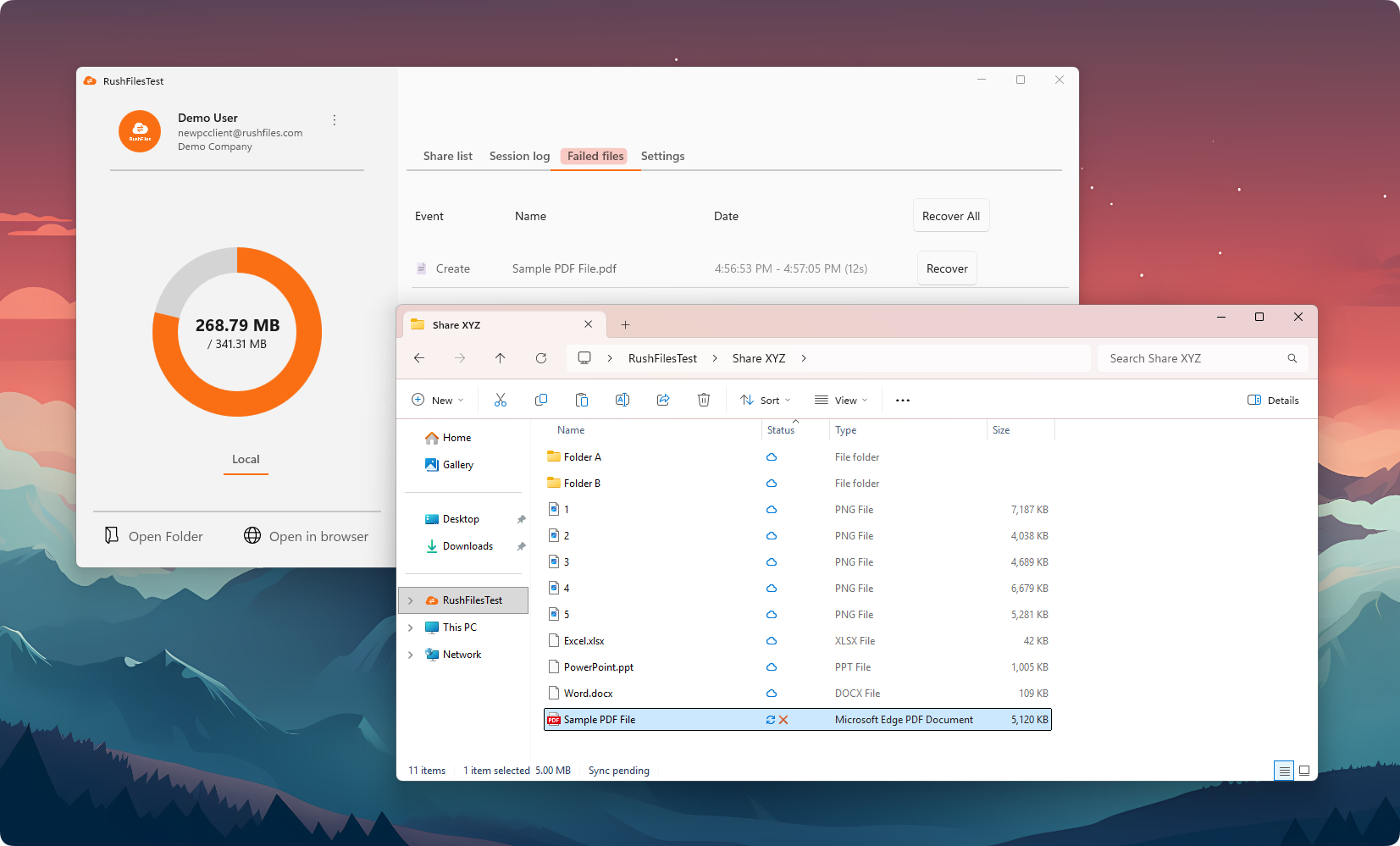
If the administrator increases the storage limit or the user frees up space by deleting unnecessary files, the user can revisit the Failed files tab and choose one of the following recovery options:
- Recover individual files that failed to upload
- Recover all failed files in bulk using the bulk-recovery option
During the recovery process, the user will be prompted to choose a folder where the recovered files should be saved. It is important that the user selects a local folder (not a network location or a synchronized Share) to ensure that the recovered files are stored safely.
This workflow ensures that users do not lose access to files that were unable to upload while the storage limit was reached.
Users, please contact the reseller for assistance. Each reseller manages its own company accounts and provides support for access, configuration, and troubleshooting.
Partners and resellers, please contact the RushFiles Support team by submitting a new ticket at: Submit New Support Ticket