
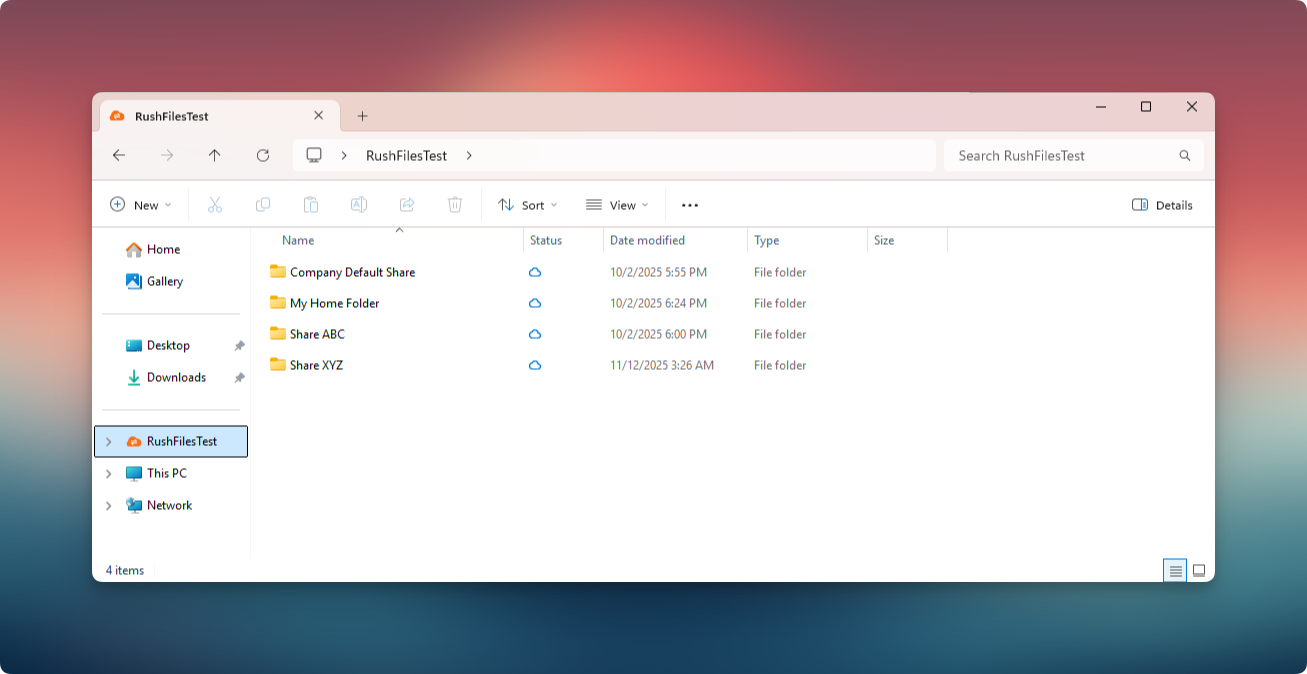
The Sync folder is where the user manages and works on files locally. Any file added to this folder is uploaded to the server, and any file downloaded from the server appears here.
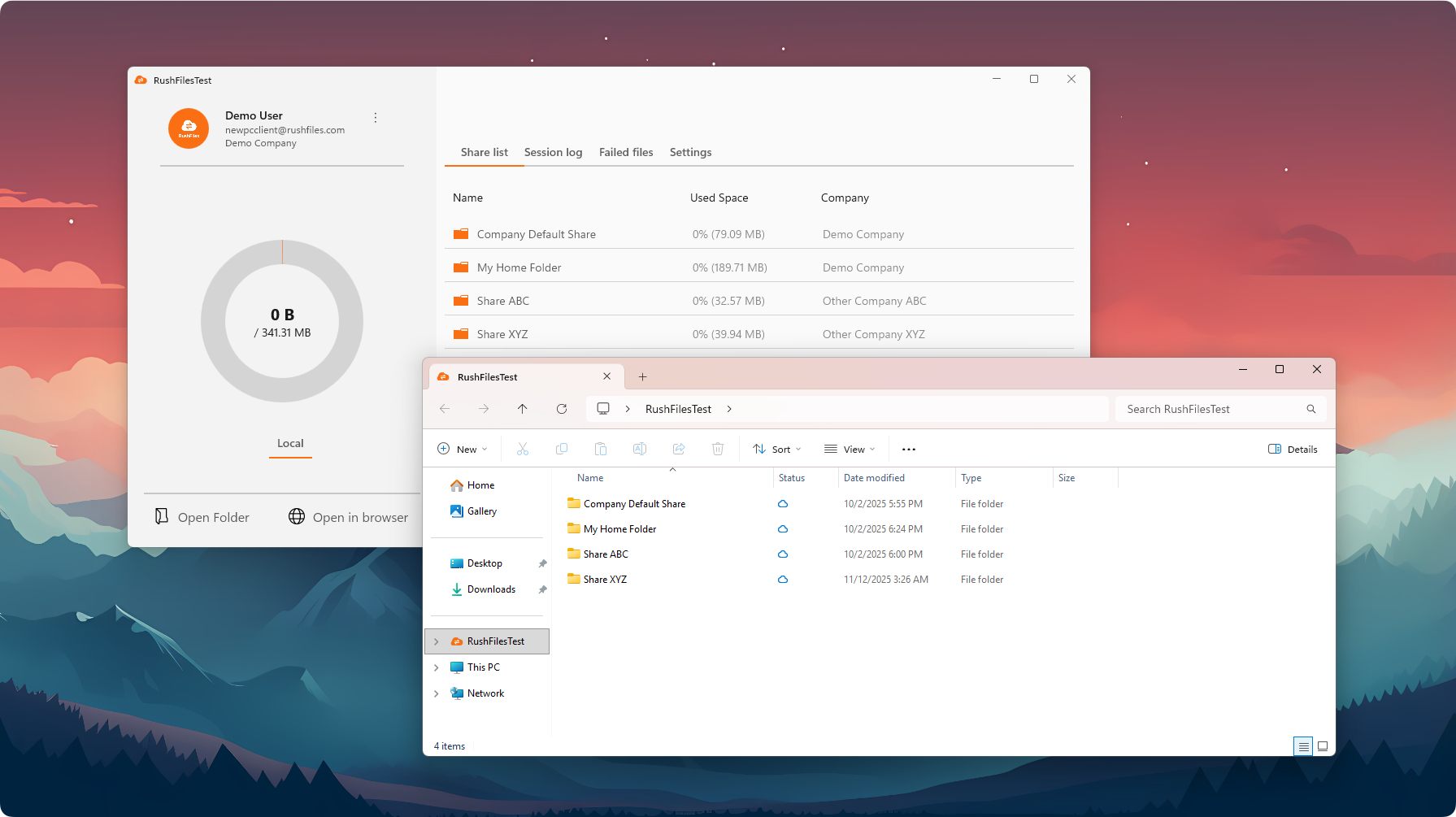
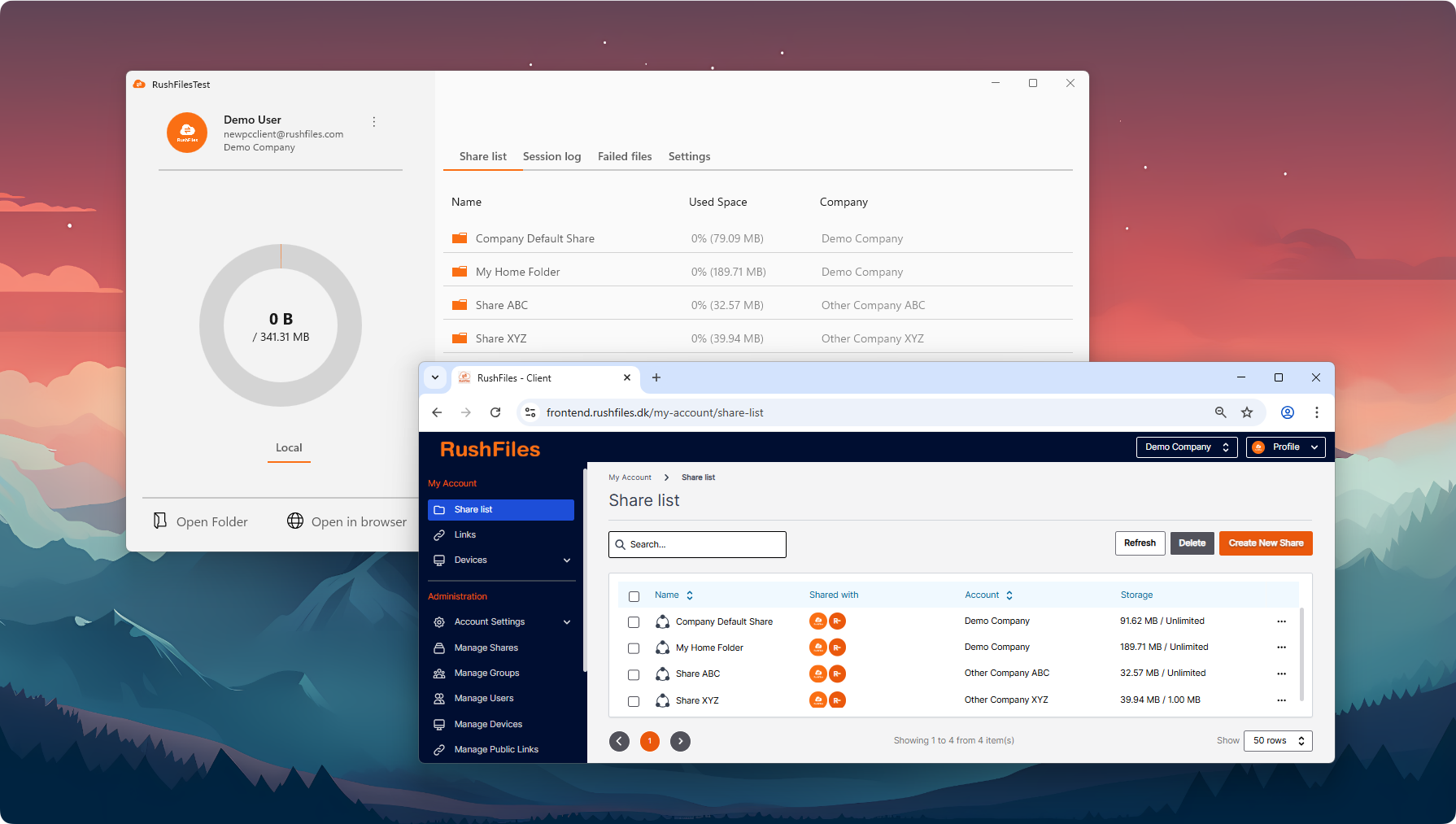
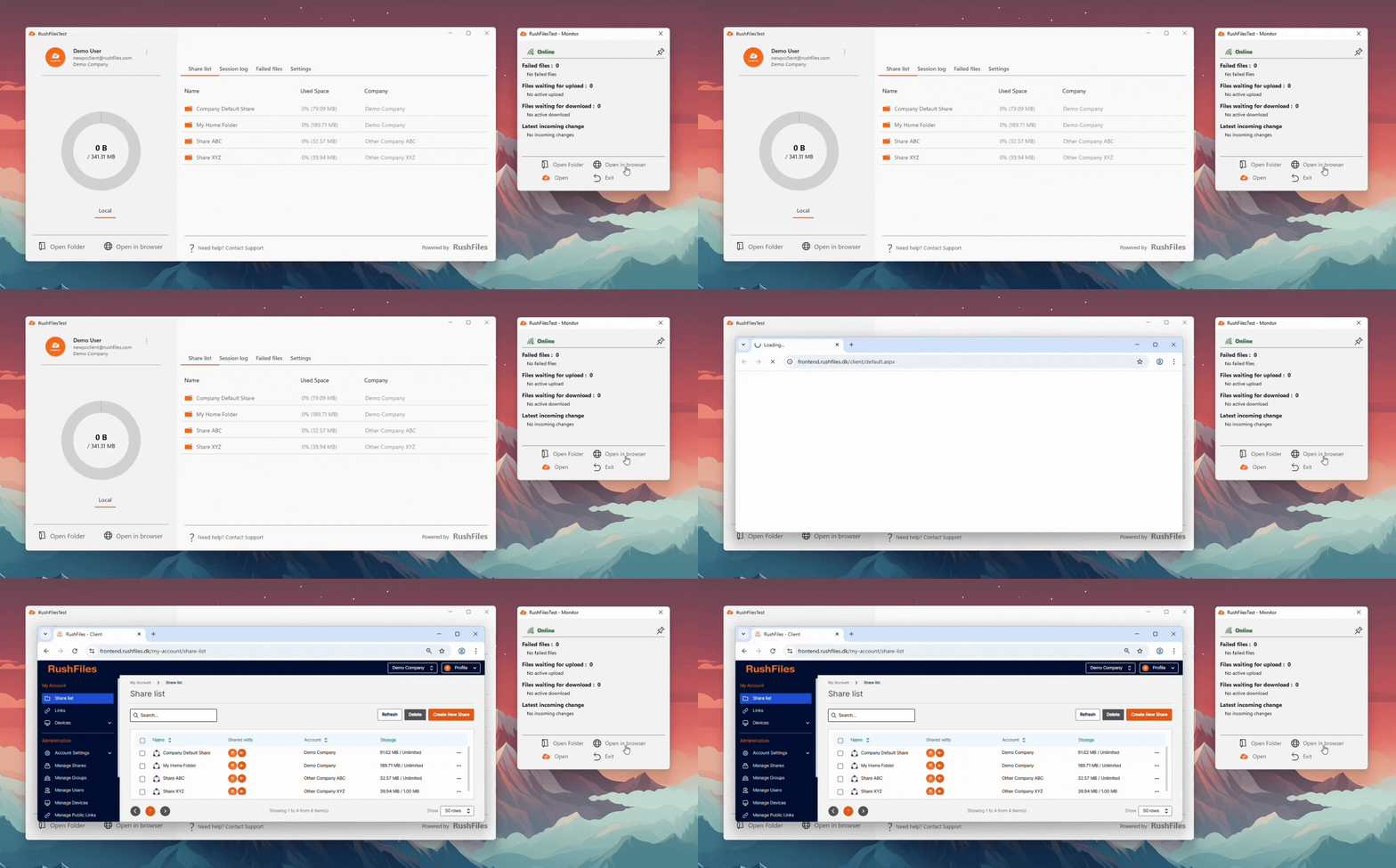
The Browser view opens the Web app in the user’s default browser. Depending on the user’s login status, authentication may be required.
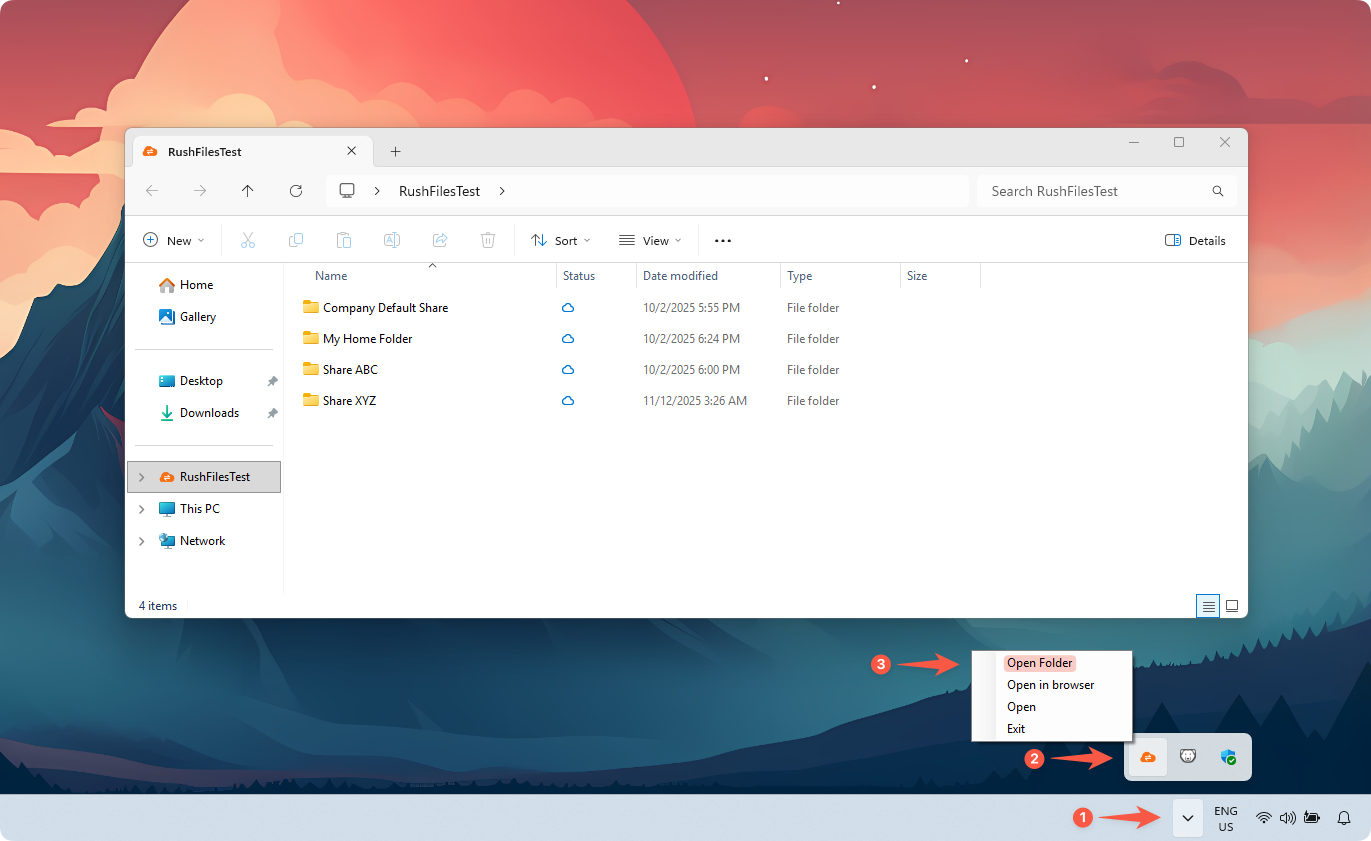
Users can open the Sync folder in the following ways:
Windows App UI: Click Open Folder at the bottom left.
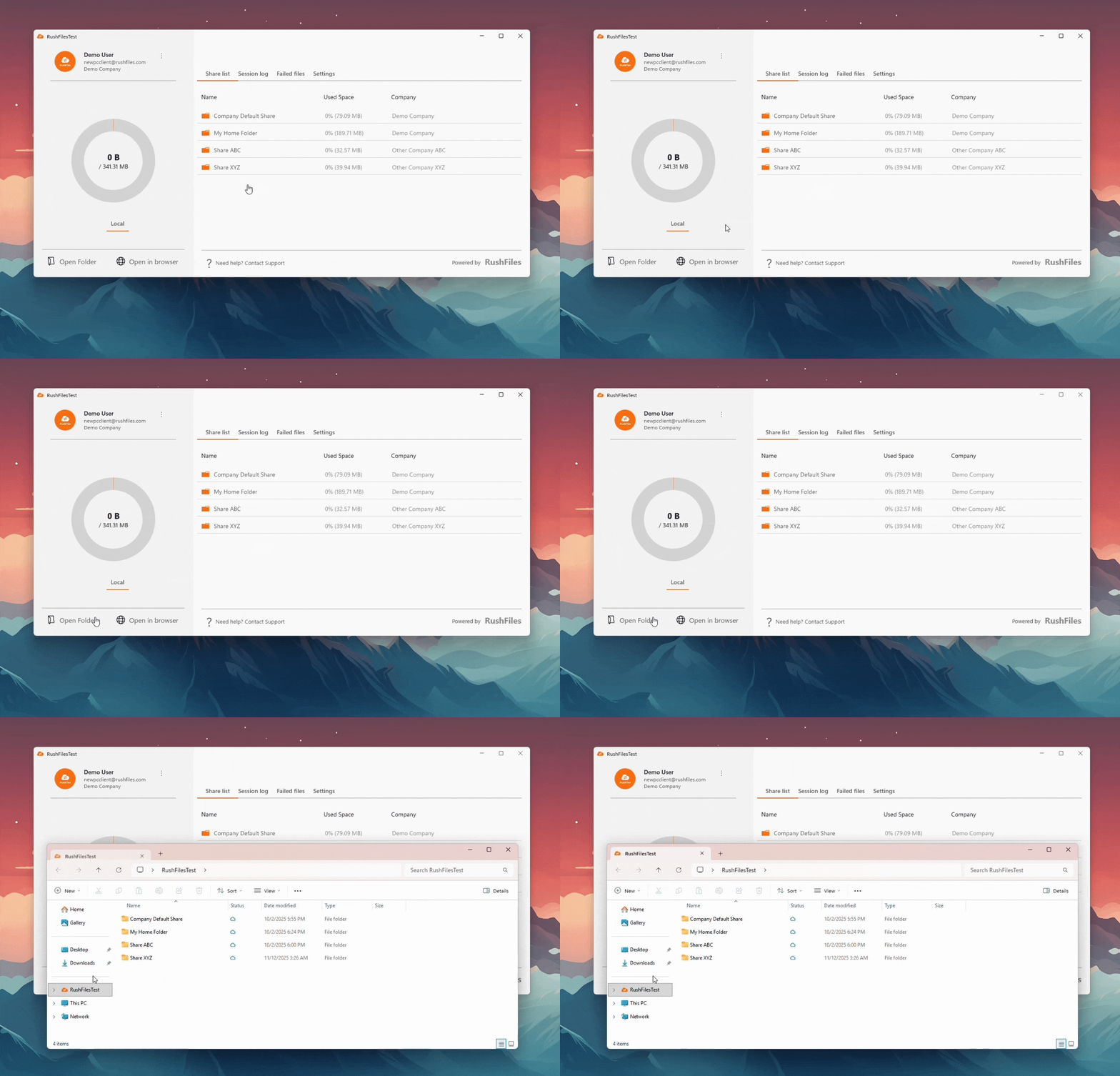
Windows Explorer: Locate the Sync folder in the user’s directory.
System Tray: Right-click the RushFiles icon and select Open Folder.
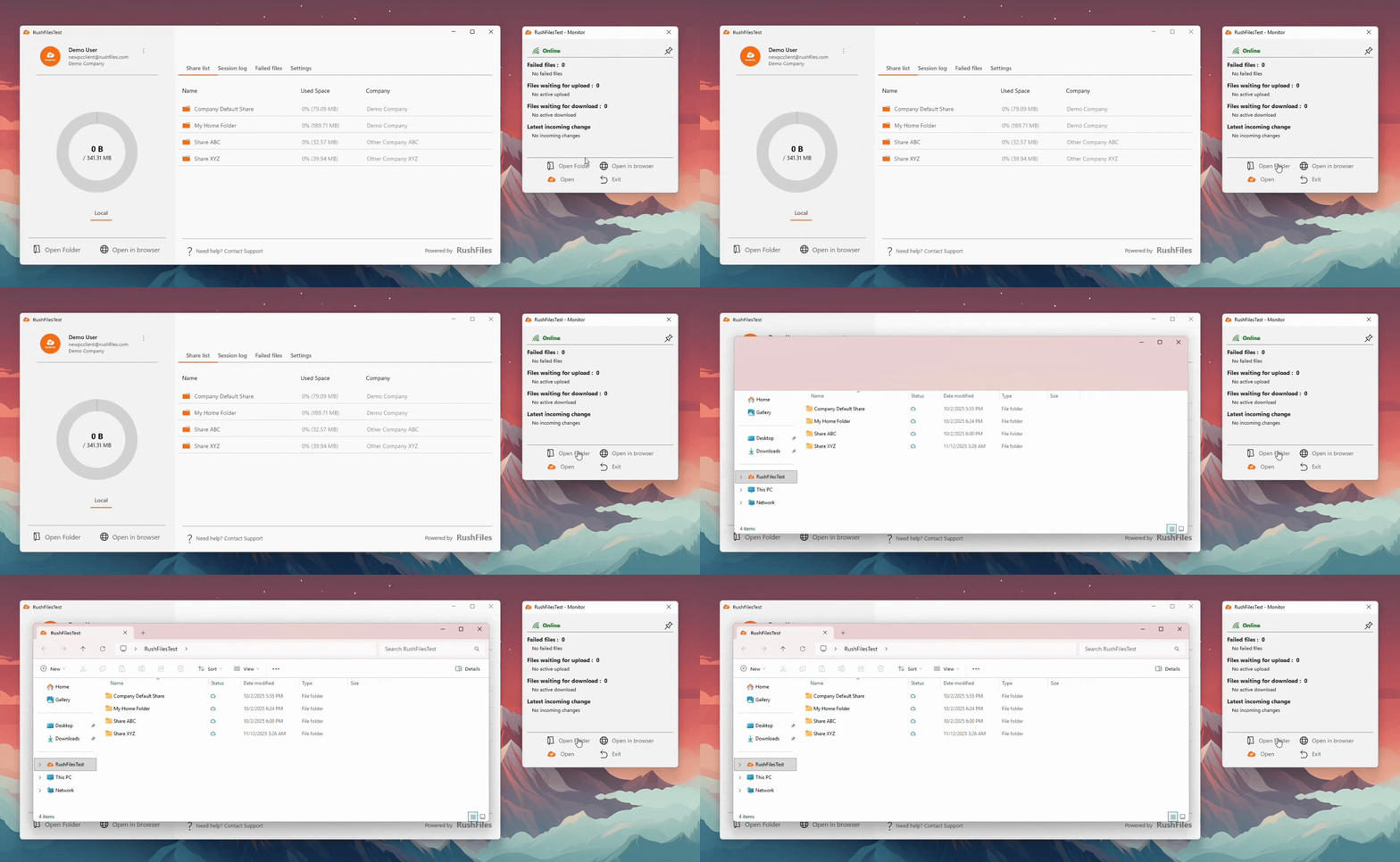
RushFiles Monitor UI: Click Open Folder in the Monitor window.
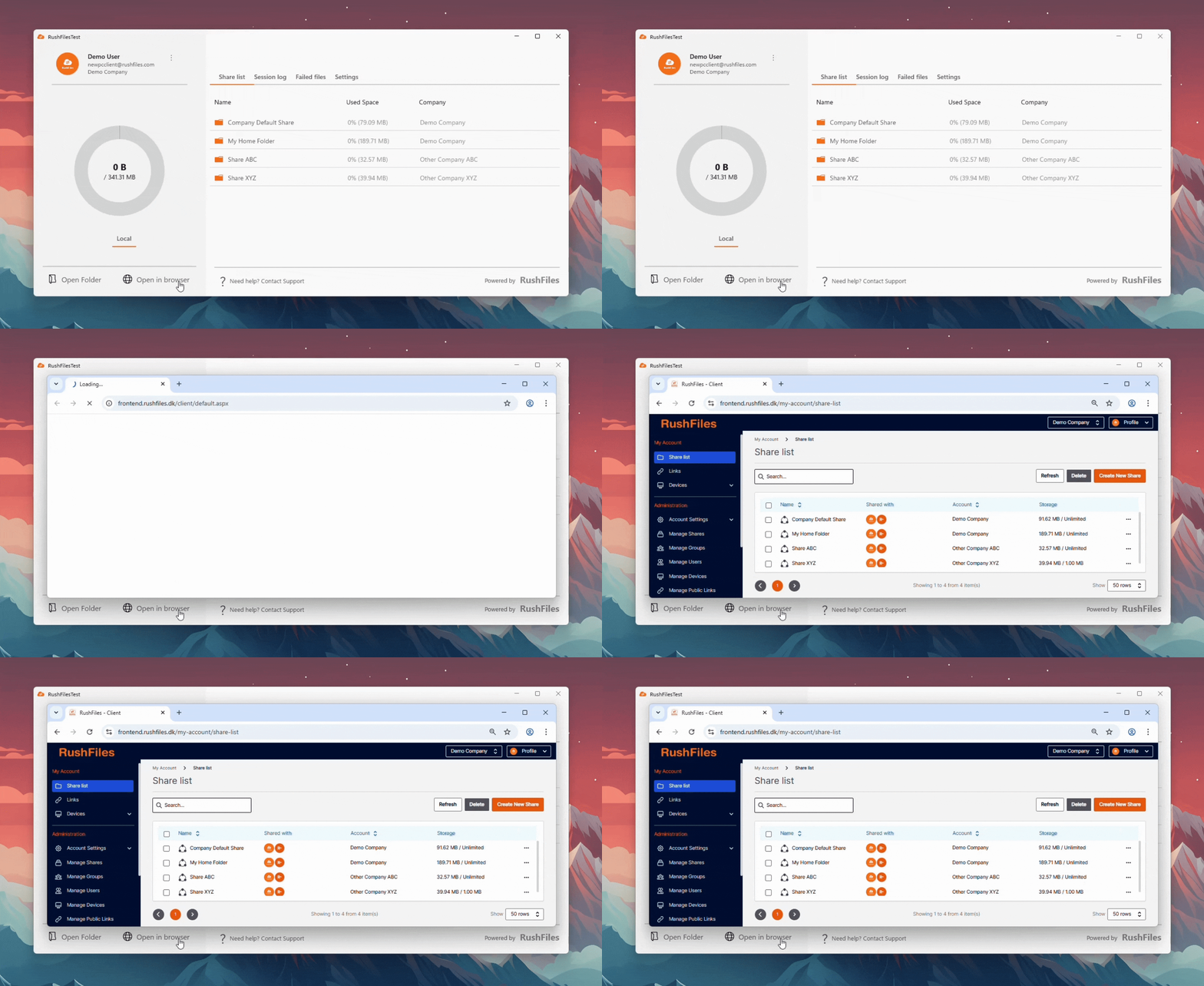
Users can open the Browser View (web app) in the following ways:
Windows App UI: Click Open in browser at the bottom left.
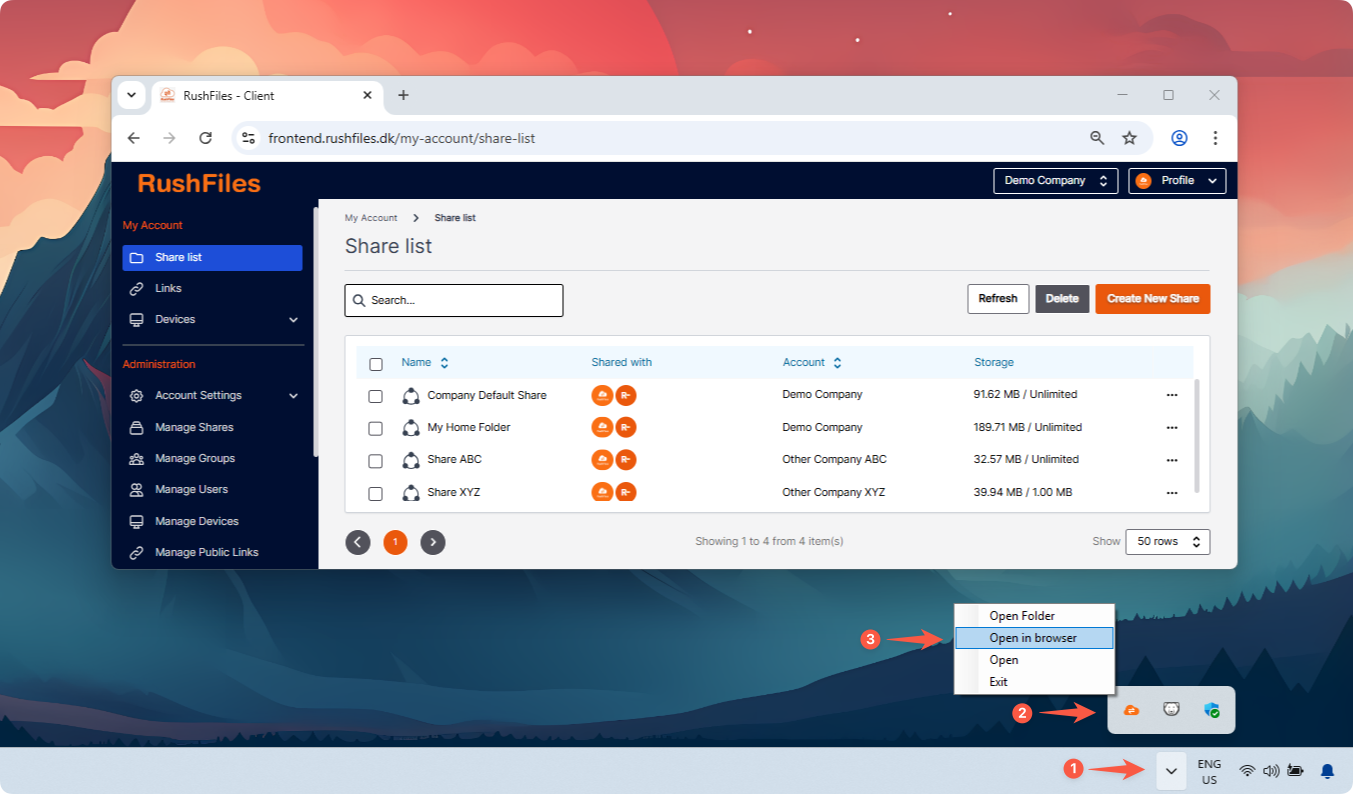
System Tray: Right-click the RushFiles icon and select Open in browser.
RushFiles Monitor UI: Click Open in browser in the Monitor window.
End-users, please contact the reseller for assistance. Each reseller manages its own company accounts and provides support for access, configuration, and troubleshooting.
Partners and resellers, please contact the RushFiles Support team by submitting a new ticket at: Submit New Support Ticket