
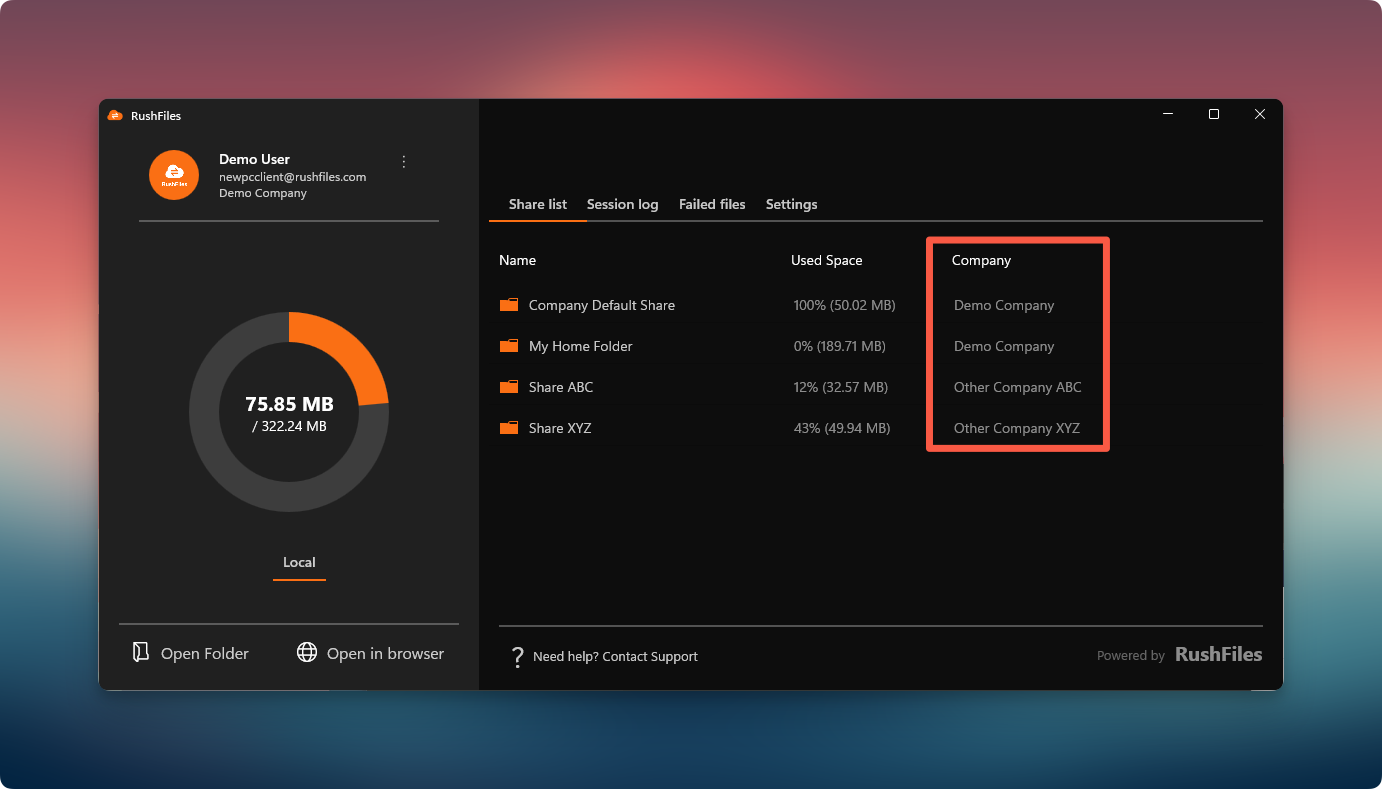
The Share List tab is the main dashboard for all files and folders shared with the user’s RushFiles account. It provides a clear overview of each share’s storage usage, associated company, and access level.
Each share displayed in the list is synchronized with the user’s local Sync Folder, allowing direct file management from the computer or the web app.
The Share List contains the following columns:
Name: Displays the name of the Share (for example, Company Default Share, Project Files, or Shared Documents).
Used Space: Shows how much of the share’s allocated storage is currently being used.
Company: Identifies which company the Share belongs to — useful when the user has access to multiple company accounts.
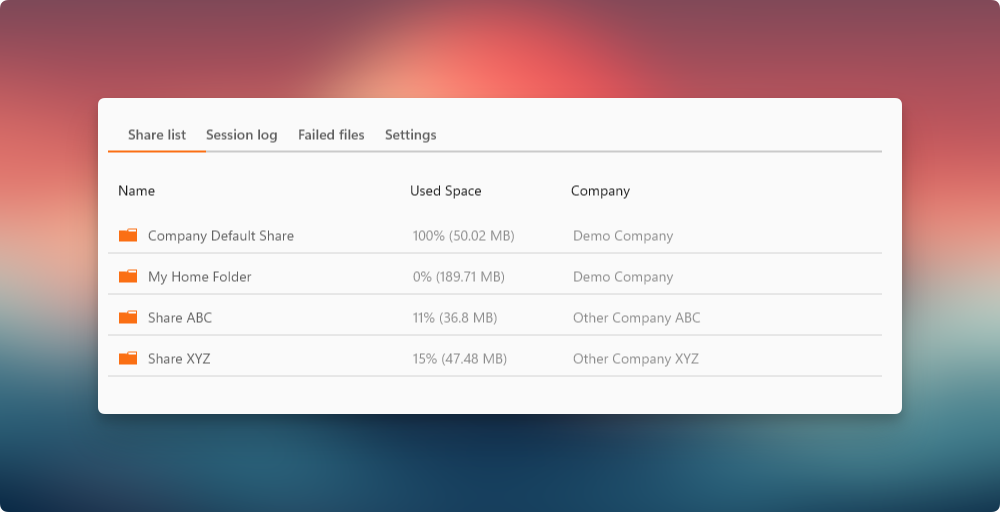
Each Share in the list represents a synced folder that the user can access locally or from the web interface.
From the Share List tab, users can:
Option 1: Double-click on a Share to open it directly from the Sync Folder.
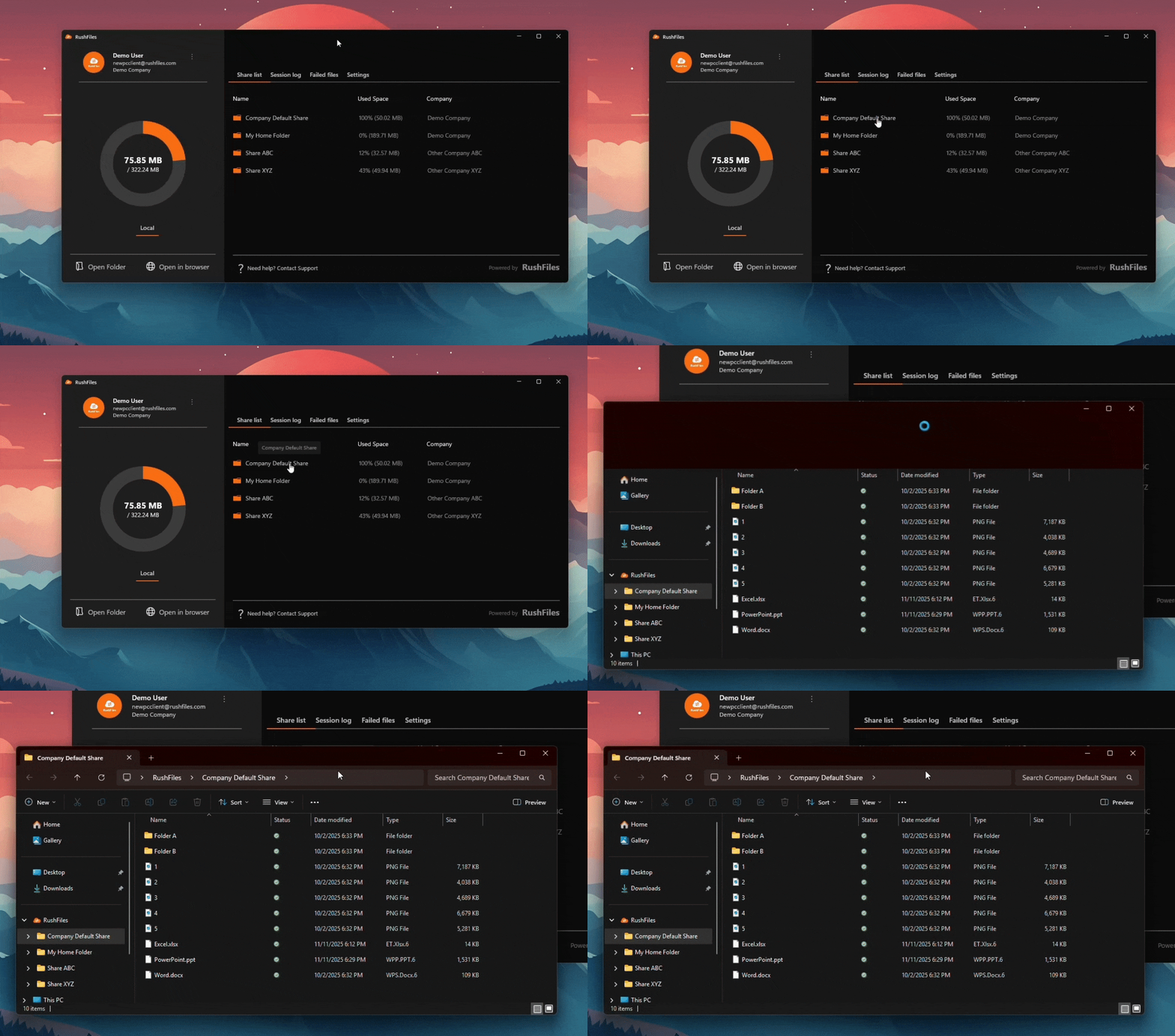
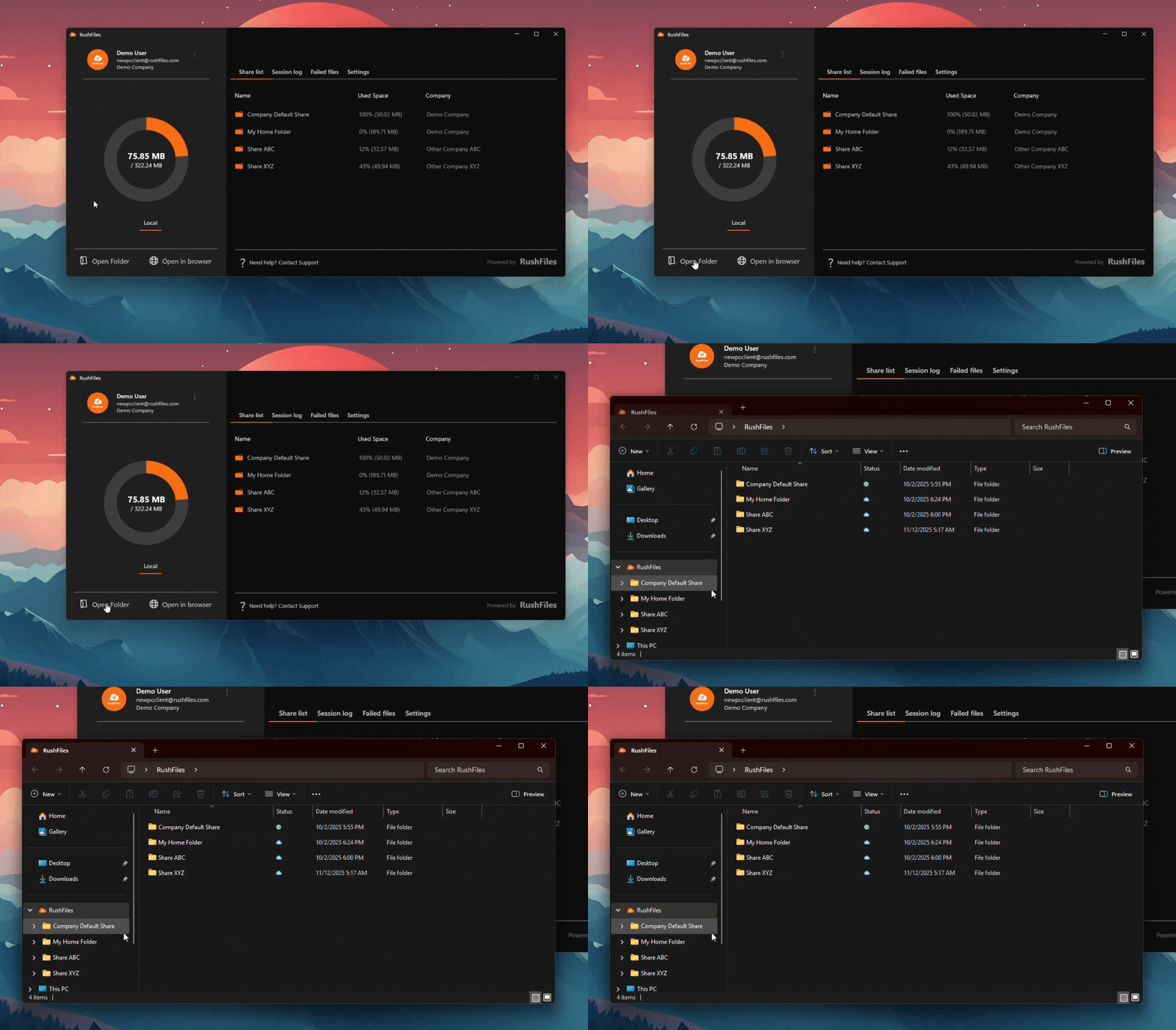
Option 2: Use the Open Folder button (bottom-left corner) to access the local Sync Folder containing all available Shares.
Option 3: Select Open in browser to view the same Shares via the web app.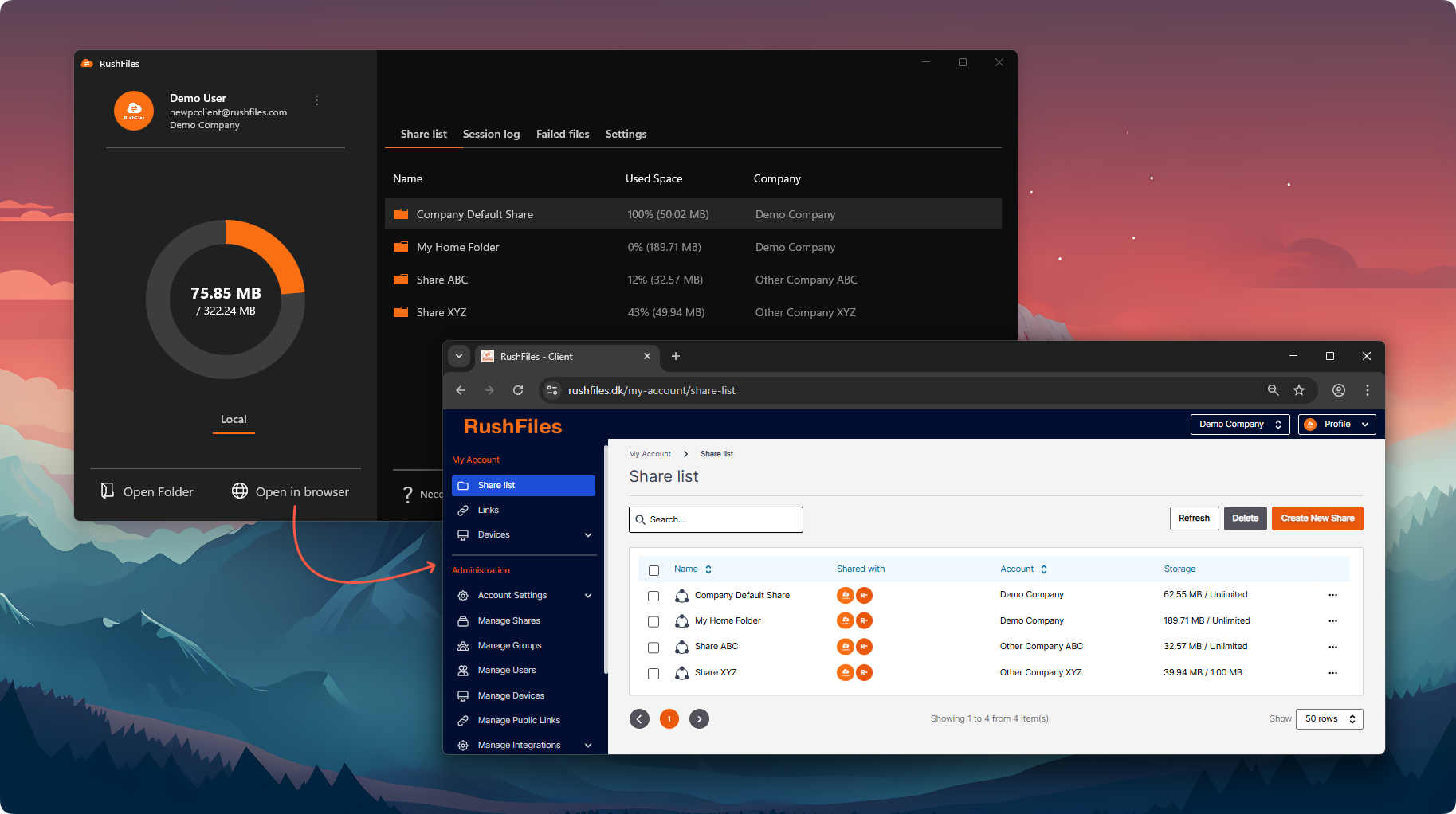
These options make it easy to switch between local and online access without interrupting file synchronization.
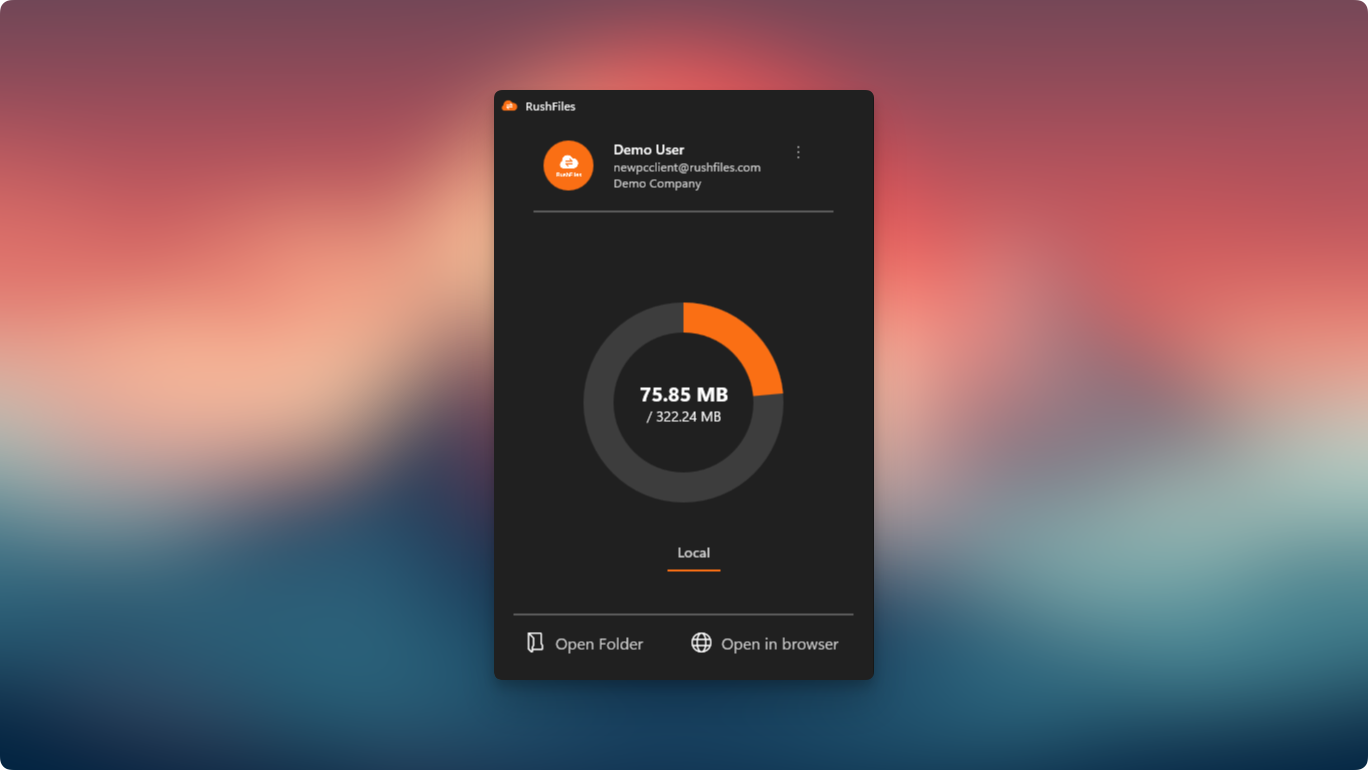
The pie chart or circular storage indicator in the left panel shows the total size of cached (downloaded) files on the local machine compared to the combined total storage of all active Shares listed in the account.
This helps users monitor how much data has been synchronized locally.
Users who belong to more than one company account will see Shares grouped by their associated company in the Company column. This allows clear separation of storage usage and access rights between different organizations.
- The Company Default Share is typically the primary folder for storing user-specific or shared company documents. Changes made here will sync automatically across all devices connected to the same account.
- Images used in this article show the Windows App in Dark Mode since the computer used to carry out these demo images was set to system dark mode.
Users, please contact the reseller for assistance. Each reseller manages its own company accounts and provides support for access, configuration, and troubleshooting.
Partners and resellers, please contact the RushFiles Support team by submitting a new ticket at: Submit New Support Ticket