
The Windows App features a modern, tab-based interface that provides users with clear visibility and control over their synced files and account settings. The interface is divided into two main areas:
Left Panel – Displays storage information, account details, and quick-access options.
Main Tabs – Allow users to manage shares, review activity logs, recover failed transfers, and configure settings.
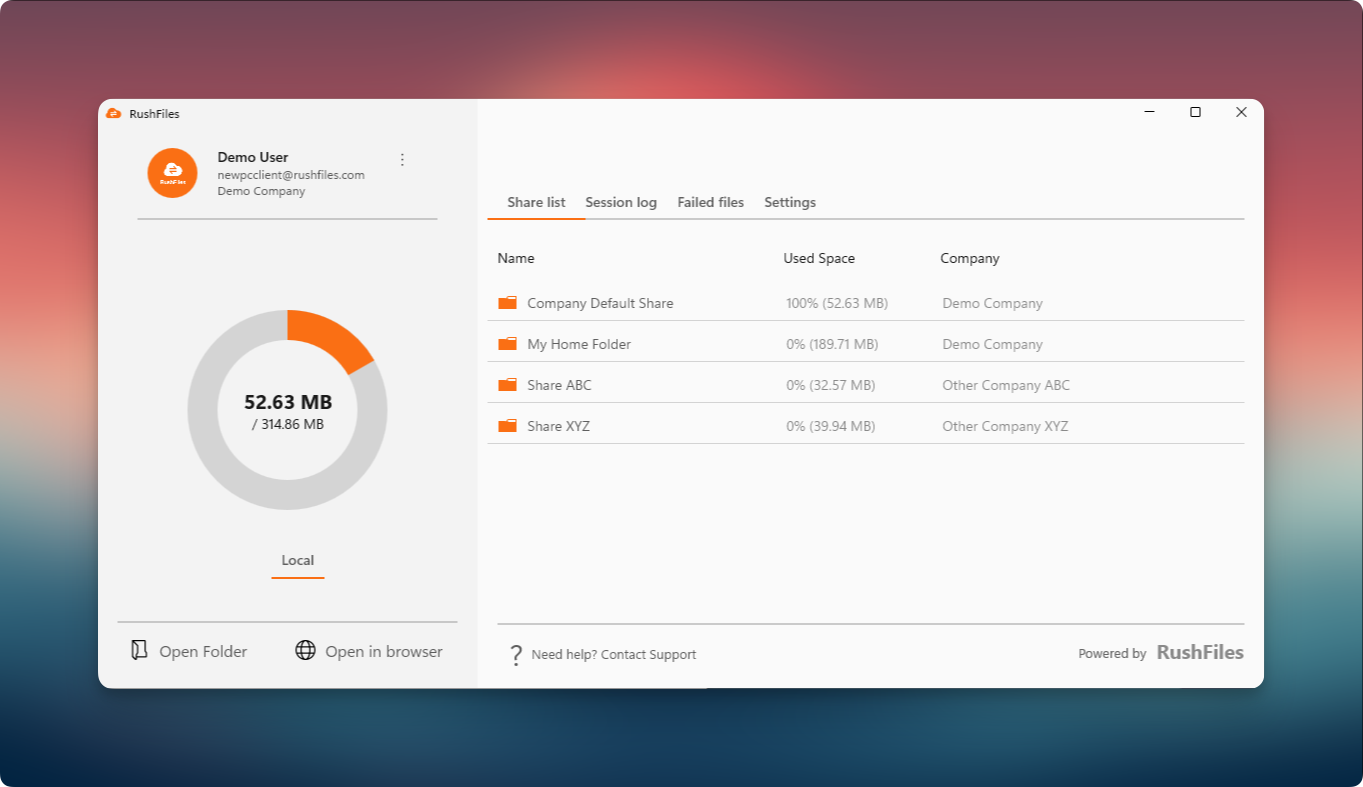
The left panel is always visible and provides quick insights and tools:
User Profile: Displays the account name, email, and associated primary company.
Storage Indicator (Pie Chart): Displays the total size of cached (downloaded) files on the local machine compared to the combined total storage used on files of all active shares in the account. The indicator provides a quick visual reference for how much of the locally available data has been synchronized.
Local Indicator: Displays synchronization status for locally stored files.
Quick Access Buttons:
Open Folder – Opens the local Sync Folder directly in File Explorer.
Open in Browser – Opens the RushFiles web client in the default browser.
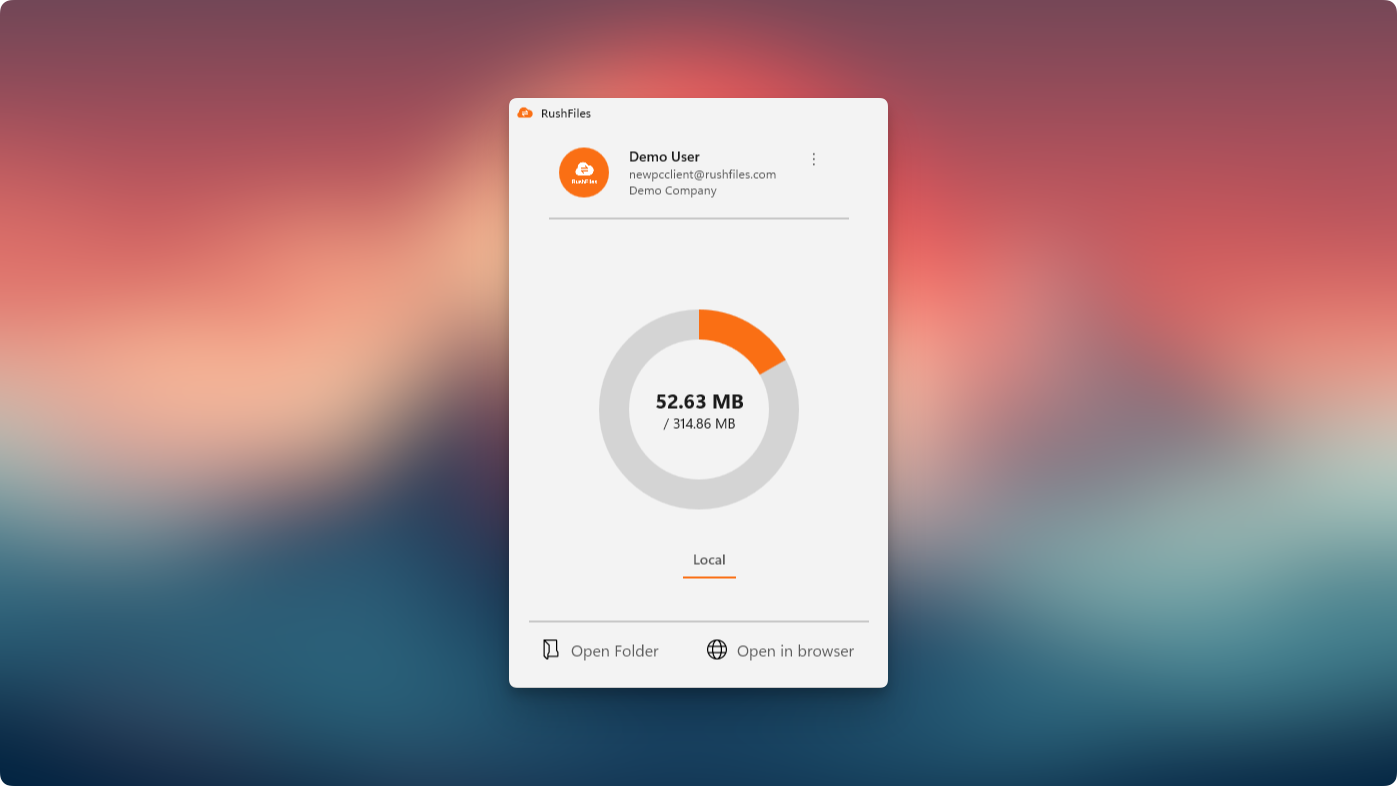
The top navigation bar contains four main tabs:
Share List
Displays all shares available to the user, including:
Name – The folder or share name.
Used Space – Indicates storage usage per share.
Company – Shows which company each share belongs to (useful for users with multiple company accounts). From this view, users can browse shares, verify access, and confirm synchronization status.
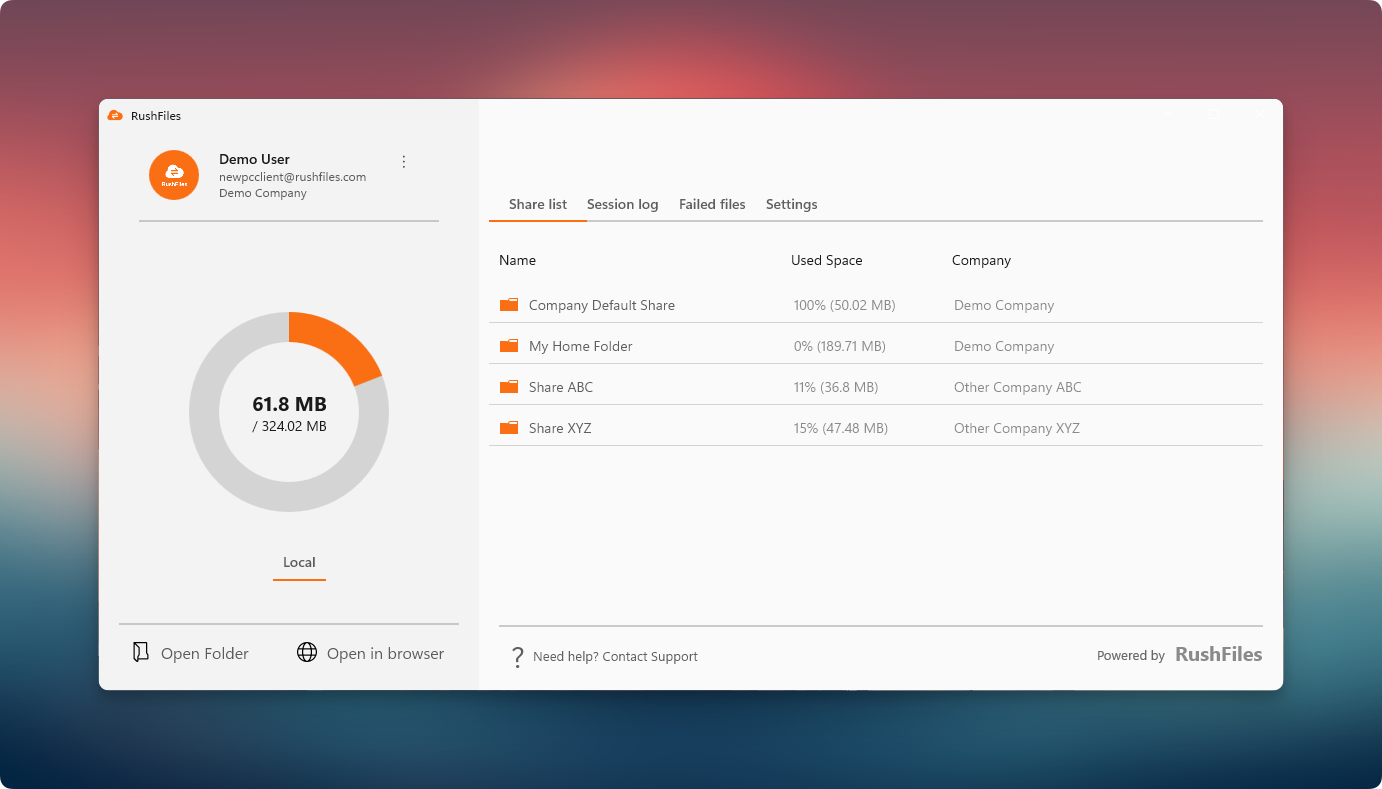
Session Log
Shows detailed logs of recent file activity such as uploads, downloads, deletions, and renames.
Each entry includes Event, Name, Size, Date, and Status.
Helps users confirm whether file operations were successful and identify potential sync issues.
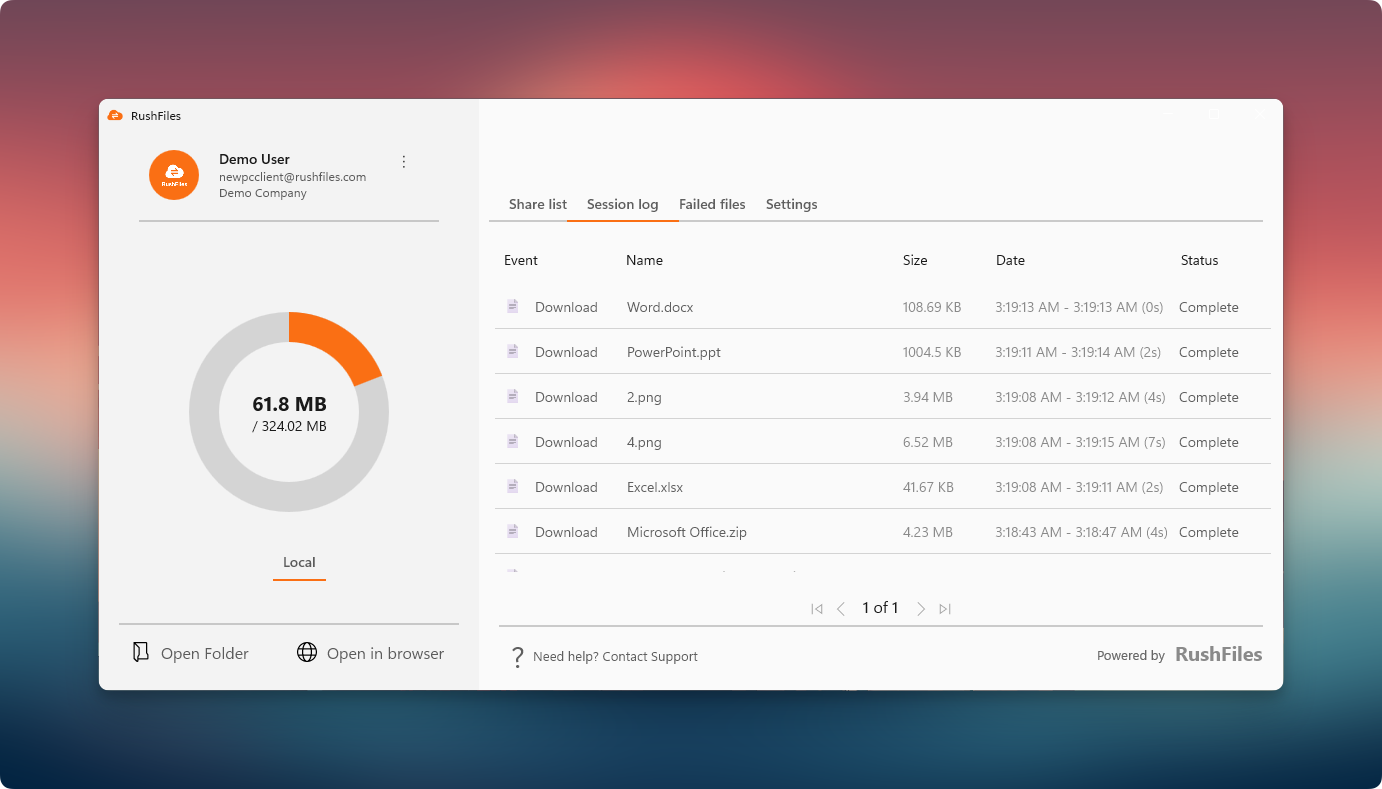
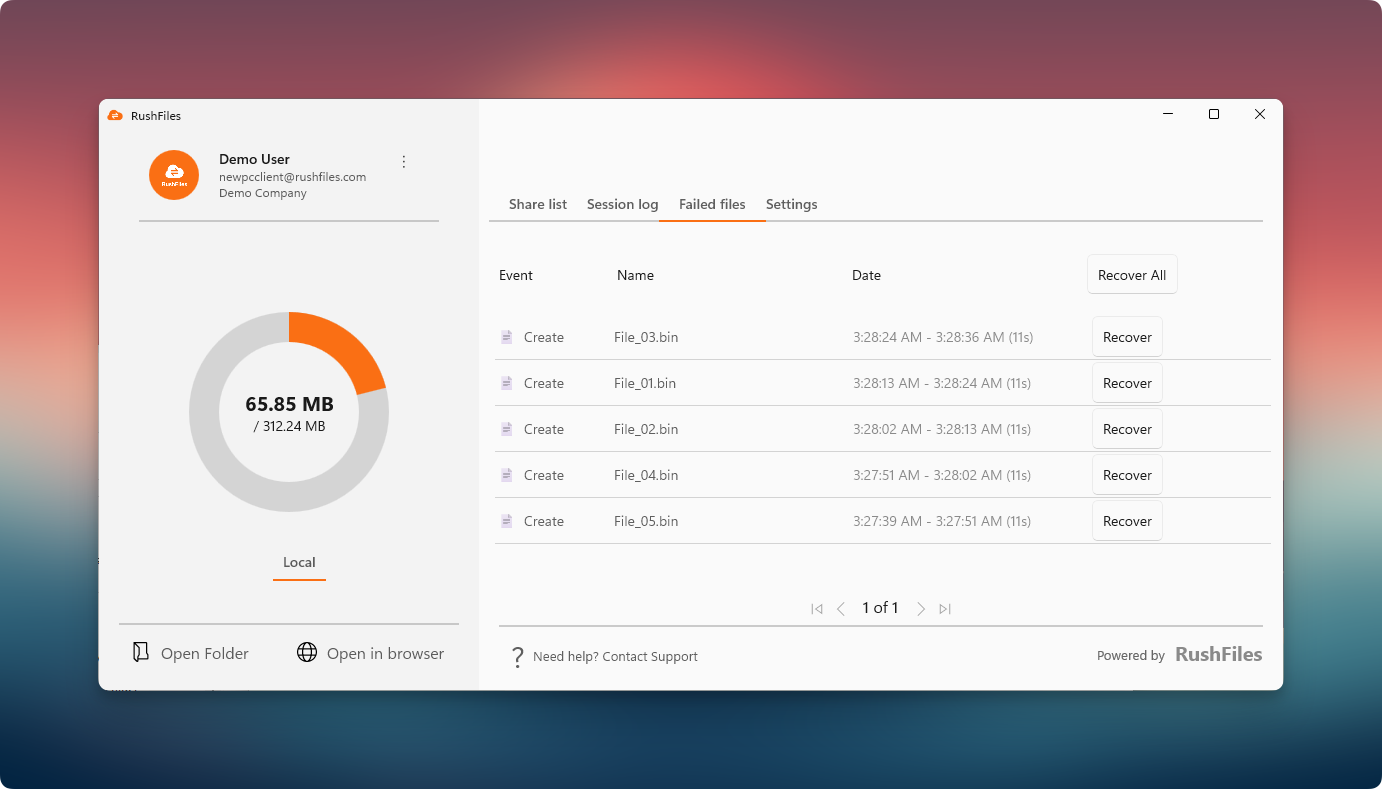
Failed Files
Displays a list of files that were not uploaded, downloaded, or synchronized successfully. Each entry includes Event, Name, and Date information for easier identification.
The Recover All button allows users to recover all available failed files at once. When clicked, the user is prompted to choose a destination folder where the recovered files will be saved.
Each failed file also has its own Recover button, allowing users to recover files individually instead of performing a bulk recovery.
This section helps users quickly locate and restore files that encountered errors during synchronization or transfer.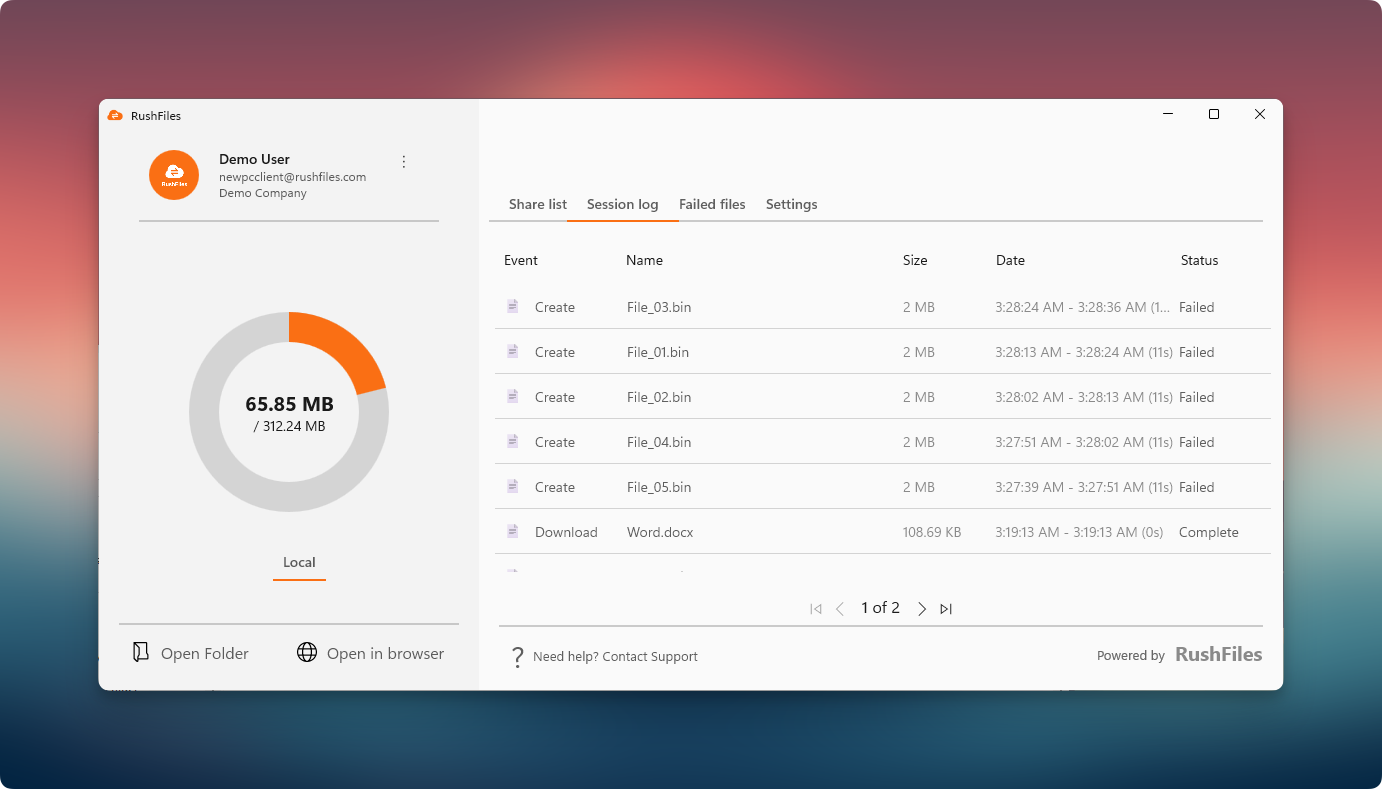
Settings
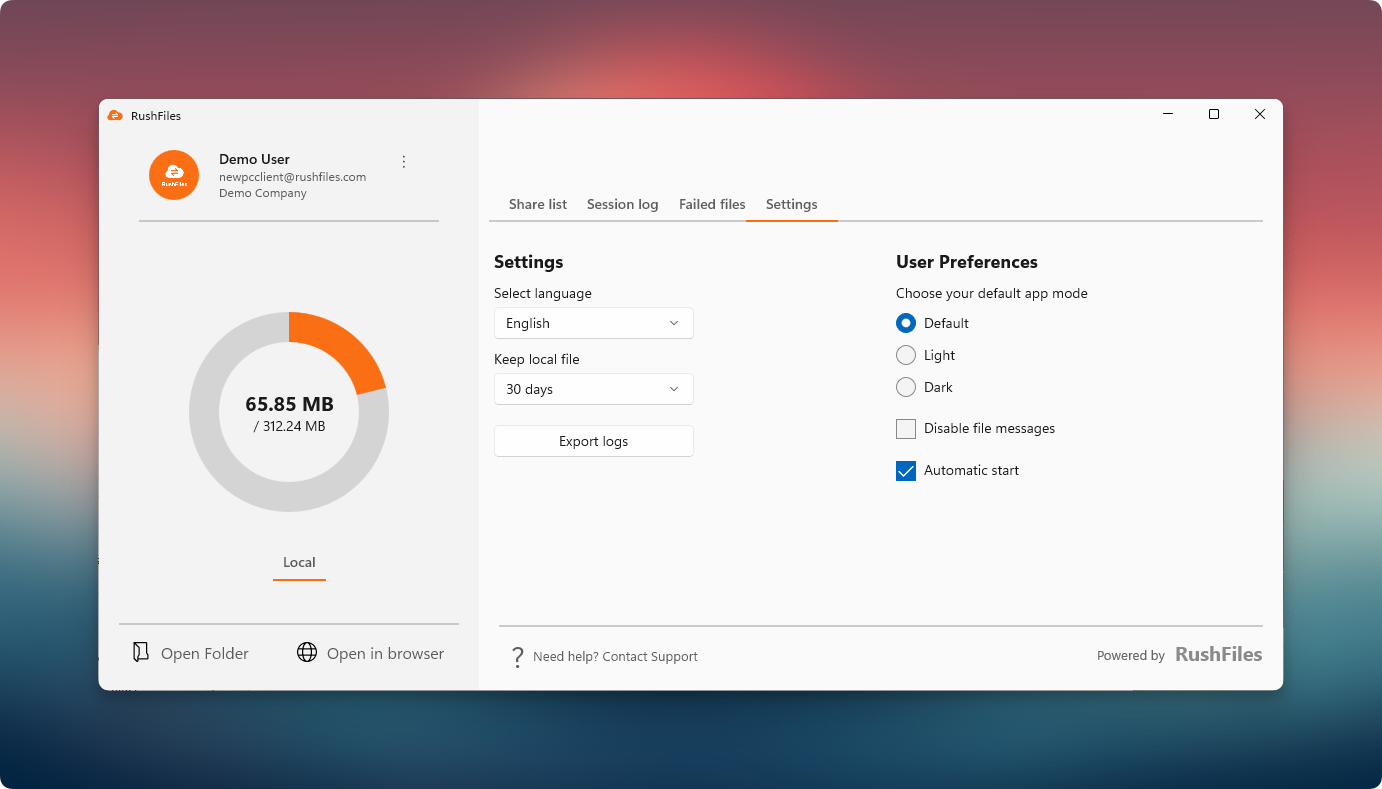
Allows users to configure application behavior and preferences, including:
Select Language – Choose preferred display language.
Keep Local File – Specify how long local cache of files are retained.
Export Logs – Export diagnostic logs for troubleshooting.
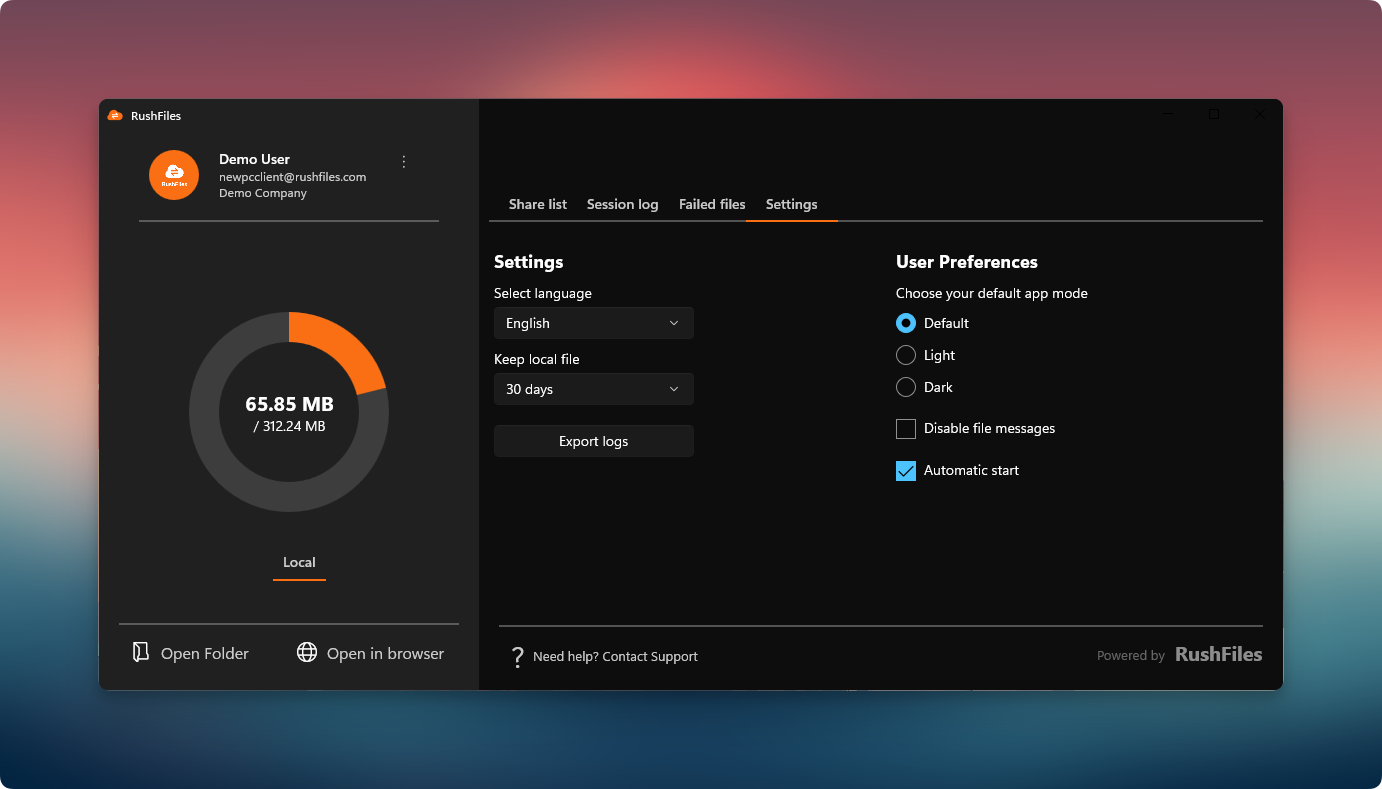
User Preferences – Choose display mode (Default, Light, or Dark), enable automatic start, and disable file messages.
Tip: The Default Mode under Settings automatically matches the system appearance (Light or Dark) for seamless integration with Windows.
Users, please contact the reseller for assistance. Each reseller manages its own company accounts and provides support for access, configuration, and troubleshooting.
Partners and resellers, please contact the RushFiles Support team by submitting a new ticket at: Submit New Support Ticket