
Important note about availability
The Windows app is currently being released gradually. At this time, downloading the Windows app directly from the Login page or through the Web app is not yet available.
For now, the Windows app download link is provided directly by the reseller. End users should contact their reseller or account administrator to receive the official download link.
Download and distribution options may change as the rollout progresses, and this article will be updated accordingly.
Users can download the Windows App from any of the following locations:
Web App: (Managed by your reseller)
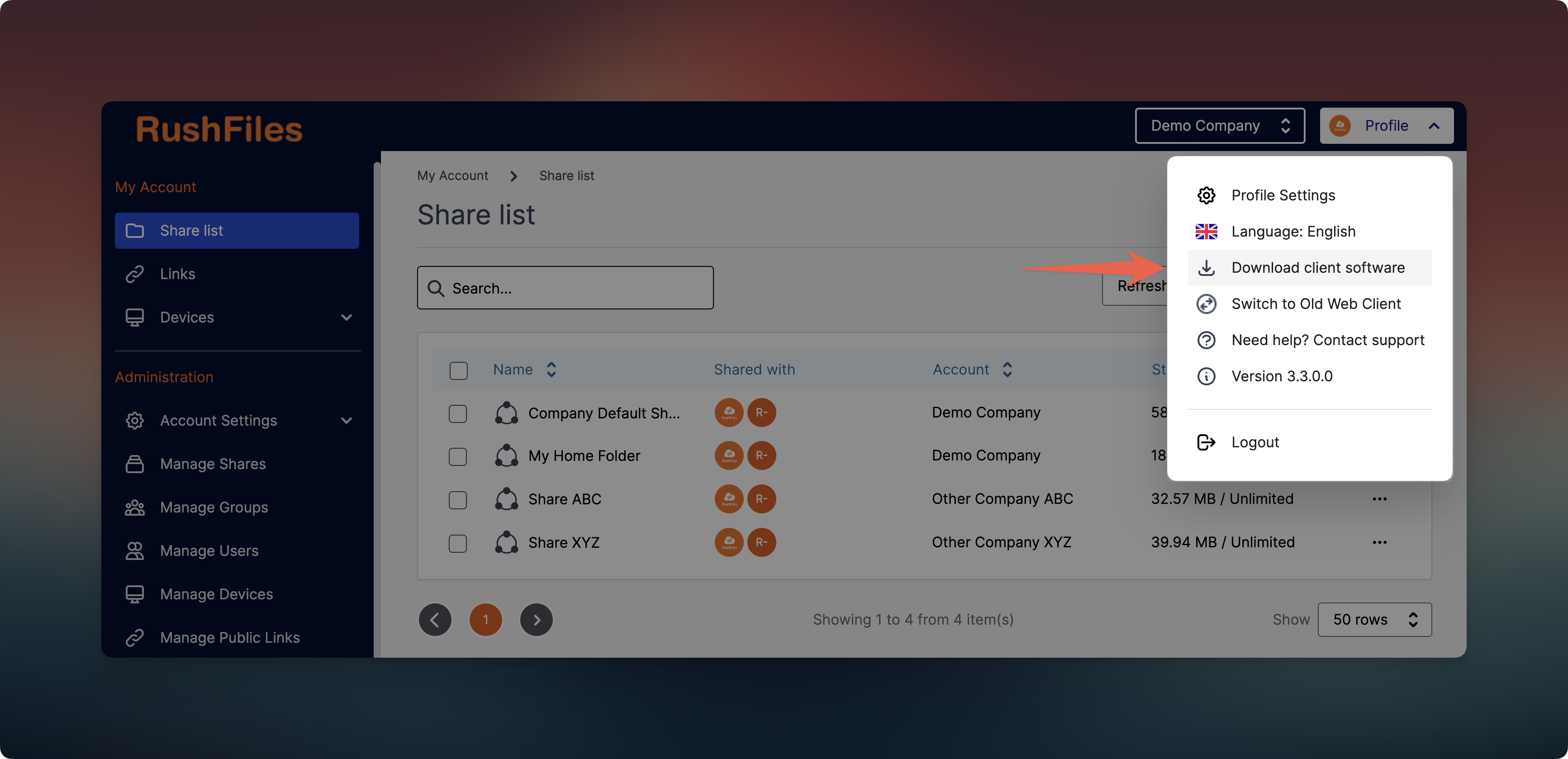
When logged in, click Profile (top right corner) and select Download client software from the dropdown menu next to the company switcher.
Through Reseller:
End-users can also contact their reseller to request the download link directly.
After downloading the installer:
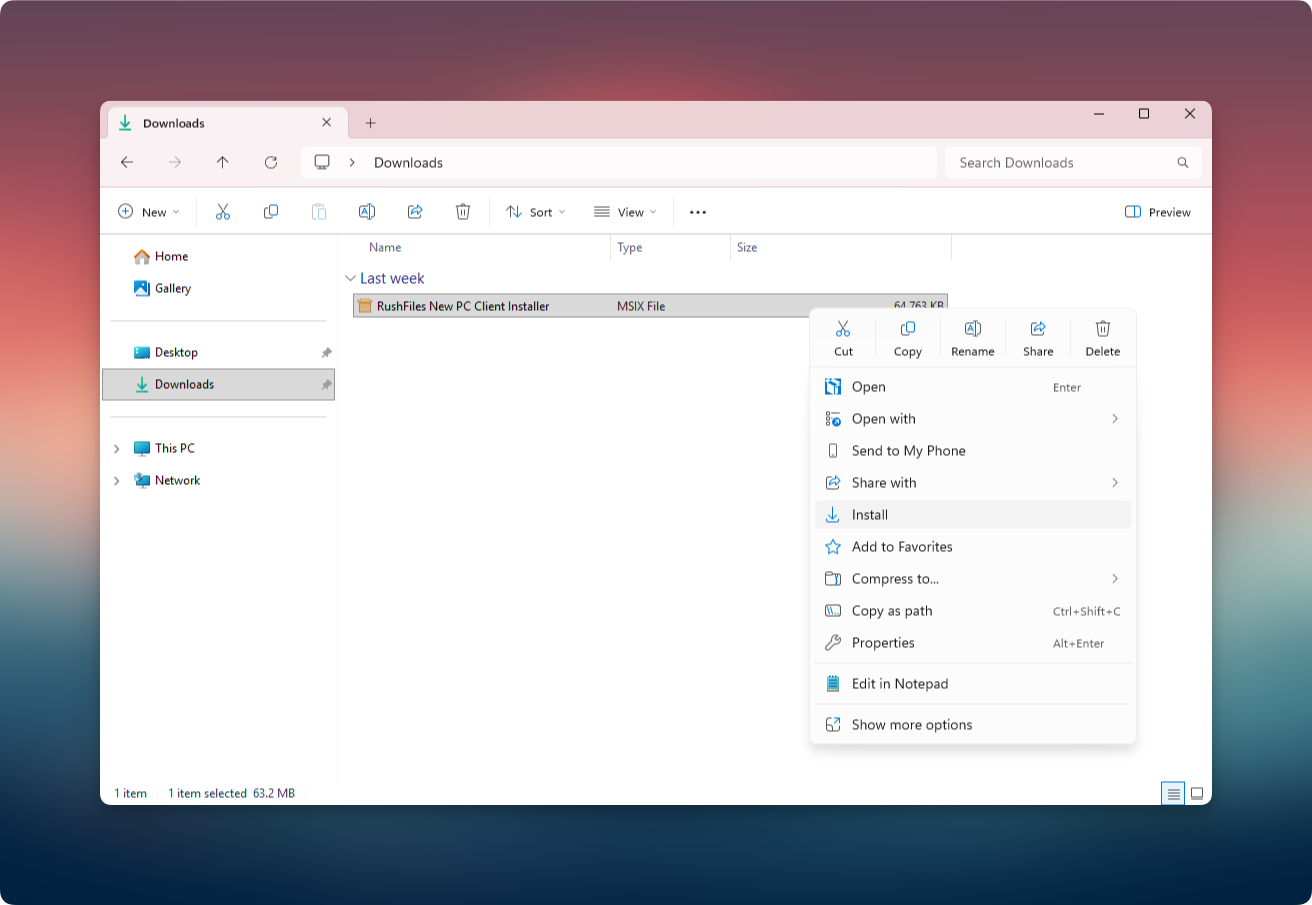
Launch the installation file.
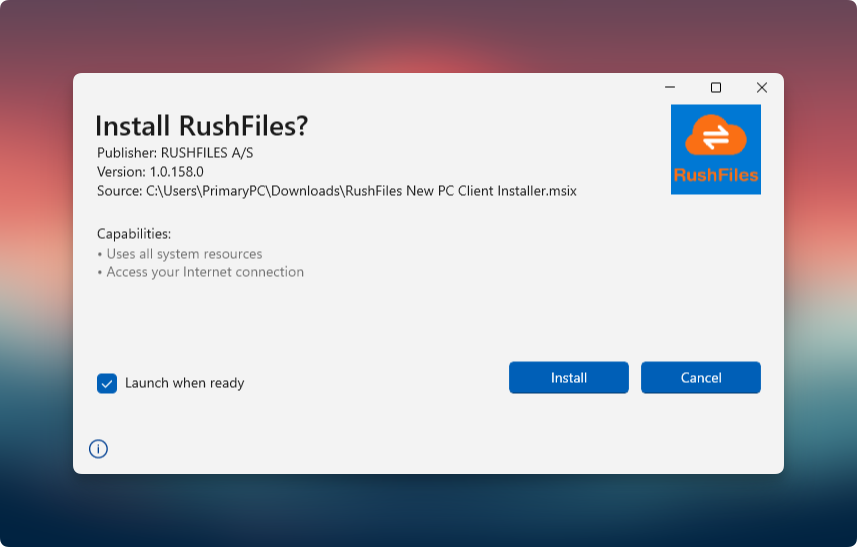
Follow the on-screen prompts to complete the setup.
Once installed, the Windows App can be launched from the Start Menu or Desktop shortcut.
The installation process is similar to other Windows applications and does not require manual configuration.
If the required system components are not present, the Windows App will automatically prompt the user to install them after the initial launch. These components are essential for running the application:
Microsoft Windows Desktop Runtime (.NET Desktop Runtime 8.0.20 or later)
Microsoft ASP.NET Core Shared Framework (version 8.0.20 or later)
Once both components are installed, users can relaunch the application normally.
After installation:
The Windows App launches automatically.
Click Log in — the default browser opens and prompts the user to enter their RushFiles username and password.
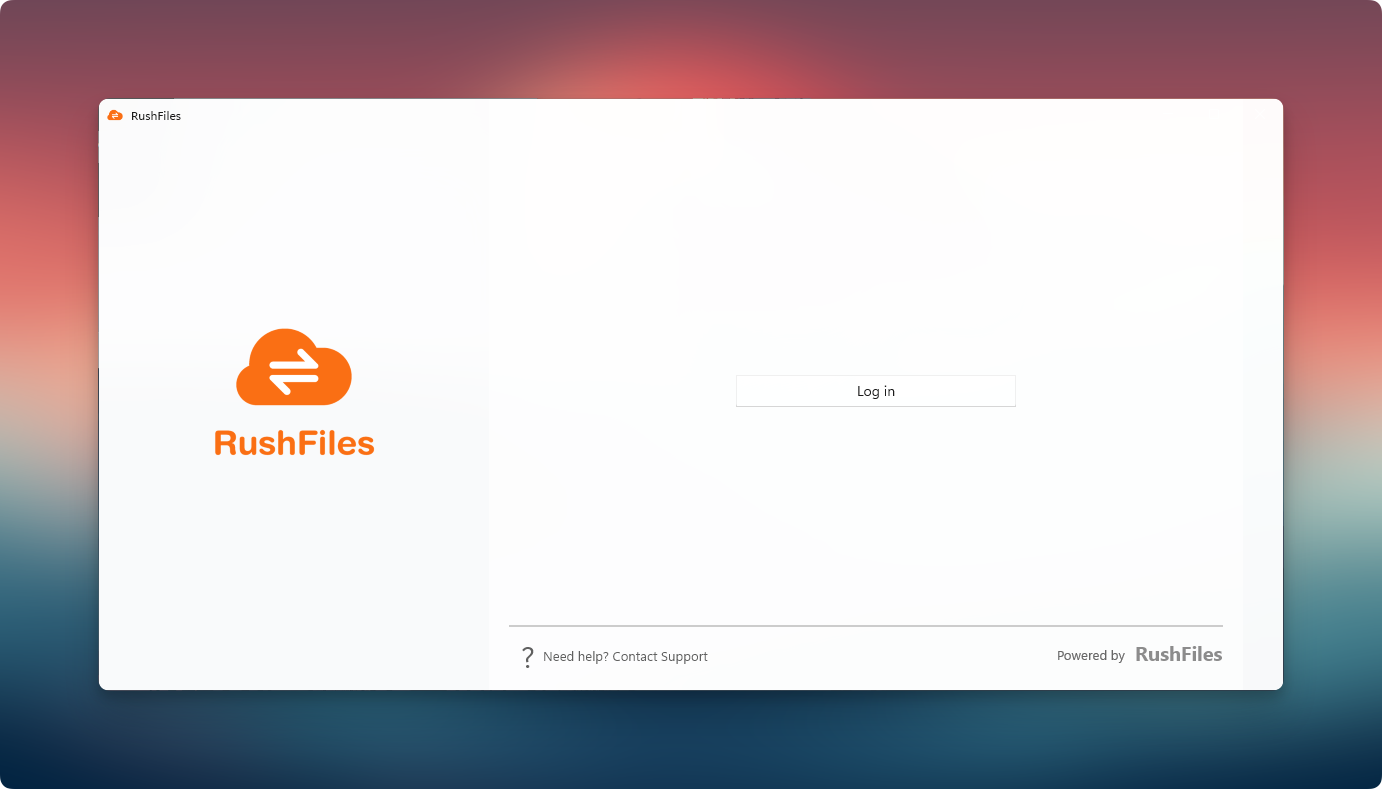
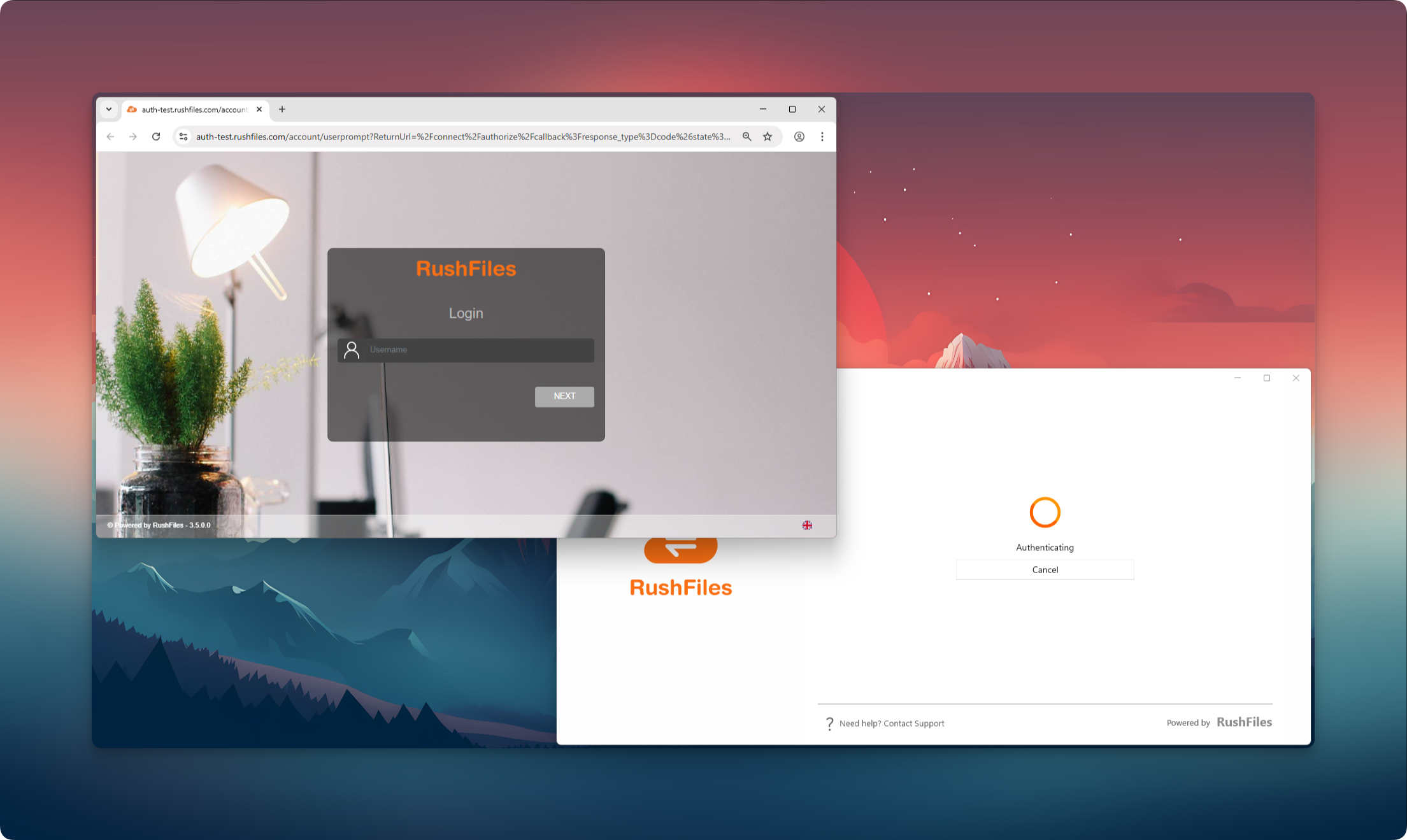
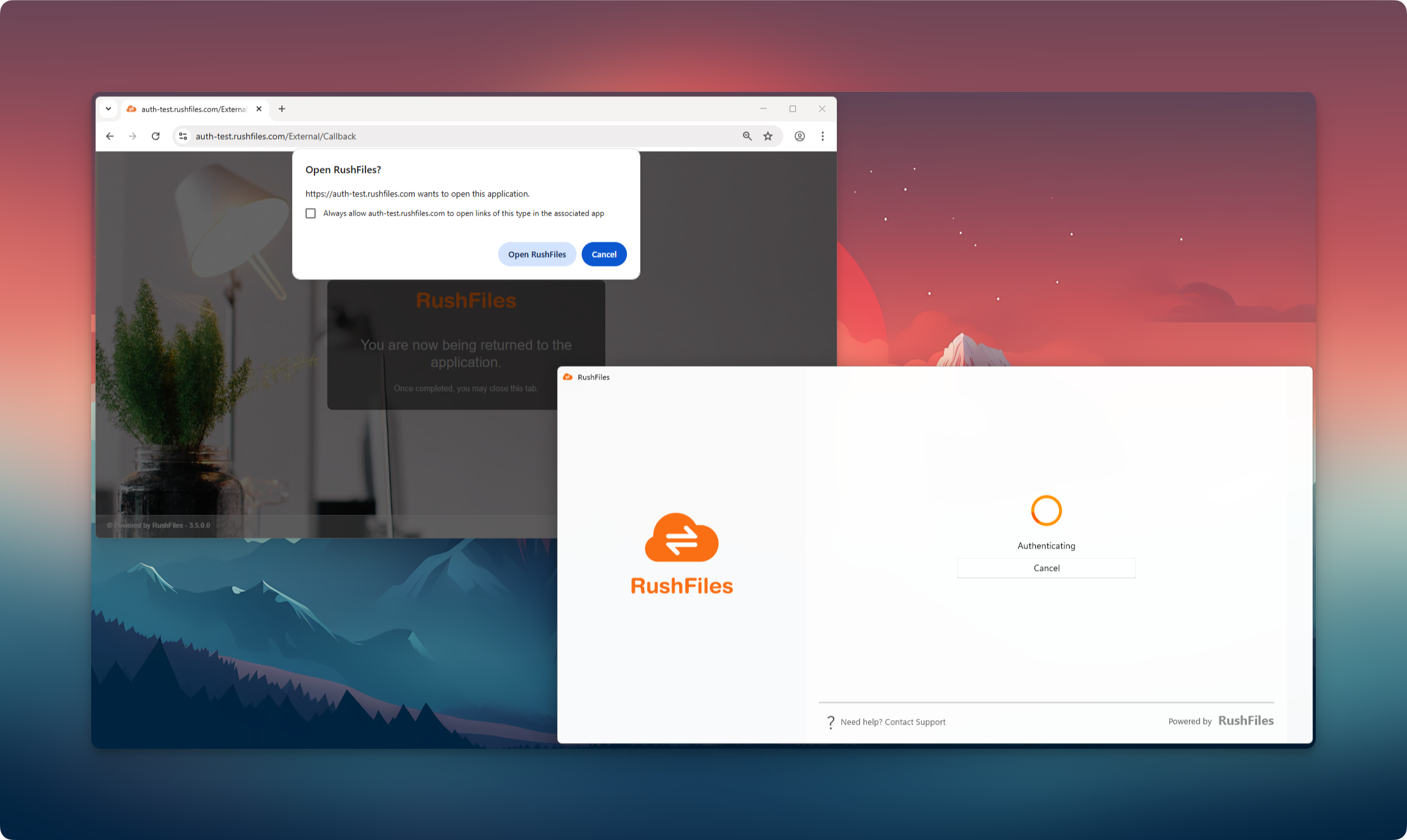
When asked, select Open RushFiles to complete authentication.
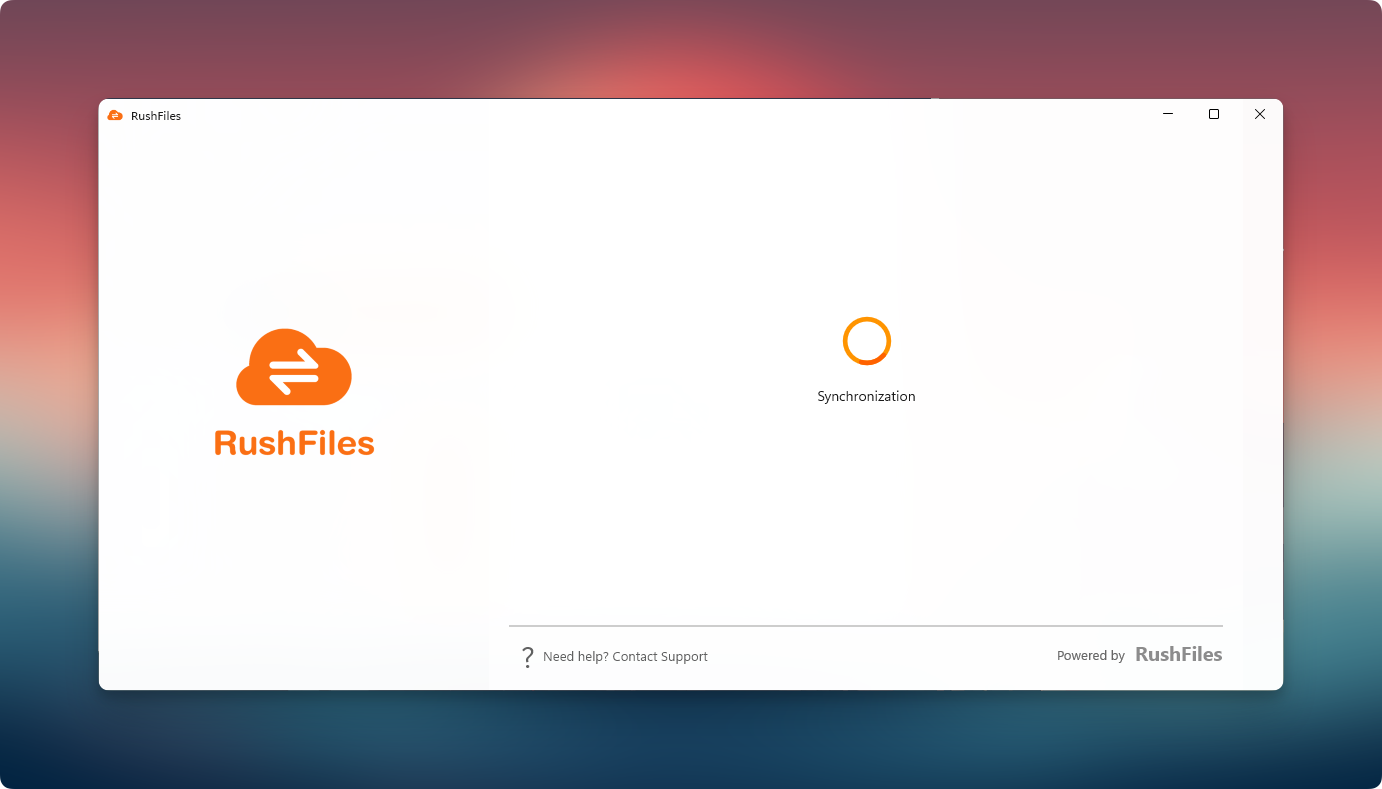
After a successful login, the app begins with the initial synchronization. This may take a few moments depending on the number of shares and files.
After the initial synchronization, the app returns to the main interface.
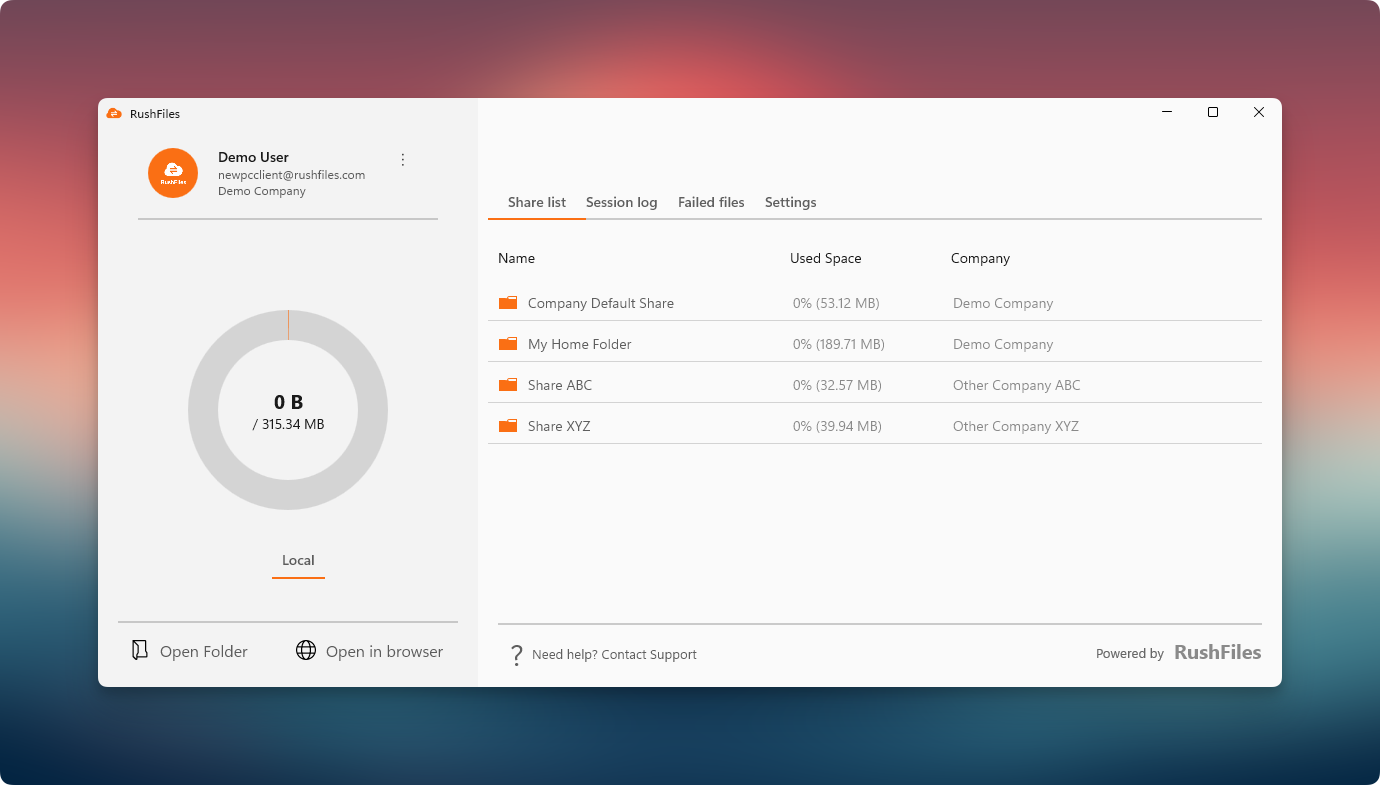
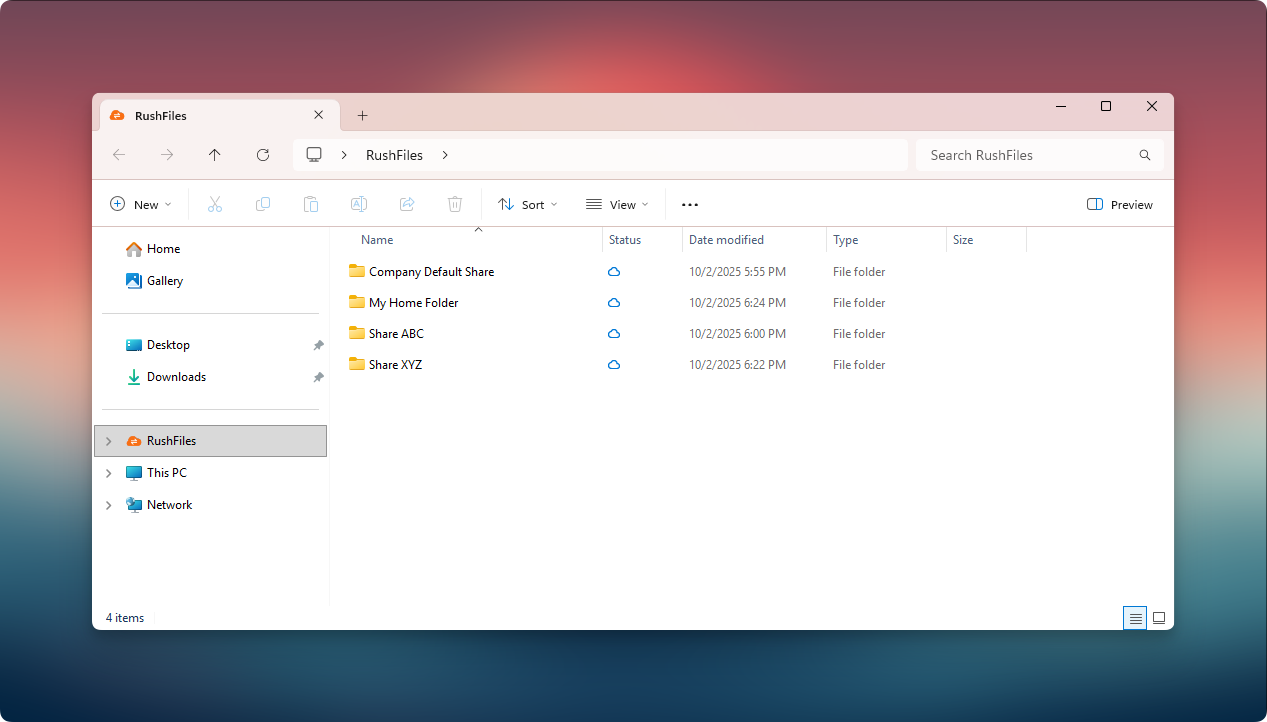
Users can now start managing or working with their files in the Sync Folder.
Users, please contact the reseller for assistance. Each reseller manages its own company accounts and provides support for access, configuration, and troubleshooting.
Partners and resellers, please contact the RushFiles Support team by submitting a new ticket at: Submit New Support Ticket