
This guide is intended for company administrators and end users who are new to RushFiles. It provides a quick overview of the most common tasks so you can get started confidently.
In this article, you will learn how to:
Account activation
File upload and download basics
File Sharing
Access RushFiles on desktop and mobile clients
When a user account is created, RushFiles automatically sends the user an email containing a password activation link.
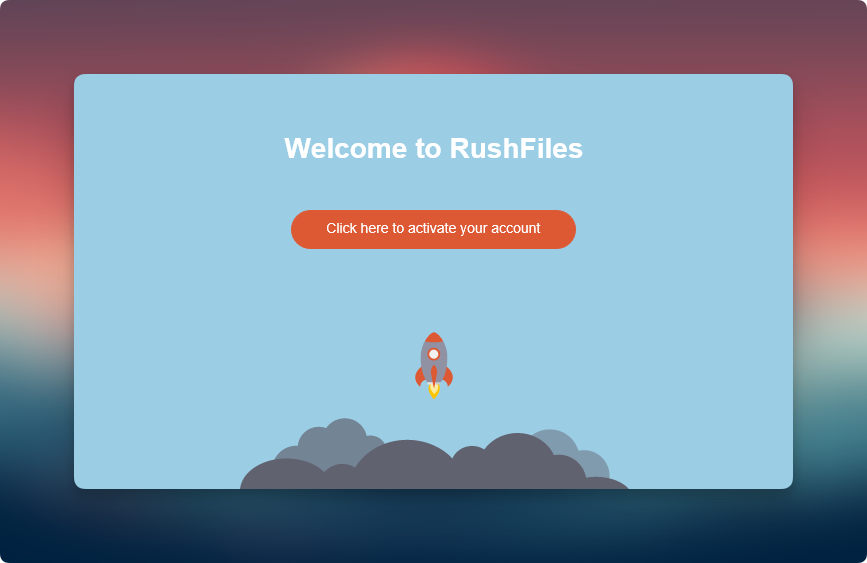
The user must click this link to set their password and activate the account before logging in.
Password requirements enforced by the system:
At least 1 uppercase letter (A–Z)
At least 1 lowercase letter (a–z)
At least 1 number (0–9)
At least 1 special character (for example: ! @ # $ %)
Minimum of 8 characters
After completing the password setup, the user is redirected to the RushFiles web app login page.
Notes:
Activation links are valid for 24 hours
If multiple password reset emails are sent, only the most recent link remains valid
Expired links require requesting a new password reset email
All files in RushFiles are stored within a Share.
A Share functions as a secure shared folder where files are uploaded, accessed, and managed. An initial Share is created automatically when a user account is set up, and additional Shares can be created as needed.
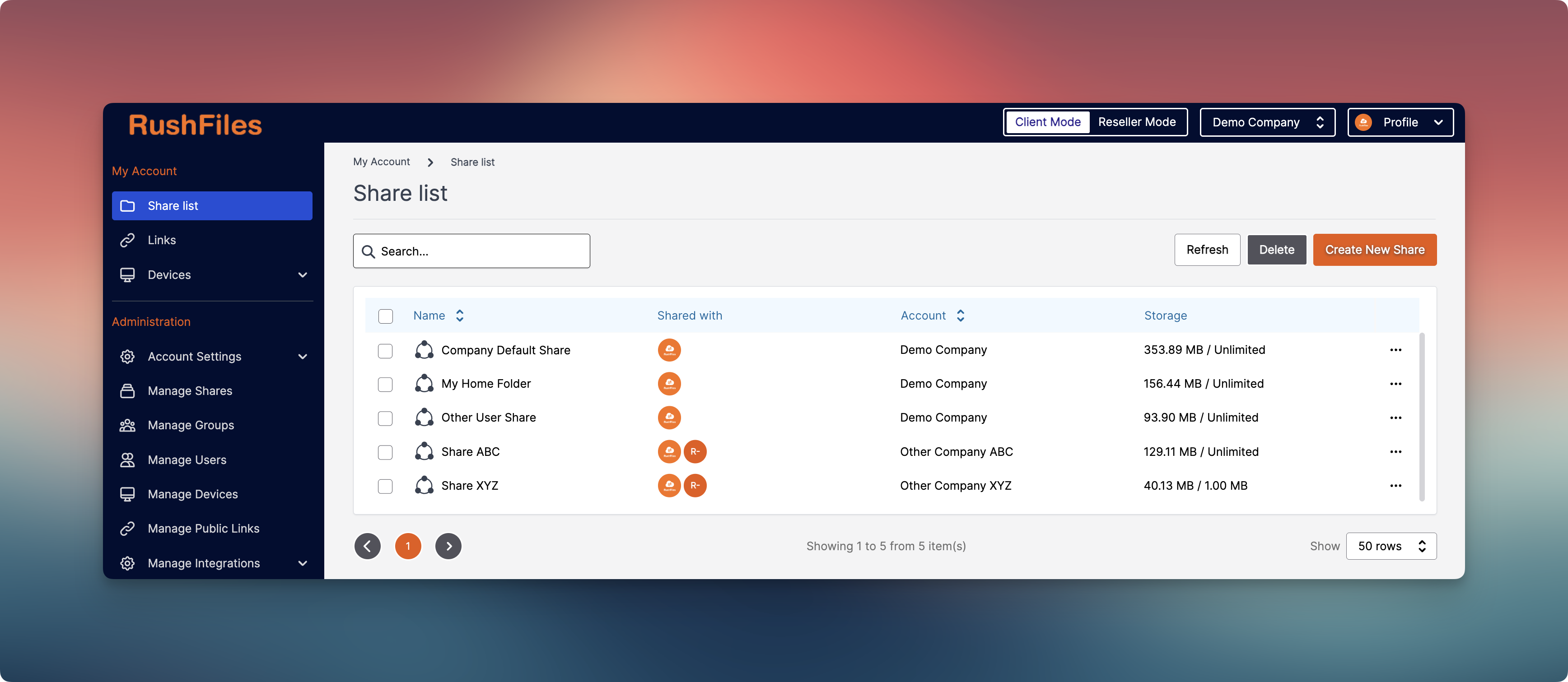
A Share can be accessed through the following clients:
Web app
Windows app (New)
PC client (Legacy)
Mobile apps (iOS and Android)
From a Share, users can upload, download, and manage files. However, the ability to upload, edit, or modify files depends on the permissions assigned to the user by the administrator. Users with read-only or view access will only be able to view or download content, while users with appropriate permissions can upload and make changes.
RushFiles supports two primary sharing methods, depending on the customer’s use case.
User-based sharing
Users can be invited directly to a Share. This is typically used for ongoing collaboration, where invited users can access and manage files based on assigned permissions.
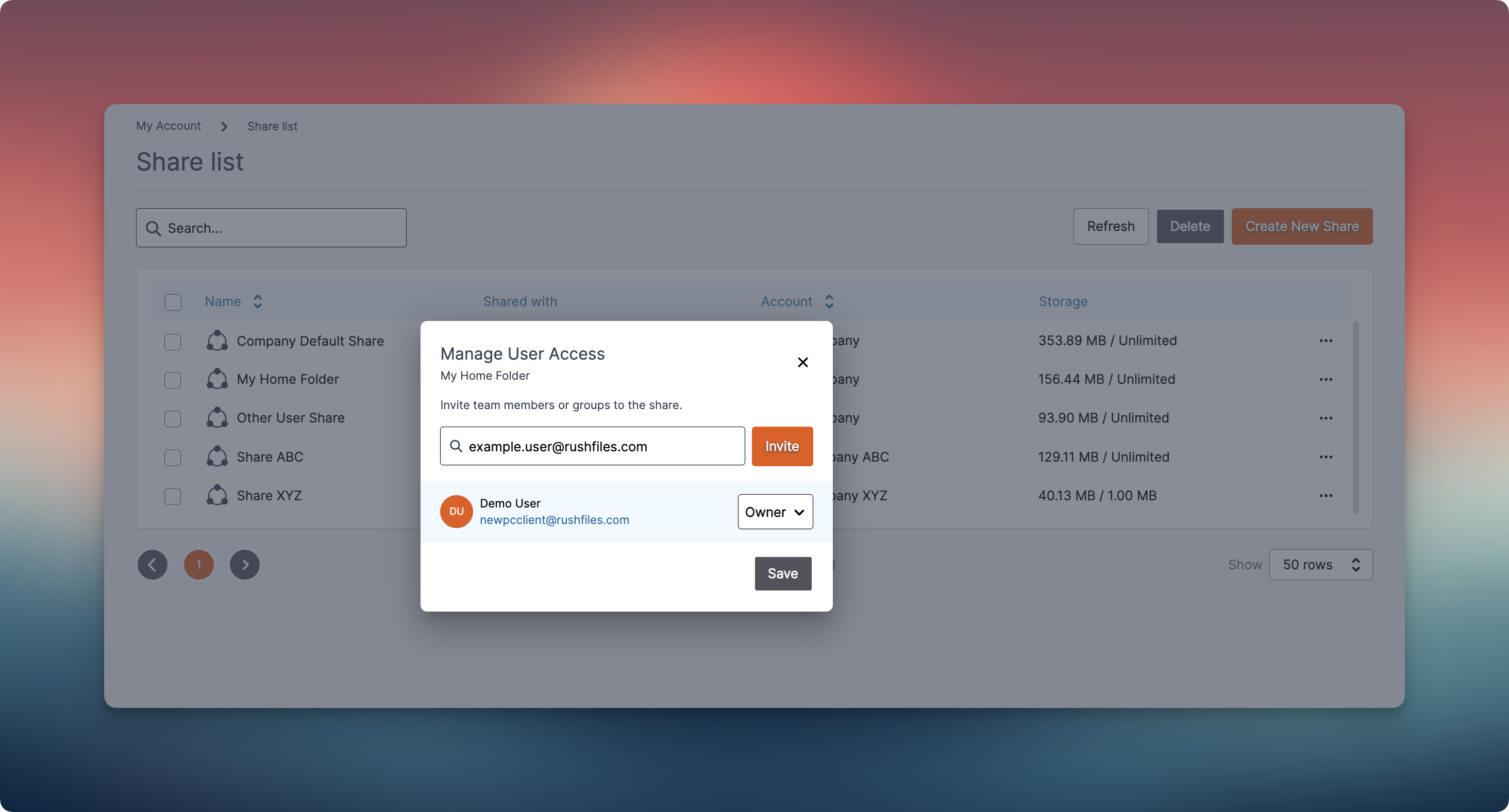
Note: User-based sharing can only be managed through the Web app. Inviting users, modifying their access, or removing users from a Share is not available in desktop or mobile clients.
Public links
Public links allow files or folders to be shared externally without requiring a RushFiles account. These are commonly used for one-time or external file sharing.
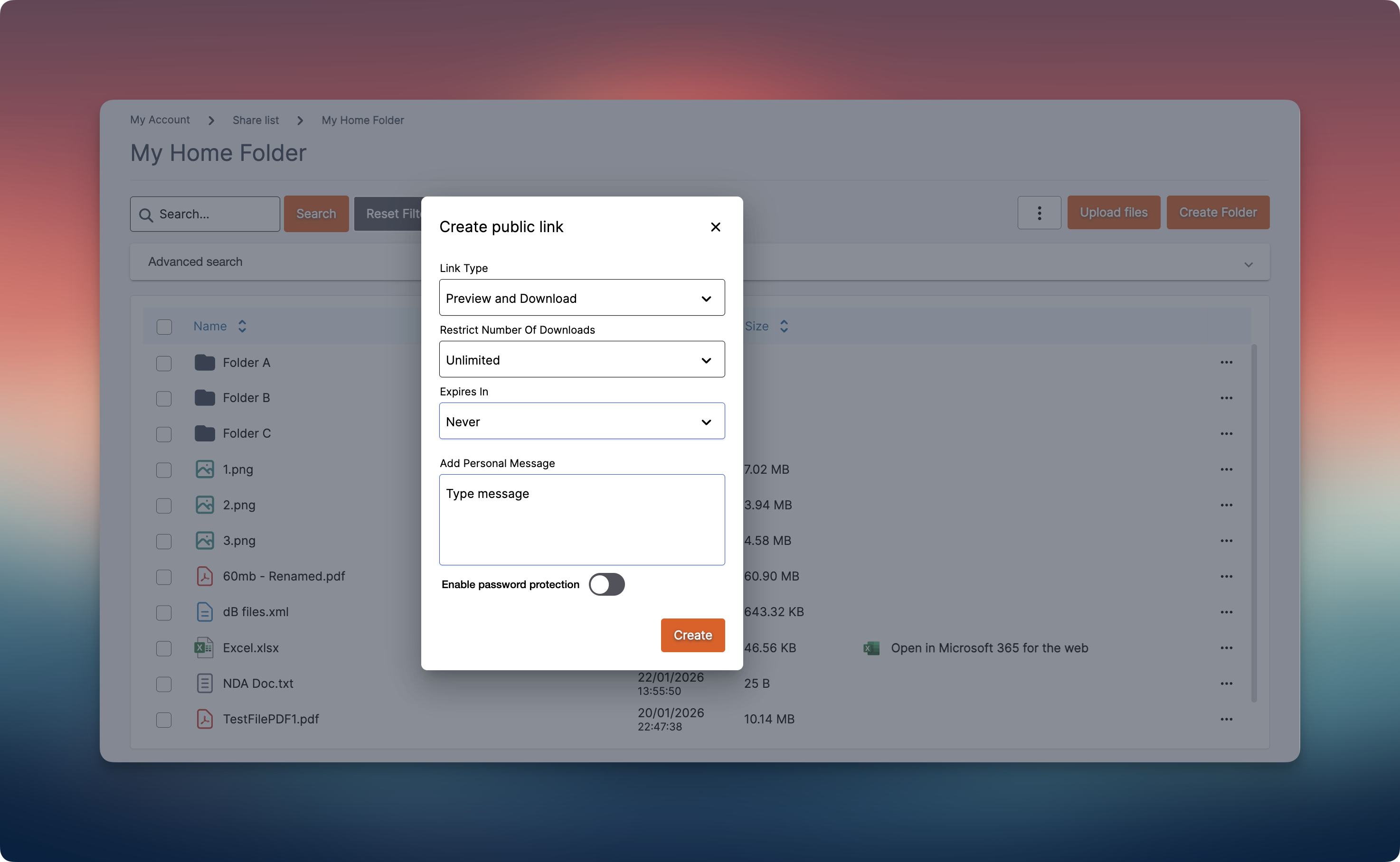
Public links can be configured with:
Link type
Download limits
Expiration
Personal message
Password protection
Note: Public links can be created and managed from any client, including the Web app, Windows app (New), PC client (Legacy), and mobile apps (iOS and Android).
RushFiles is accessible across multiple platforms to accommodate different customer workflows.
Available access methods include:
Web app
Windows
macOS
iOS
Android
Desktop and mobile clients are commonly used by customers who require:
Local access to files
Large or frequent file transfers
Ongoing file synchronization
For end-users, please contact the reseller or account host for assistance. Each reseller manages its own company accounts and provides support for access, configuration, and troubleshooting.
For partners and resellers, please contact the RushFiles Support team by submitting a new ticket at: Submit New Support Ticket