
This guide provides Windows App beta participants with the essential information to install, use, and troubleshoot the Beta version of the Windows App. It covers installation, login and logout behavior, uninstallation steps, known limitations, and how to accurately report issues during the beta testing period.
For help and questions, please contact our helpdesk at https://helpdesk.rushfiles.com.
We appreciate your participation and feedback, and hope that you'll like the app.
Beta participants receive the Windows App through a private link. Simply download the msix file, run it, and follow the on-screen instructions.
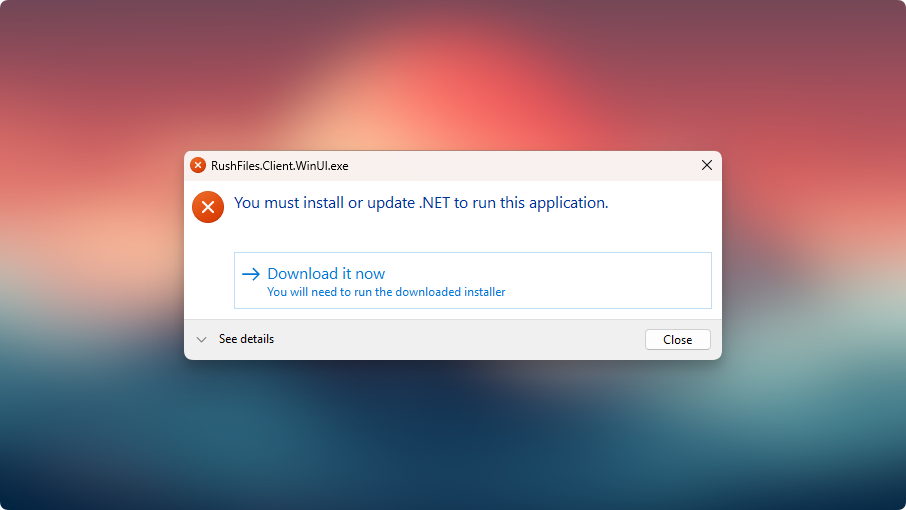
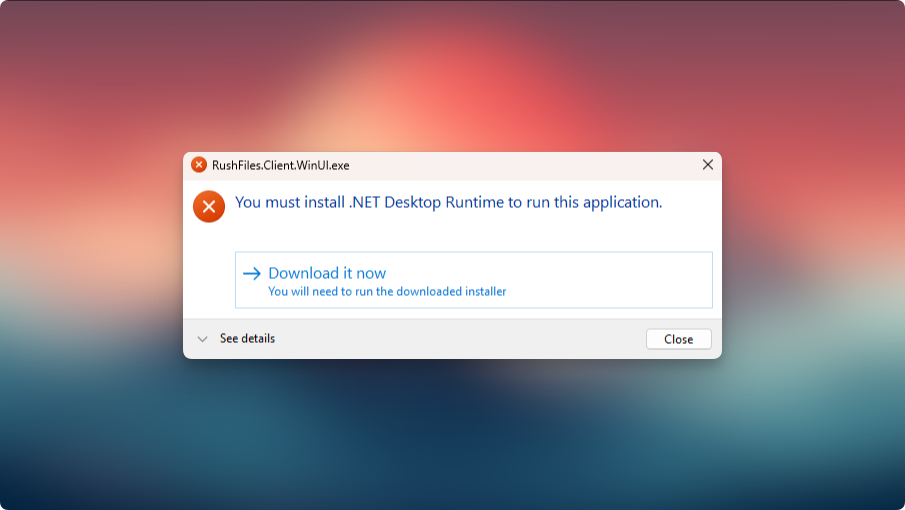
Note that the app requires the .NET 8 Core and Desktop Runtimes. The latest installers for x64 systems are included with the msix file, or can be downloaded from Microsoft using the links below:
If these runtimes are not installed when the app starts, instructions will appear on screen with guidance to download and install them. After the installation of each runtime, the app needs to be started manually.
Click the Login button to start the login flow. This will open your default browser.
- If you are already logged in to RushFiles in your default browser:
- A new tab is opened with a pop-up message asking if the login information can be shared with the Windows App. Click the Open button to log in.
- If you are not logged in to RushFiles in your default browser:
- A new tab is opened at the RushFiles login screen. Enter your information, and allow the Windows App to log you in as well by clicking the Open button in the pop-up.
- If you accidentally close the browser tab without logging in, open the app, click Cancel, then click the Login button again.
- You have 120 seconds to complete the login after clicking the button. If you run out of time, click the Login button again.

Important:
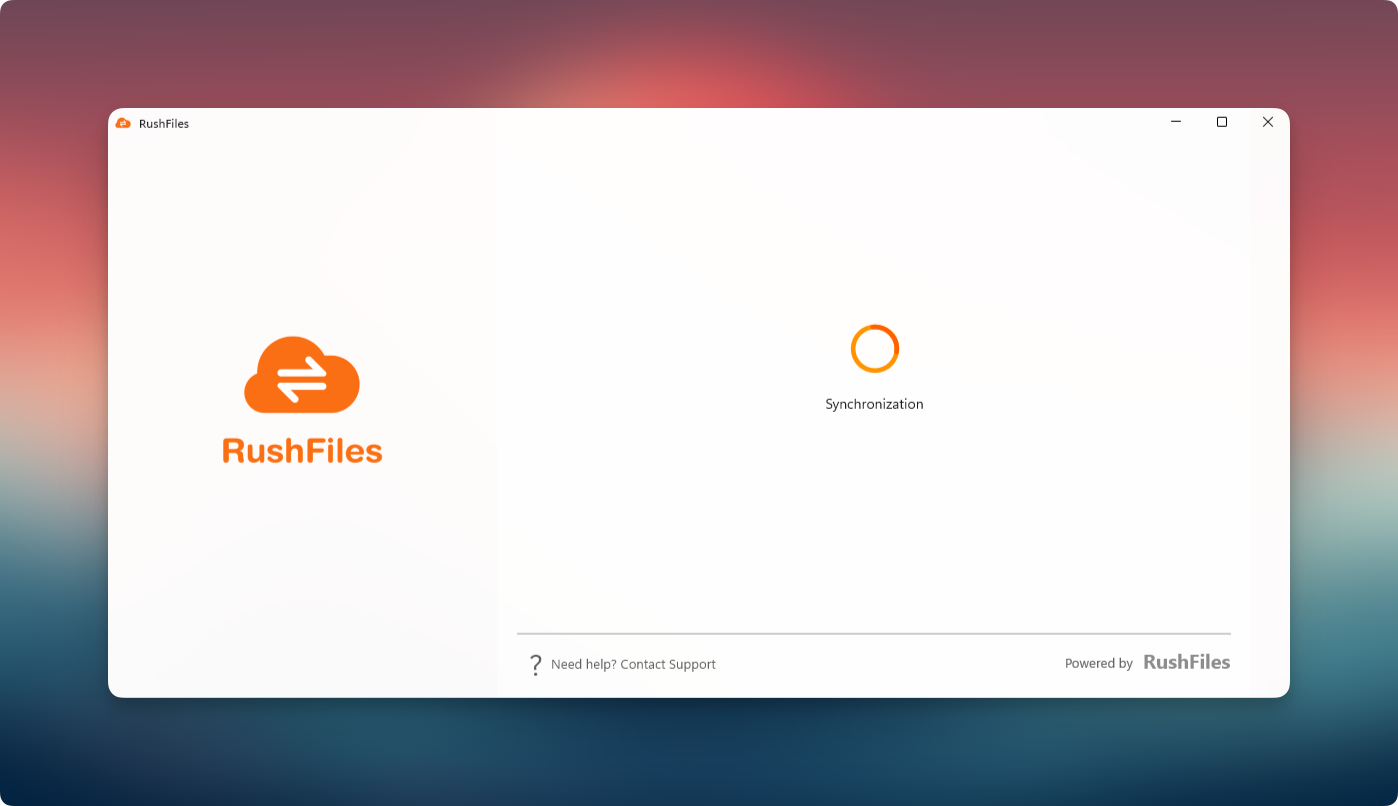
The Windows App takes longer to finish the initial synchronization than the PC Client. This is expected behavior, as the placeholders created by this app integrate more fundamentally with Explorer than the PC Client's virtual files. This allows the Windows App to be faster after the initial sync.
Please allow the initial synchronization to finish.
After a successful login, the Windows App automatically creates the Sync Folder (RushFiles folder) in the left navigation panel of Windows Explorer.
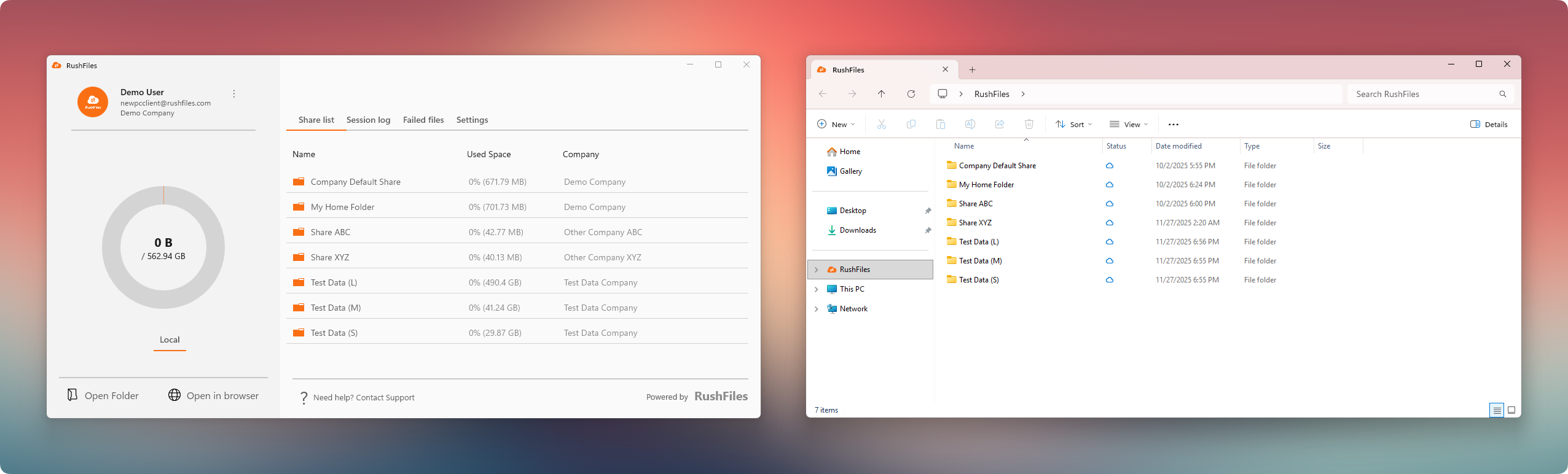
This folder is where users can work with their files once the initial synchronization is complete. Users should wait for the sync process to finish before interacting with any files or folders to ensure all items are fully available and up to date.
The Sync Folder is visible even if the Windows App is not actively running. However, interacting with any file or folder inside it through Windows Explorer will automatically open and launch the Windows App in the background.
New files and changes done while the app is not running (eg. when opening a cached file through Word) are synchronized the next time the app starts up; deletions under the same circumstances are reverted instead.
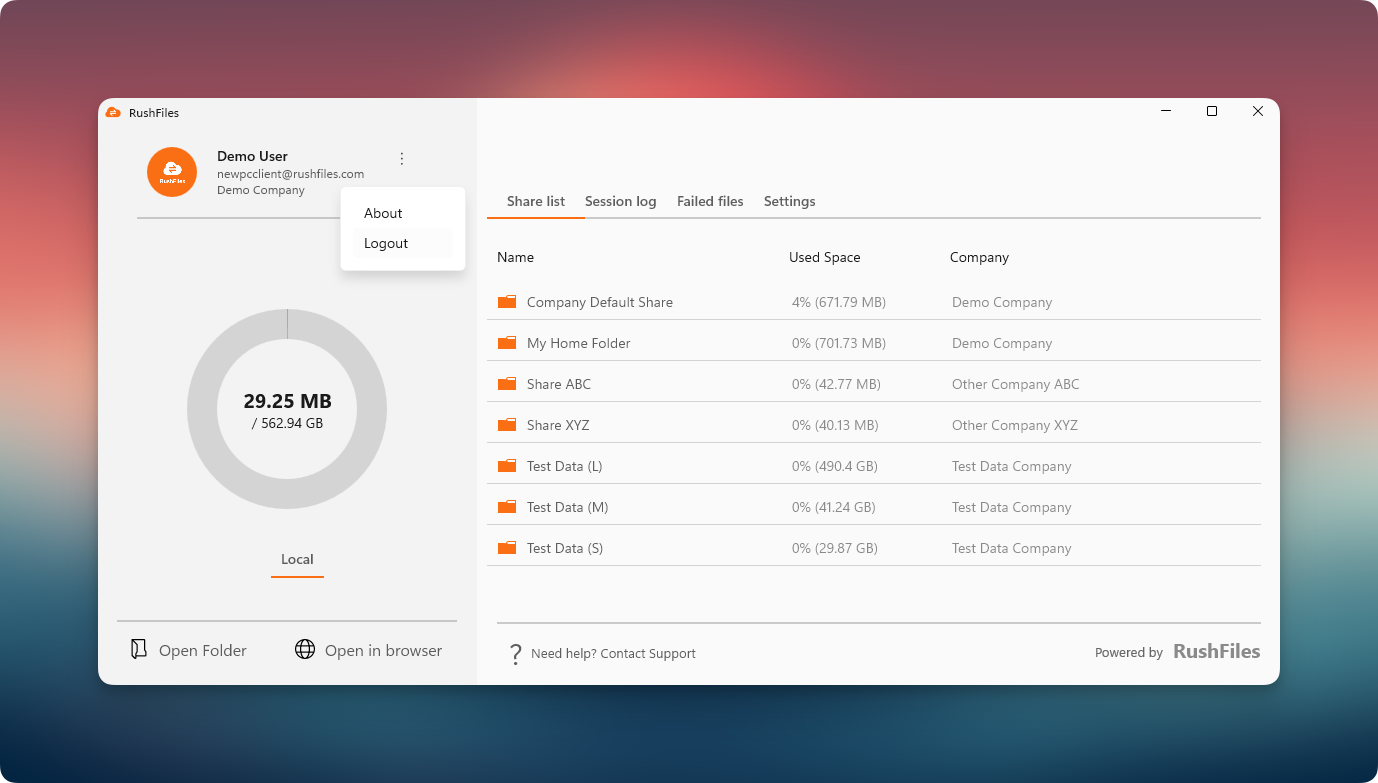
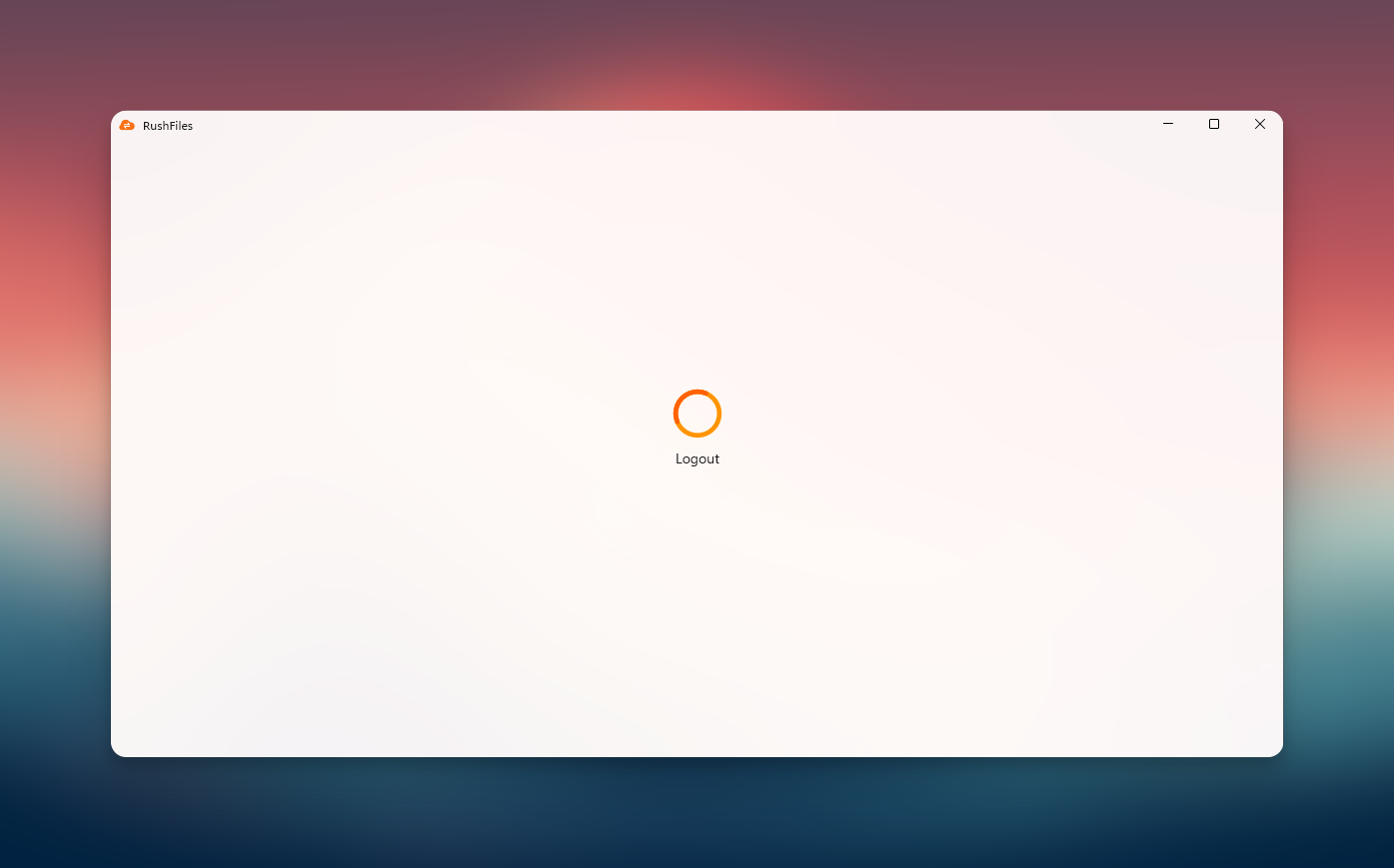
Users can log out from the Windows App by clicking the vertical ellipsis (⋮) icon in the left navigation panel and selecting Logout.
Note:
Users must also log out of the default browser if they wish to switch accounts. Logging out in the app alone is not enough to switch to another user.
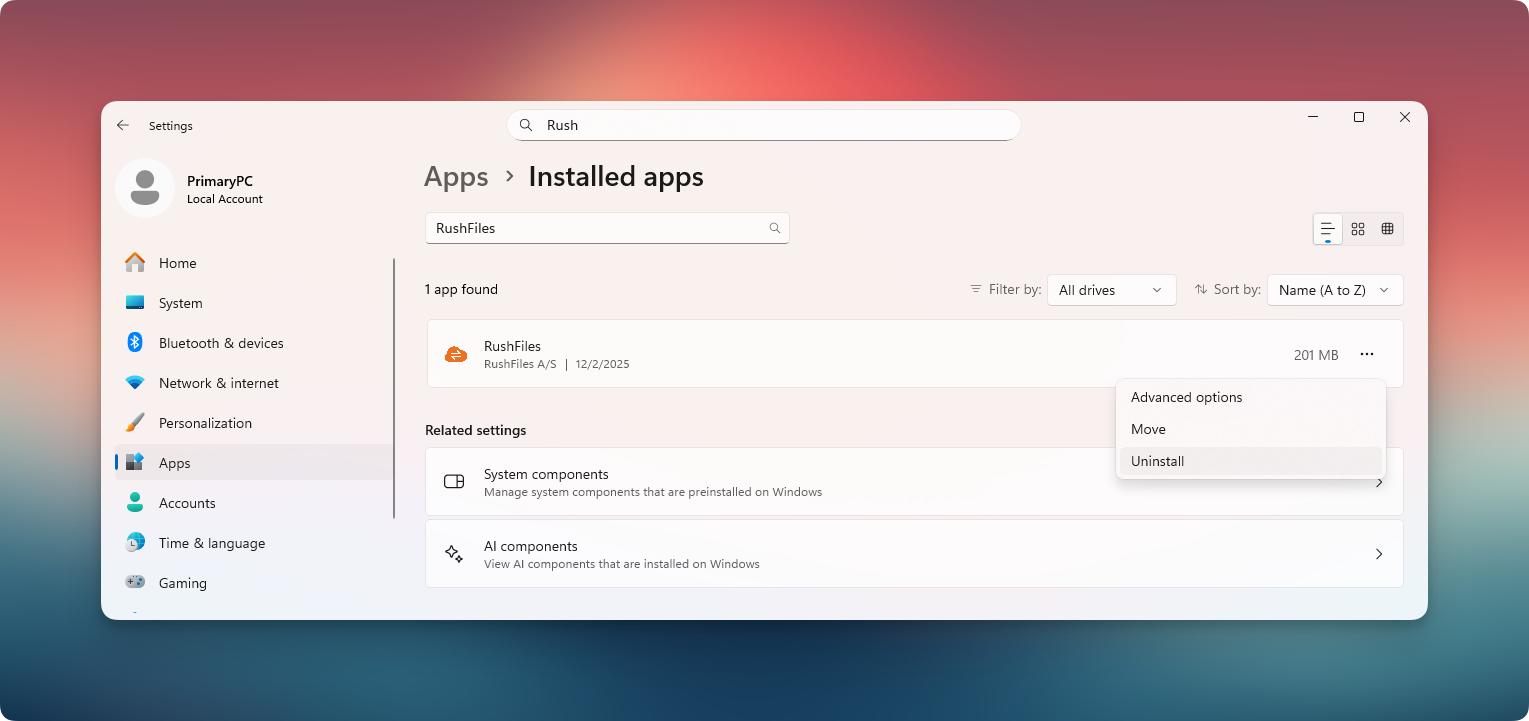
If users need to uninstall the Windows App:
Open Apps & Features in Windows 10 or Installed apps in Windows 11.
Uninstall the Windows App.
If the user cannot reinstall afterward, the installation package folder must be deleted manually to ensure a clean installation. This folder can be found at C:\Users\username\AppData\Local\Packages\<BrandName>_guid. If it can't be deleted, please reboot your computer and try again.
This resolves cases where a previous installation leaves behind components that prevent reinstalling.
Note:
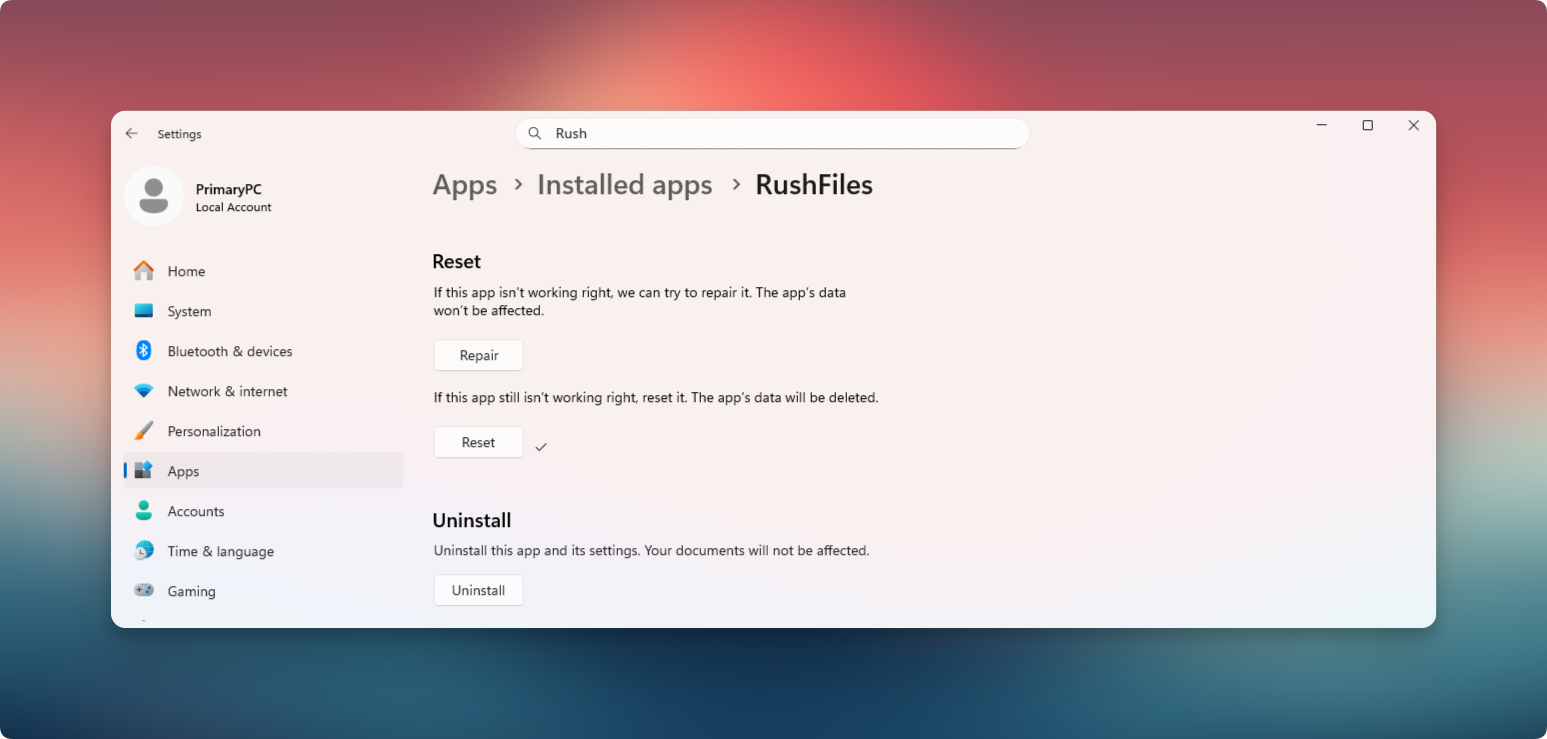
Users can also navigate to the Windows App’s Advanced Option, scroll down to the Reset section, and click the Reset button.
- This action deletes the app’s data.
- After the reset is completed, users can proceed with the uninstallation steps mentioned above.
The following issues are known in this Beta version:
Possible Crash with Japanese Characters
- Shares containing certain Japanese characters may cause the app to crash.
- This is under investigation.
Downloads Cannot Be Cancelled
- Cancelling a file download currently restarts the download instead of stopping it.
Shares Not Removed Dynamically
- If user rights are revoked, the removed Share may not disappear immediately.
- A client restart is required for the UI to reflect the updated access rights.
Missing Notifications
Notifications are currently missing for the following situations:
Uploading to a read-only Share
Company or Share storage full
Domain unavailable
File duplication at initial sync
- Files that are modified remotely while being synchronized locally may be duplicated
When reporting an issue, please include the following details so the development team can analyze the behavior effectively:
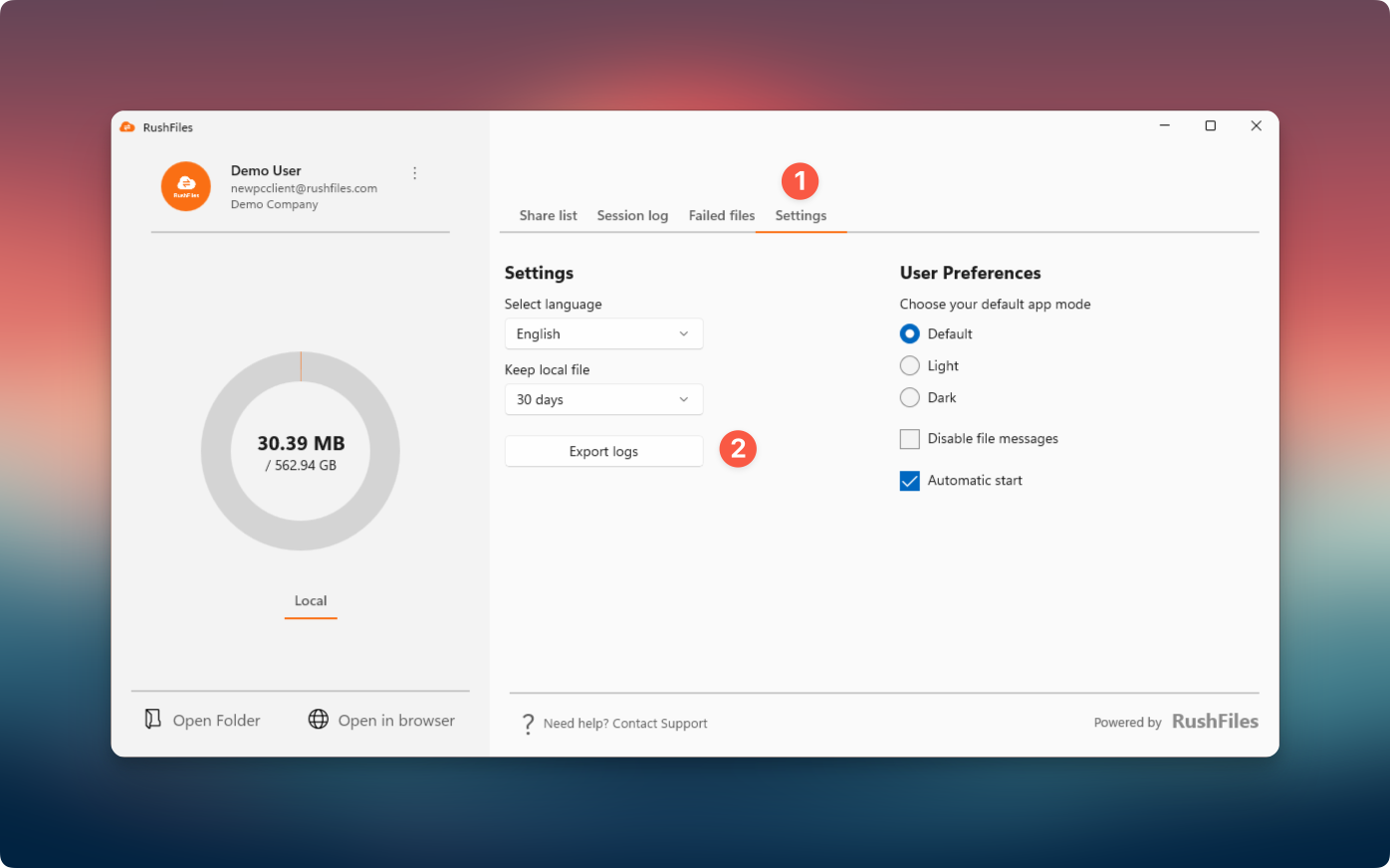
1. Export Logs - Use the built-in log export feature in the Windows App.
2. Provide Computer Specifications
Please include:
Windows version
Hardware details
Storage type (HDD/SSD)
3. Provide a Detailed Description
The report should include:
What happened
Exact steps taken
Expected result
Actual result
4. Submit to the Helpdesk
Send everything to the RushFiles helpdesk and include the prefix: "Windows App"
This ensures the ticket is categorized correctly for the development and QA teams.