
The RushFiles Windows App is a redesigned native desktop application that gives users direct access to their files and shares from a Windows computer. Built with performance and stability in mind, this new client offers a smoother, faster, and more intuitive experience compared to its predecessor, the PC Client.
The Windows App introduces a login flow in line with our other native apps, a modern interface with new features, and a completely new sync engine. It replaces the virtual-drive technology used by the PC Client with a cloud-folder-based system that integrates directly into Windows Explorer. We'll refer to this folder as the Sync Folder.
These changes provide a more stable, intuitive, and seamless file-syncing experience compared to the older virtual drive model, while using less system memory when working with large shares.
This section highlights the key technical improvements introduced in the Windows app, including enhancements to performance, resource usage, synchronization reliability, context menu capabilities, and overall file-handling behavior.
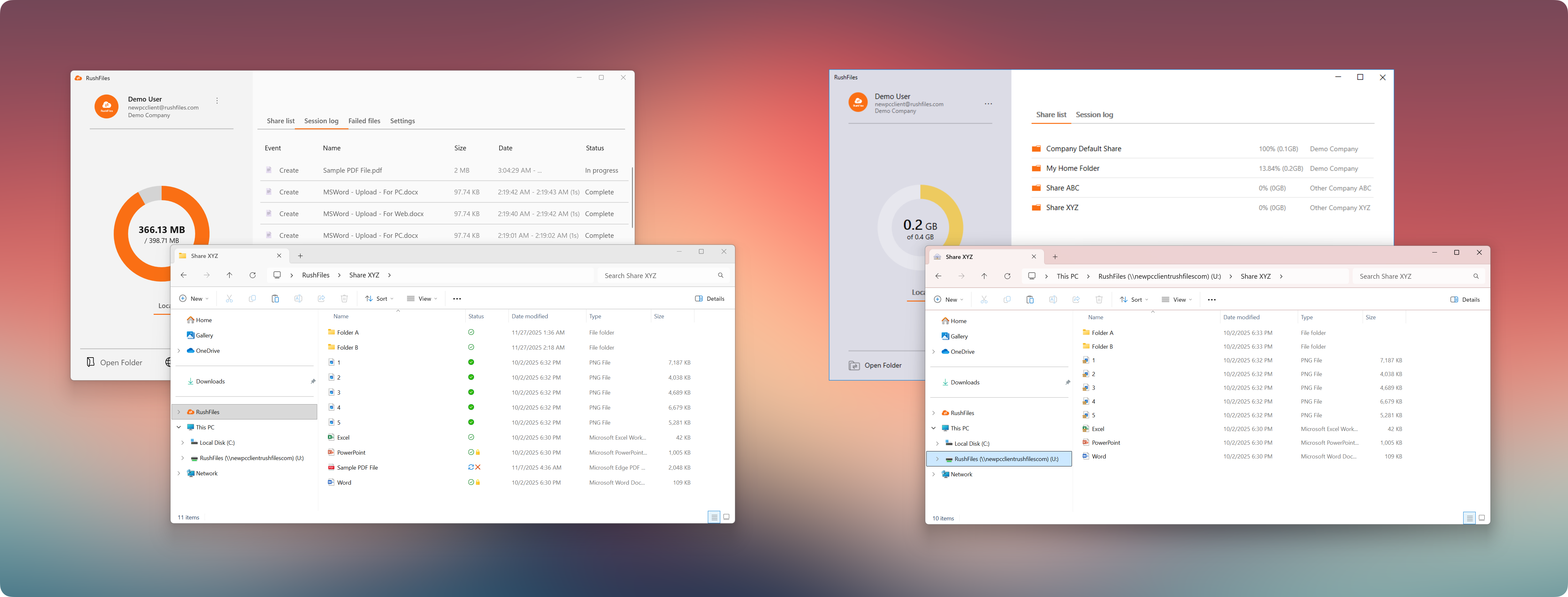
The Windows App (left) uses a new, Windows-native sync engine that supports displaying file hydration states directly within the RushFiles folder. This allows us to display more accurate information about the sync state of each file, using indicators that users are familiar with.
The currently implemented status icons are:
Blue cloud icon - file is available online only.
Green tick icon - file is downloaded and available on this device.
Solid green circle with white checkmark - file is marked as always available on this device.
Padlock icon - file is locked.
Circular arrows - sync in progress.
Circular arrows + red X - sync pending, and failed, file recovery may be required through Failed files tab.
Windows App (left)
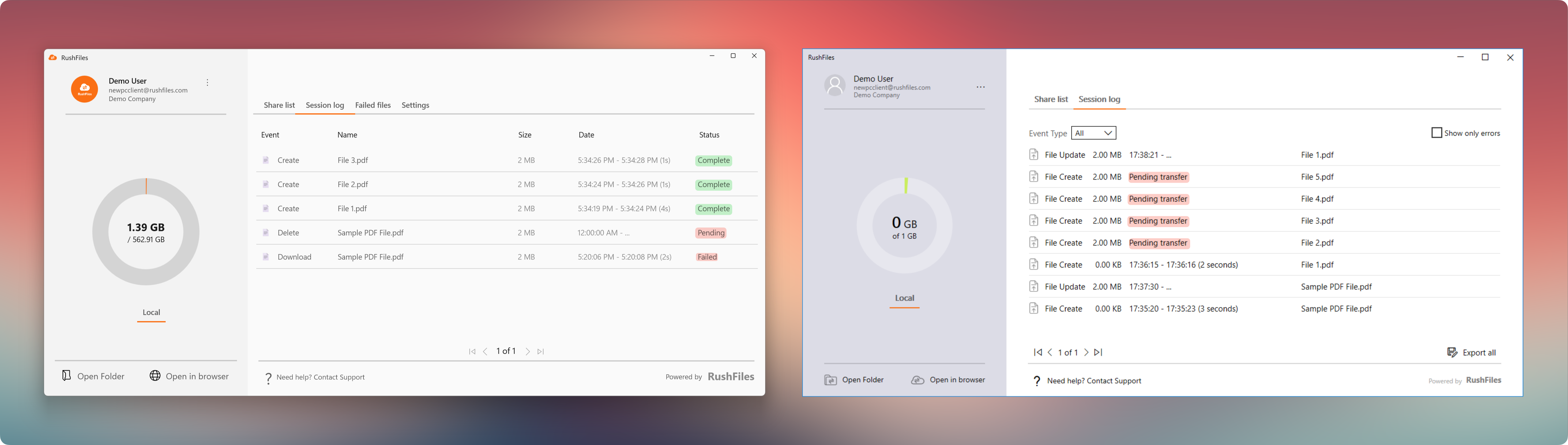
Features a new sync engine with enhanced parallelization, allowing multiple uploads to progress independently.
Pending or failed uploads no longer block other files in the queue.
Uploads complete faster, especially noticeable with many small files (<1 MB).
Performs periodic checks to ensure all new or modified files are uploaded. If any files were changed while the app was closed or if uploads were interrupted, they are automatically detected and added back to the queue.
This behavior is especially useful when:
Uploading large numbers of files at once.
Files are modified while the Windows app is not running.
Even if a file fails to upload due to reasons such as Share or company storage limits, other files in the queue will still upload successfully, as long as the destination Share has available space.
PC Client (right)
Uses an older synchronization mechanism where uploads are processed sequentially.
If one file encounters a synchronization issue (e.g., Share limit reached, company storage full, permission conflict), it often blocks the rest of the queue, preventing other files from uploading.
Windows App (left)
Can handle significantly larger upload queues without performance degradation.
Internal tests have shown the Windows app processing upload queues of tens of thousands of files (e.g., around 30,000).
Uploads remain responsive and stable even when a large volume of files is queued simultaneously.
The new sync engine’s improved handling and parallelization allow the Windows app to scale far beyond the limits of the older client.
PC Client (right)
Recommended maximum queue size is approximately 5,000 files at a time.
Larger queues may cause slowdowns, blocked uploads, or stalled synchronization.

Windows App (left)
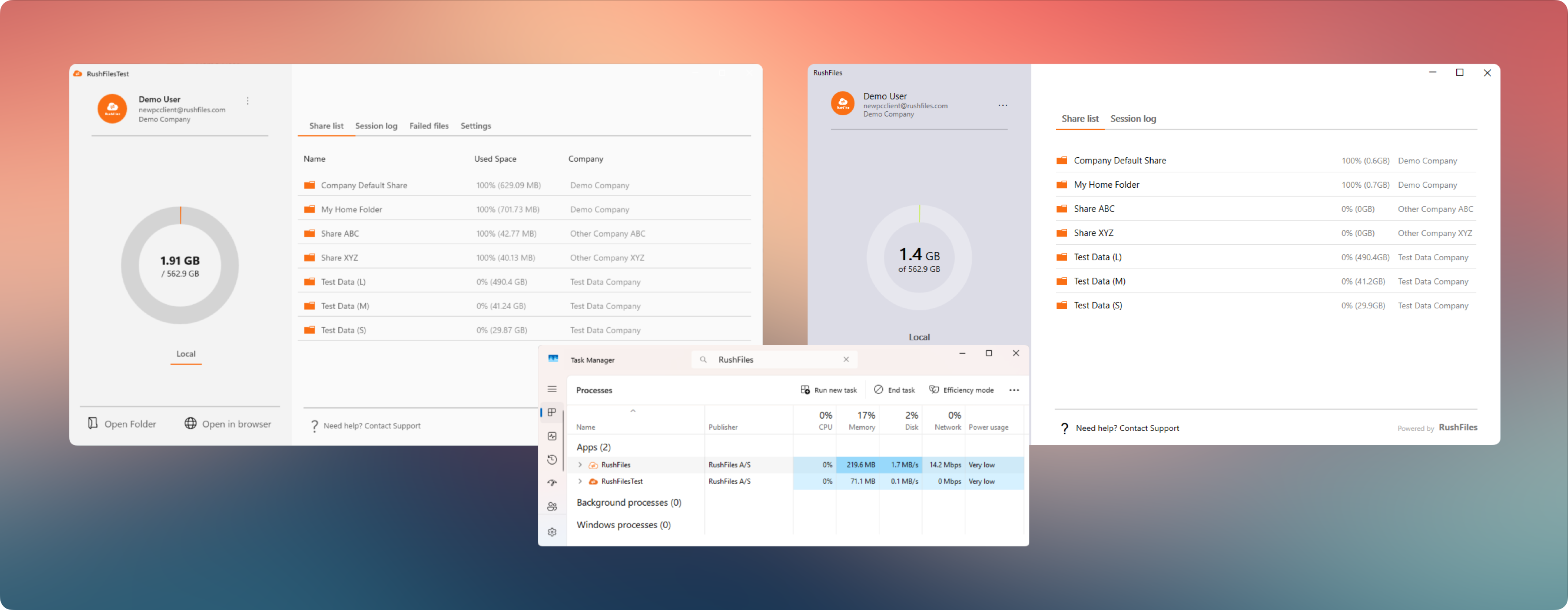
Memory usage stays low even with very large Shares with the new sync engine and cloud-folder based system.
Example: ~71 MB with multiple large Shares assigned.
Minimal disk activity when idle (~0.1 MB/s).
Does not incur overhead from virtual drive mounting.
Overall lightweight and efficient, especially noticeable when users have large or numerous Shares.
PC Client (right)
Memory usage increases significantly with large Shares due to CBFS virtual drive architecture.
Example: ~219 MB under the same user account and Share structure.
Higher disk I/O (~1.7 MB/s while idle) due to legacy sync mechanics and virtual drive management.
Less efficient with large-scale data, leading to higher baseline resource usage.
Windows App (left)
The context menu is now fully integrated into the Windows 11 shell, so users no longer need to click Show more options to access RushFiles actions.
Two additional options are now available:
Free up space
Allows the user to manually evict a file from the local device on demand, without waiting for Windows’ automatic cleanup.
Always keep on this device
Ensures the selected file stays permanently available offline and is never removed by Windows’ built-in cloud file eviction logic, which is always active with the new sync engine used by the Windows app.
PC Client (right)
Users may need to expand the “Show more options” menu to see them depending on the Windows version.

Windows App
The Failed files tab lists any files that could not be uploaded to the server.
Recovering a file saves a local copy of the failed version to a folder the user selects, and re-synchronizes the file from the server.
PC Client
The old PC client does not include a Failed files tab.
- Users had to rely on manual recovery methods or the cache recovery tool
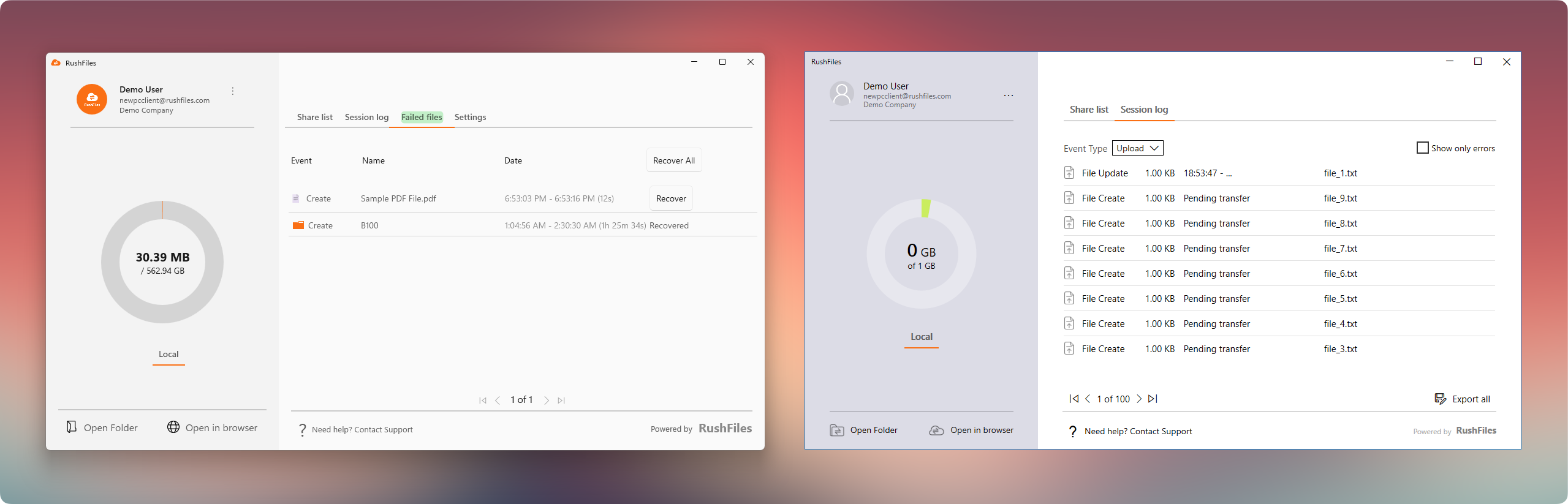
This section highlights the visual and functional differences in how the new Windows App presents information compared to the PC Client. It focuses on changes in layout, the organization of tabs, the introduction of clear column headers, and the updated file status indicators that appear within the interface.
The Windows App (left) now includes four distinct tabs, two of which are newly introduced
Share list
Session log
Failed files (New)
Settings (New)
The PC Client (right) only provides two tabs: Share list and Session log.
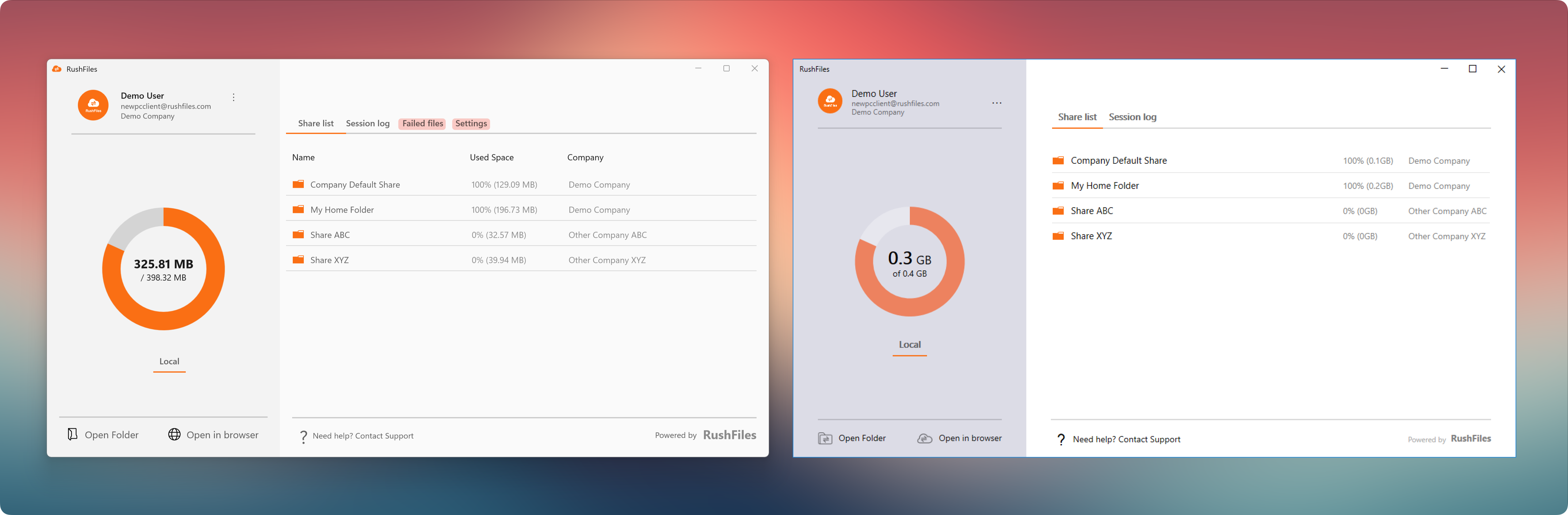
The Windows App (left) shows clear column headers in every tab, while the PC Client (right) has no column headers.
Examples include:Share list - Name, Used Space, Company
Session log - Event, Name, Size, Date, Status
Failed files - Event, Name, Date
Session log filtering and export is not available yet in the Windows App
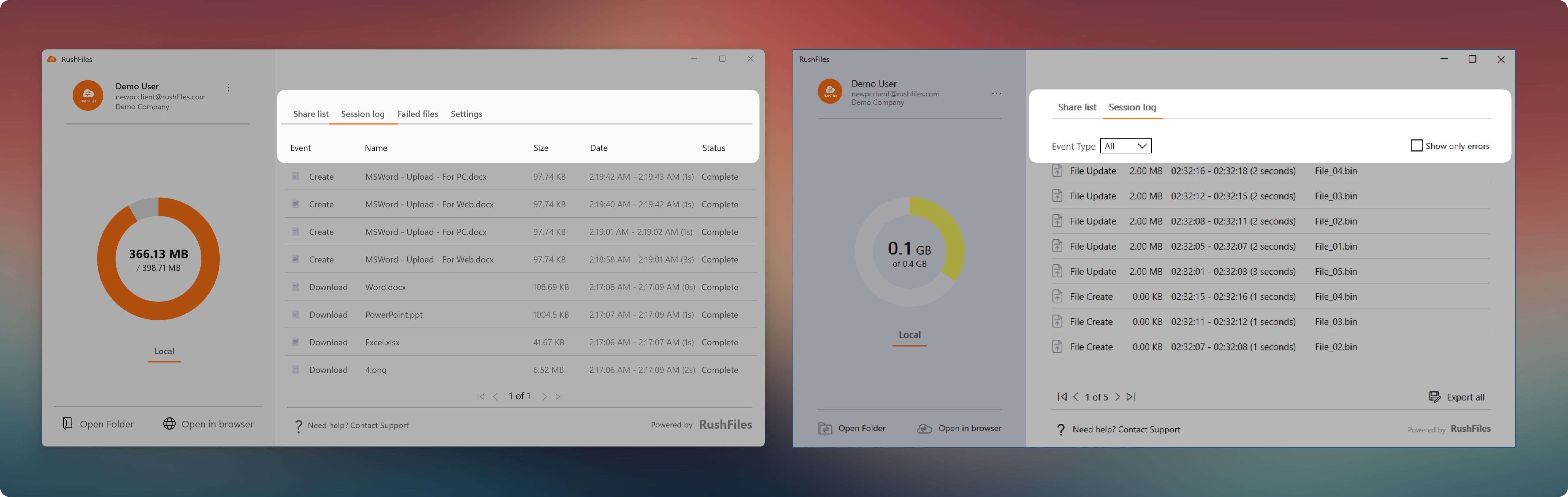
This layout helps the user quickly understand the context of each item and improves navigation across different tabs.
Windows App (left)
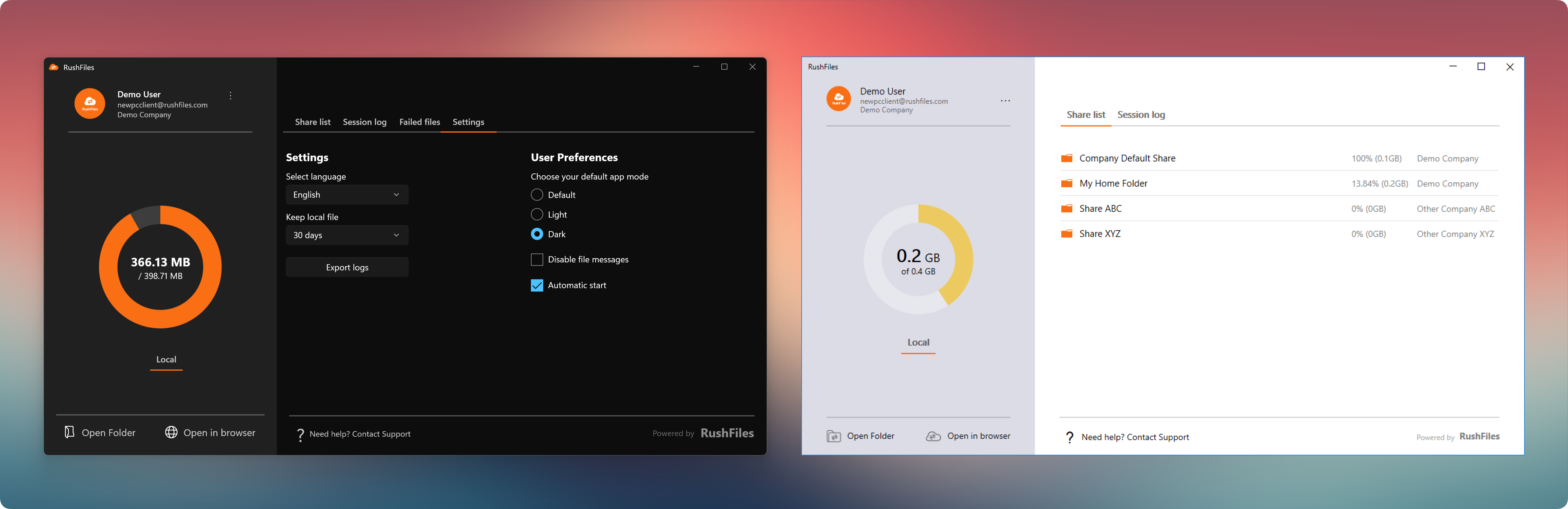
The Windows app now provides a dedicated Settings tab, making configuration options easier to find and access.
All app preferences are consolidated in one place, including:
Language selection
Keep local file duration
Export logs
App mode (Default, Light, Dark)
Disable file messages
Automatic start
This tab-based approach improves navigation because users no longer need to click through dropdown menus to find basic settings.
The Drive Letter option is no longer present because the Windows app uses a new sync engine that integrates directly as a cloud folder in Windows Explorer, removing the need for a CBFS-mounted virtual drive.
PC Client (right)
In the PC Client, Settings are accessed through the horizontal ellipsis menu in the upper-right corner. Users must select “Settings” from the dropdown to open the configuration window.
Includes options such as:
Language selection
Drive letter assignment (still present due to CBFS virtual drive architecture)
Keep local file duration
Disable file messages
Automatic start
Because the PC Client uses a separate pop-up window and dropdown navigation, locating settings is less direct and not as streamlined as in the Windows App.

Windows App (left)
The Windows app introduces a built-in Dark Mode, accessible under the Settings tab.
Users can choose between Default, Light, and Dark modes.
The Dark Mode applies across the entire interface, offering improved visibility in low-light environments and providing a more modern, customizable user experience.
PC Client (right)
The PC Client does not support Dark Mode.
Its interface is limited to the default light-themed layout with no UI theme customization options.
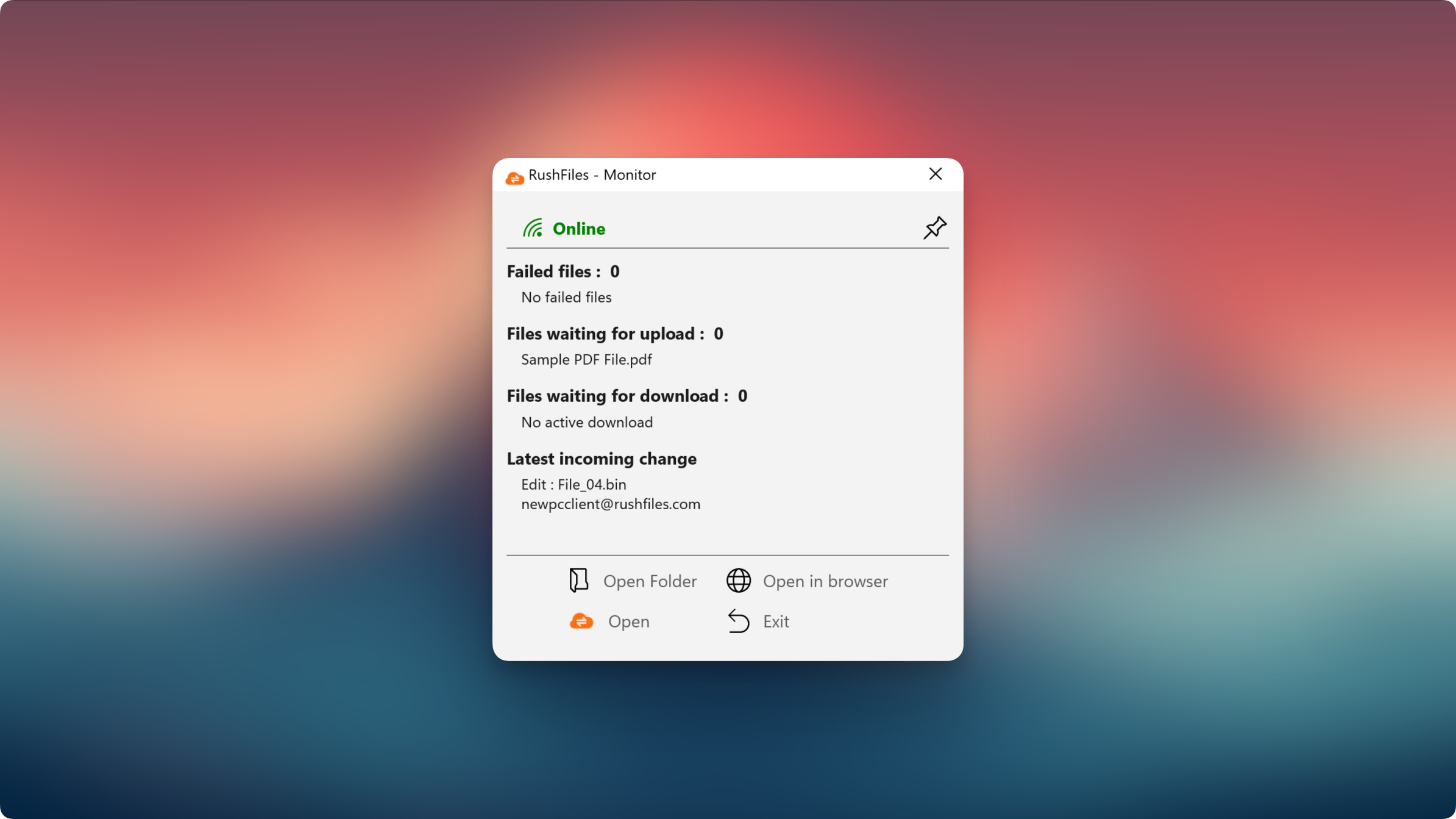
The RushFiles Monitor Area is a compact companion window included with the Windows app, designed to give users a clear, real-time snapshot of synchronization activity. It highlights failed files, pending uploads and downloads, and the latest incoming changes. This helps users understand the synchronization state at a glance, without having to go through the Session log.
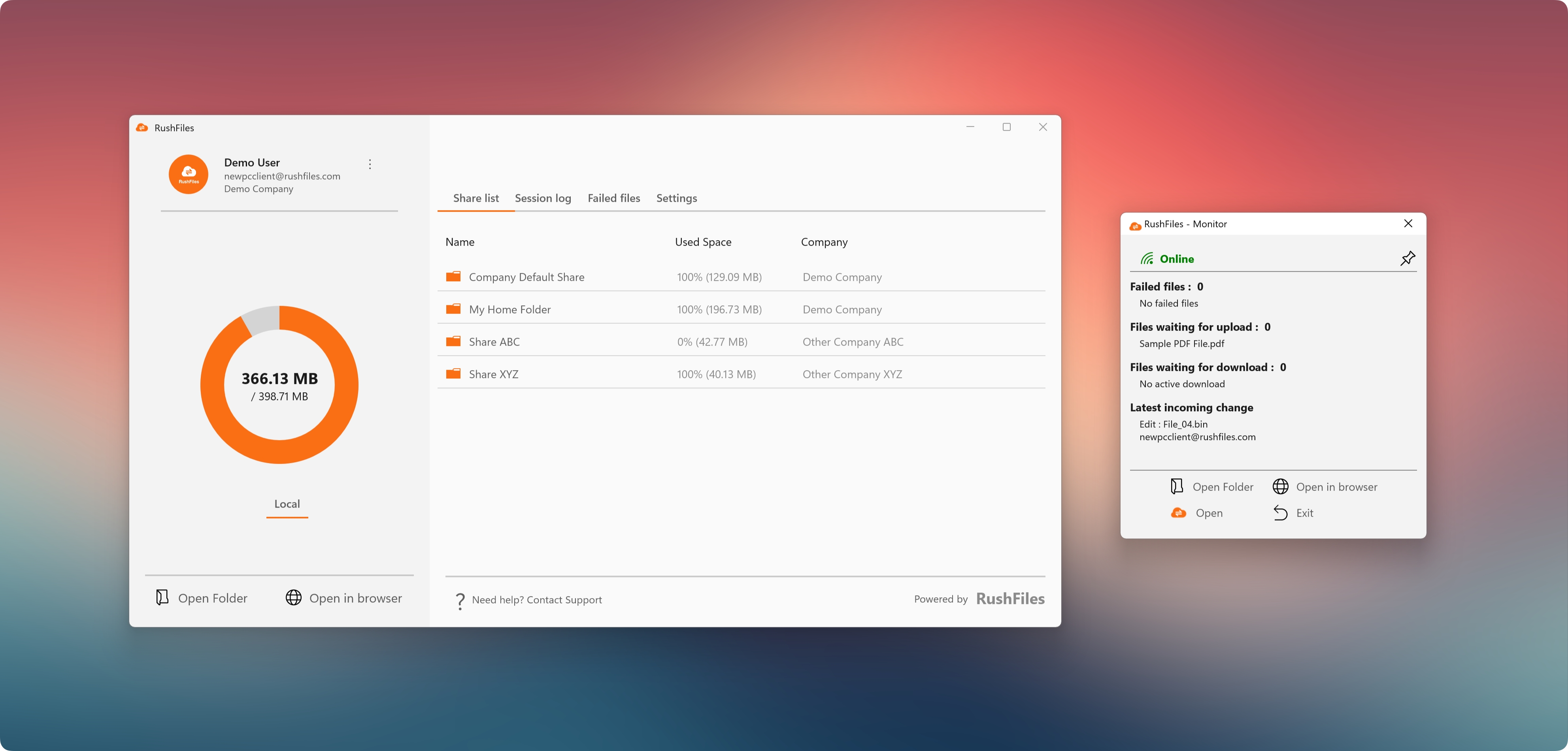
It features:
An indicator showing Online / Offline status.
A pin button. When pressed, the monitor tab remains in the foreground.
Information about the sync status:
Failed files
Shows the latest failed file and the date/time it occurred.
Files waiting for upload
Displays the number of files pending upload.
Shows the filename currently being uploaded (if any).
Files waiting for download
Shows the number of files pending download.
Displays the filename currently being downloaded (if any).
Latest incoming change
Shows the most recent incoming change detected in real time.
Includes the filename and the email address of the user who triggered the change.
The Monitor UI also provides quick access buttons at the bottom:
Open Folder, Open in browser, Open, and Exit.
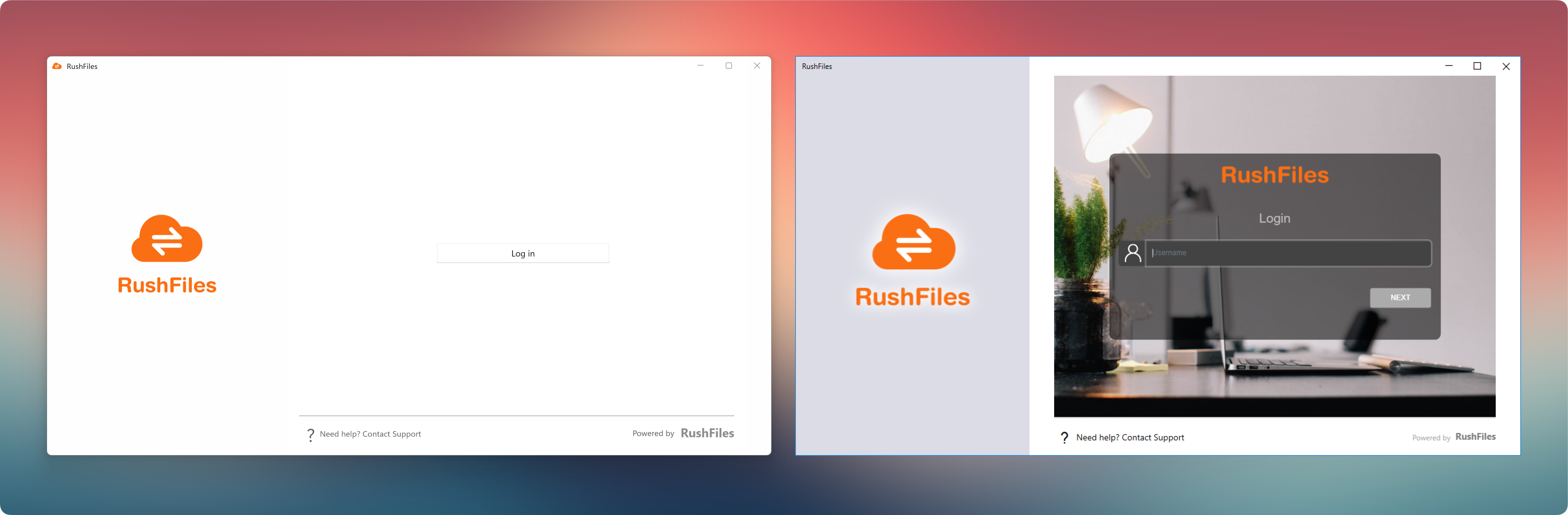
Windows App (left)
Displays a simplified login screen.
When the user clicks Login, the app automatically opens the default web browser on the machine.
The browser loads the RushFiles Web Client login page where the user signs in.
After successful authentication, the user is redirected back to the Windows app.
PC Client (right)
Uses a built-in embedded browser inside the application.
The login happens directly within the PC Client UI instead of an external web browser.
For End-users, please contact the reseller or account host for assistance. Each reseller manages its own company accounts and provides support for access, configuration, and troubleshooting.
For Partners and resellers, please contact the RushFiles Support team by submitting a new ticket at: Submit New Support Ticket