
Overview
The Manage Companies menu is available only in Reseller Mode. It allows Reseller Admins to view and manage all company accounts associated with their reseller account.
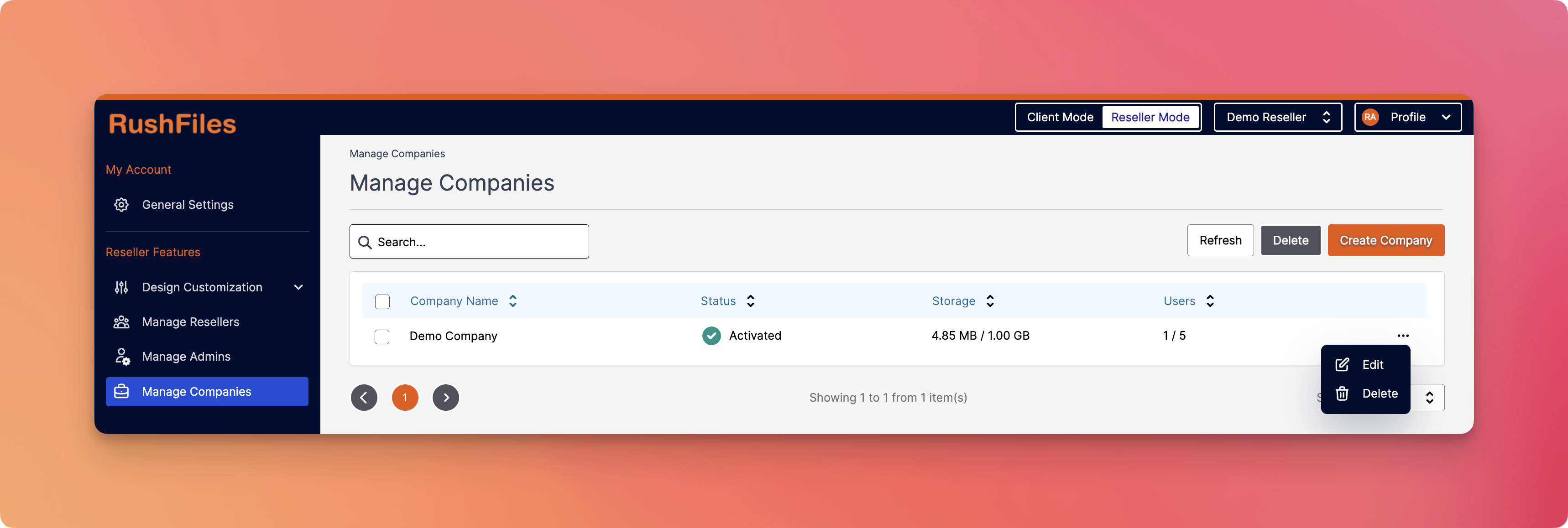
From this section, Reseller admins can monitor storage usage, user limits, and account status, as well as perform key actions like creating, editing, or deleting a company account.
Accessing Manage Companies
To access this menu:
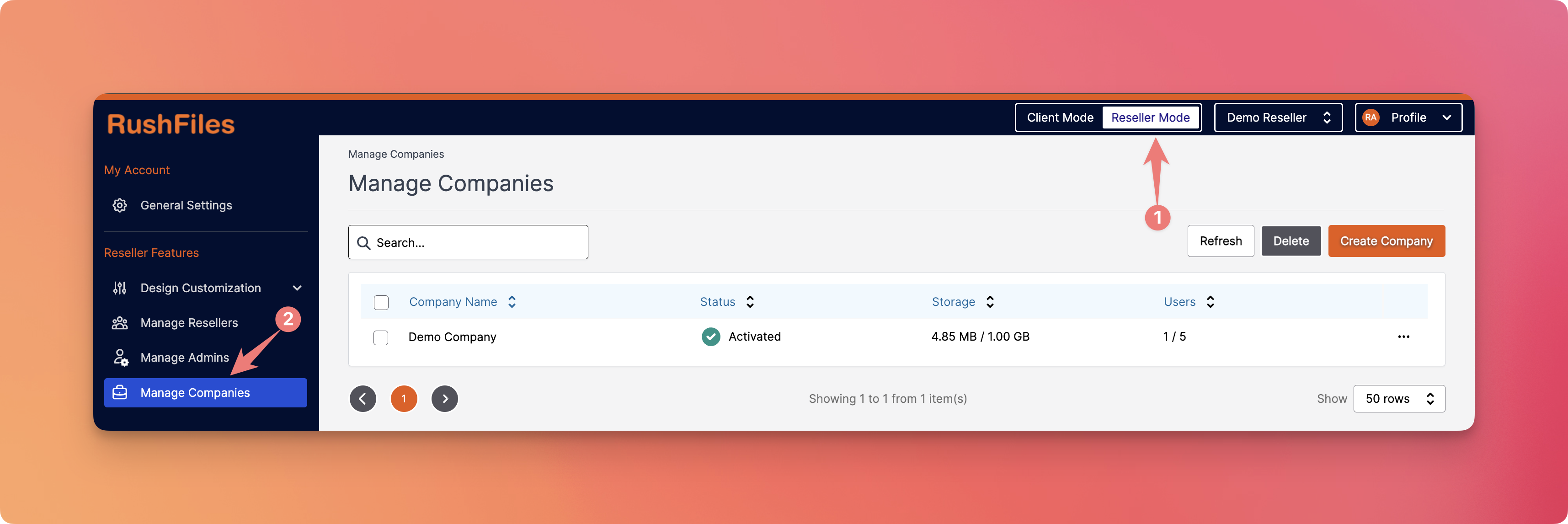
- Switch to Reseller Mode.
- From the left-hand navigation, click on Manage Companies.
Available Actions
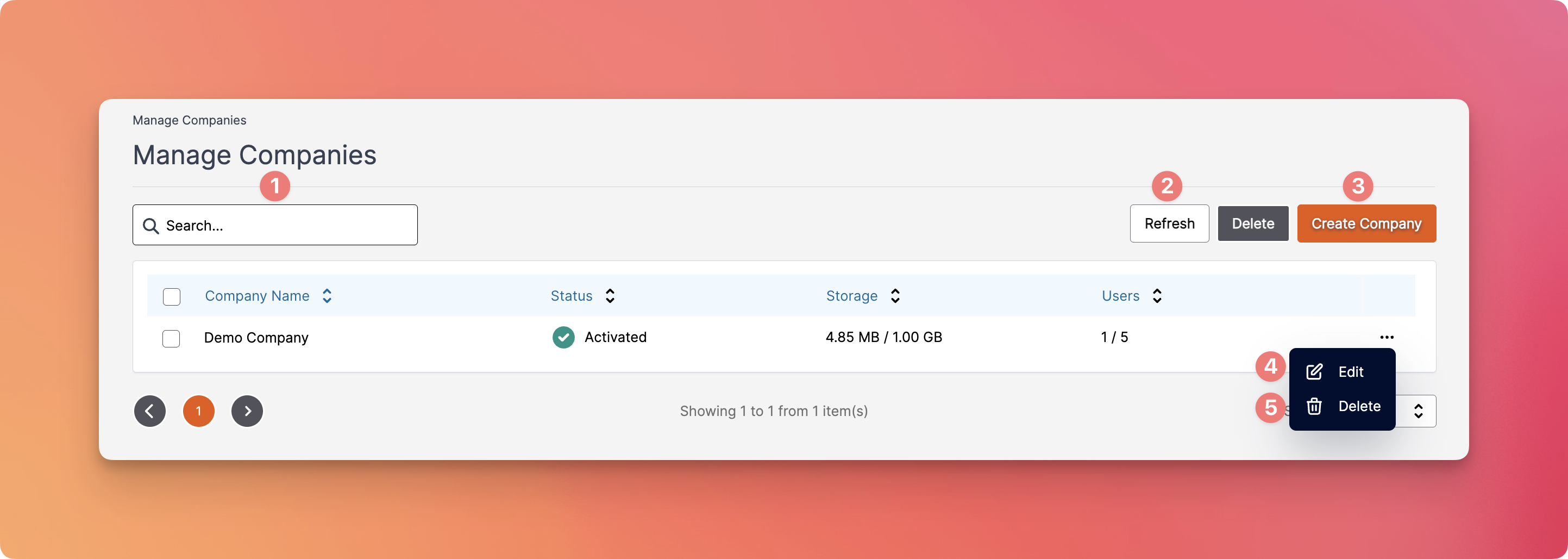
- Search Bar - Use the search bar to filter company accounts by name for quick access.
- Refresh - Click this to reload and display the latest company data (e.g., storage updates, user changes).
- Create Company - Use this button to create a new company account under your reseller.
- Edit - Click the three-dot menu next to a company and select Edit to update company details.
- Delete - You can remove a company by selecting it via checkbox or using the three-dot menu and clicking Delete. Be cautious—this action is irreversible.
Related Articles
- How to add or create a new company account?
- How to edit or manage a company account?
- How to delete a company account?
Company Table Columns

- Company Name – Displays the name of the company.
- Status – Indicates whether the company is Activated or Deactivated.
- Storage – Shows current storage usage against the allocated quota (e.g., 4.85 MB / 1.00 GB).
- Users – Displays the number of users created versus the allowed user limit (e.g., 1 / 5).
You can also sort columns by clicking the arrow icon beside each column header.
Important Notes
- Only users with Reseller Admin privileges can access and manage companies.
- Ensure proper caution when deleting companies as this may result in permanent data loss.
Contact Support
Please contact your top reseller or organization's administrator if you have questions or need help with the service.